
Make Videos with Google Omni
Make videos just by typing a sentence, no camera or editing software required. This beginner's guide walks you through Google Omni step by step, from your first clip to fun tricks like AI drone shots.
If you have ever wanted to make a short video for your business or your audience but felt stopped by cameras, editing software, or the cost of hiring someone, this guide is for you. Google Omni lets you describe a video in plain words and get a finished clip back a few moments later. No timeline to learn. No green screen. No film crew. You type a sentence, and the AI builds the video for you. By the end of this guide, you will have made your first one and you will know the fun tricks that make people stop scrolling.
What Google Omni Actually Is
Google Omni is Google's newest AI tool for making and editing video. The full name is Gemini Omni, and the model doing the work is called Gemini Omni Flash. Google announced it in May 2026, and it replaced an older Google video tool called Veo inside the Gemini app. So if you ever read an older tutorial that mentions "Veo," know that Omni is the newer, smarter version of the same idea.
Here is the simplest way to think about it. You give Omni an input, and it gives you a video. That input can be a sentence you type, a photo you upload, or even a video clip you already have. Google describes Omni as a model that can "create anything from any input, starting with video." The "starting with video" part matters. Google has said images and audio on their own are coming later. For now, video is the main event, and it is very good at it.
A few things make Omni stand out from older AI video tools:
It edits by conversation
You do not start over to make a change. You just describe the edit in plain English, and it updates the clip you already made.
It generates sound
Omni can add dialogue, sound effects, and music to your video, not just the picture. This is called native audio.
It understands the real world
Ask it to explain how rockets work, and it pulls in actual facts. You do not have to feed it everything yourself.
It knows physics
Gravity, motion, and the way light behaves all look more believable than they did in earlier tools.
What You Need Before You Start
You need two things. A Google account, which you almost certainly already have if you use Gmail or YouTube, and a paid Google AI plan. That second one trips people up, so let's be clear about it.
Omni inside the Gemini app is not free. It sits behind a subscription called Google AI, which comes in a few levels. The good news is the entry level is cheap, and it includes everything you need to follow this guide. You also need to be 18 or older to use it.
| Plan | Price (US, per month) | Best for |
|---|---|---|
| Google AI Plus | $7.99 | Trying Omni and making videos now and then. This is all you need to start. |
| Google AI Pro | $19.99 | Making videos often, plus more of Gemini's other features. |
| Google AI Ultra | $100 and up | Heavy creators who want the highest usage limits. |
Start with Google AI Plus. There is no reason to pay more until you know you love this. Prices are the US figures at the time of writing and can change or differ by country, so check what shows up at checkout for you.
Want to taste it for free first? When Omni launched, Google offered free access to try it through YouTube Shorts and the YouTube Create app. Free access on those surfaces can be limited or promotional, so treat it as a sample. The full experience this guide covers lives in the Gemini app on a paid plan.
Where Omni lives
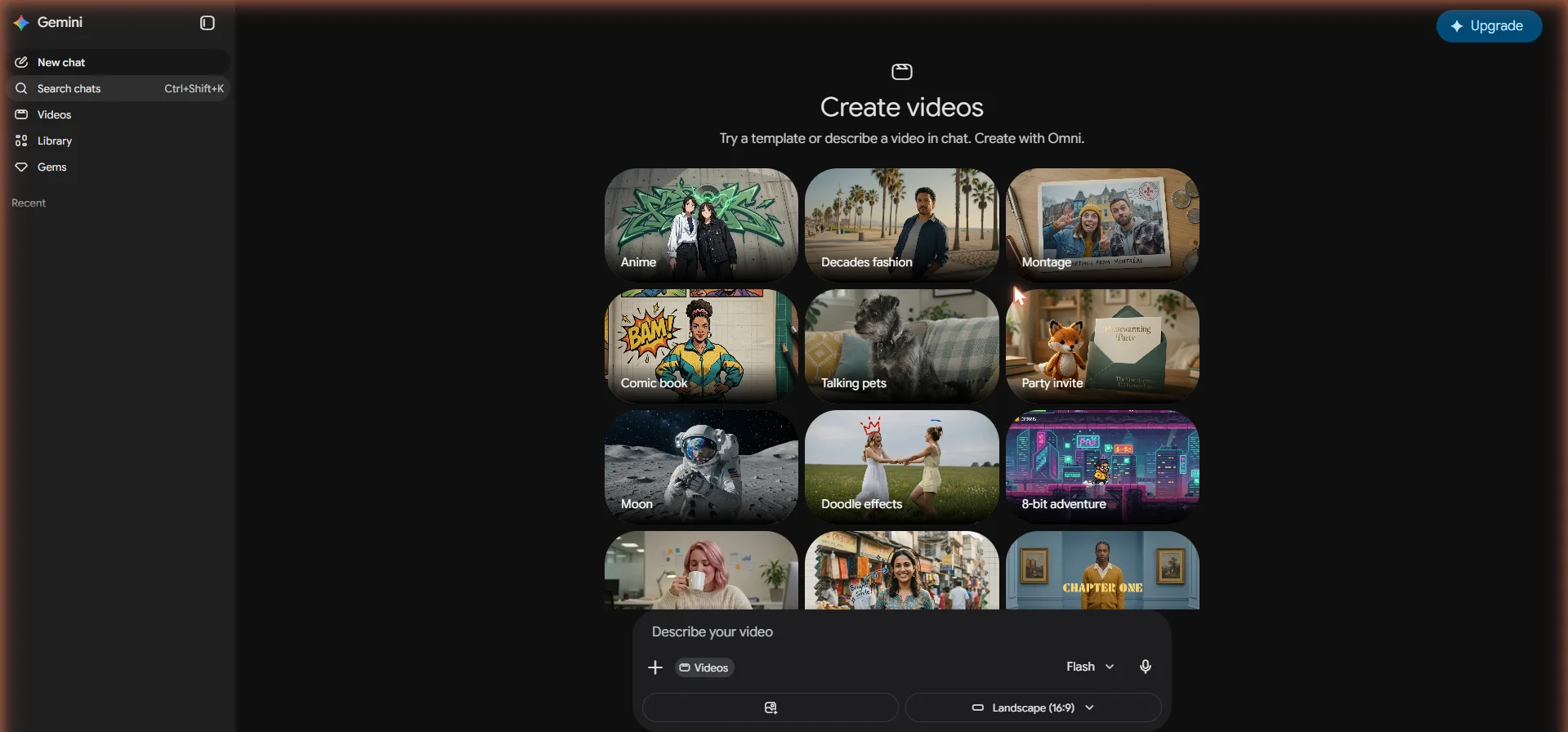
Once you are signed in to a paid plan, go to the Gemini app in your browser. On the left side of the screen, you will see a row of icons. Look for the Videos icon. That is your door into Omni. Click it, and you will land on a page where you can start creating. There is no separate app to download and no setup wizard to fight through. If you can find that Videos icon, you are ready.
Make Your First Video in Five Minutes
This is the part everyone wants to get to, so let's just do it. We are going to make a video from a single sentence. This is called text-to-video, and it is the easiest way in.
- Open the Videos area in the Gemini app, as covered above.
- Find the prompt box near the bottom of the screen. This is just a text field where you describe what you want.
- Type a description of your video. Keep it visual and specific. We will use the example below in a second.
- Choose your shape. There is usually an option for landscape (wide, good for YouTube) or vertical (tall, good for phones and Shorts). Pick whichever fits where you will post it.
- Click the generate button. Now wait. Depending on how busy Google's servers are, this can take anywhere from a few seconds to a few minutes.
- Watch your clip. That is it. You just made a video by typing a sentence.
For your very first try, copy this prompt. It is detailed on purpose, because detail is what gets you a good result.
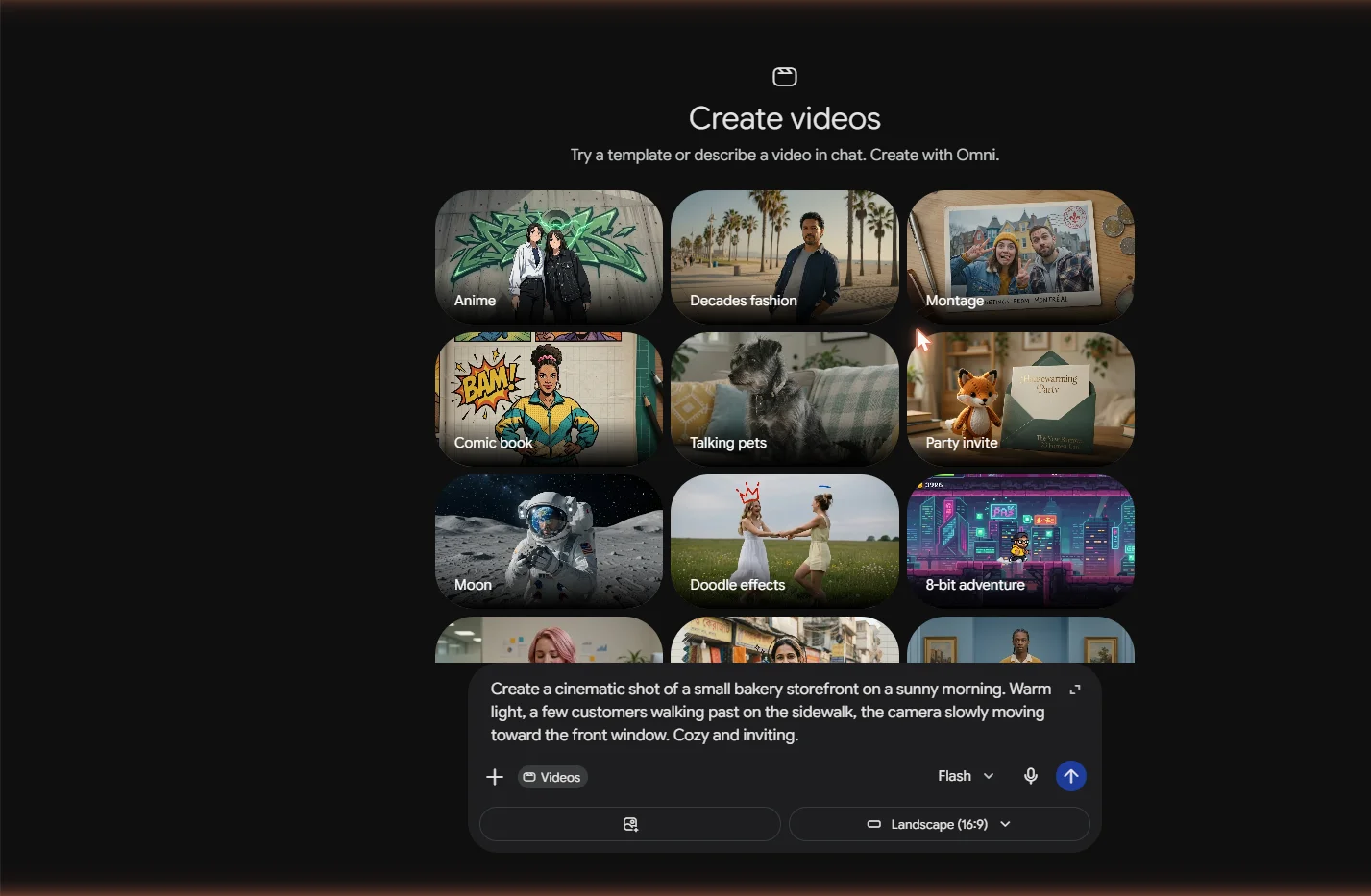
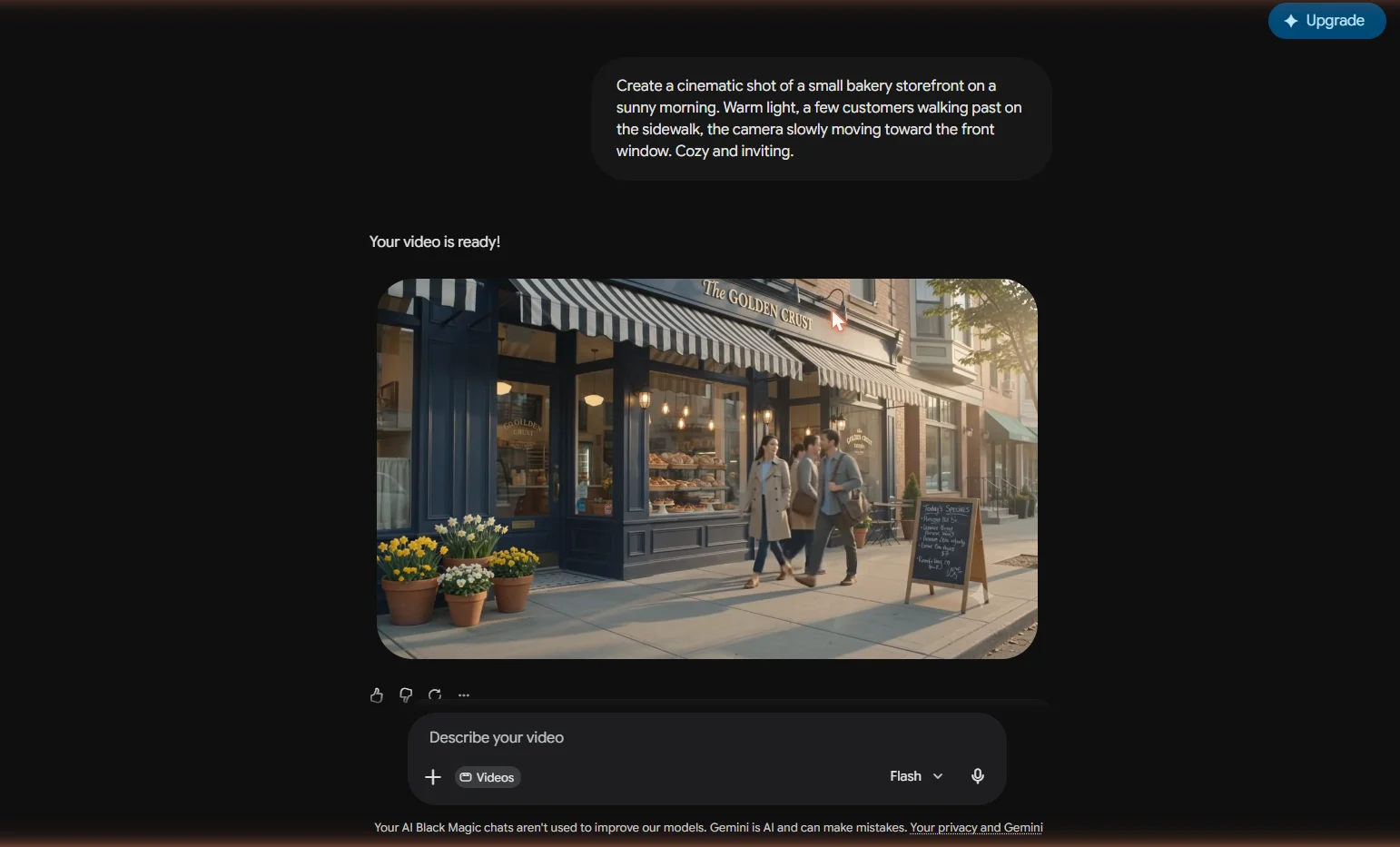
Create a cinematic shot of a small bakery storefront on a sunny morning. Warm light, a few customers walking past on the sidewalk, the camera slowly moving toward the front window. Cozy and inviting.
Notice what that prompt does. It names the scene (a bakery storefront), the mood (sunny, warm, cozy), the action (customers walking, camera moving), and the feel (cinematic). You do not need fancy film words. You just need to paint a clear picture with everyday language.
One thing to expect: clips are 10 seconds long. That is not a mistake or a limit you can pay to remove right now. Google set it on purpose, because most people making short social videos do not need more than that yet. Plan your idea around 10 seconds and you will be happy.
The Real Magic: Editing by Just Talking
Making a video from a sentence is fun. But the feature that will change how you work is editing. With most tools, if the video is almost right but not quite, you are stuck. With Omni, you just say what to fix.
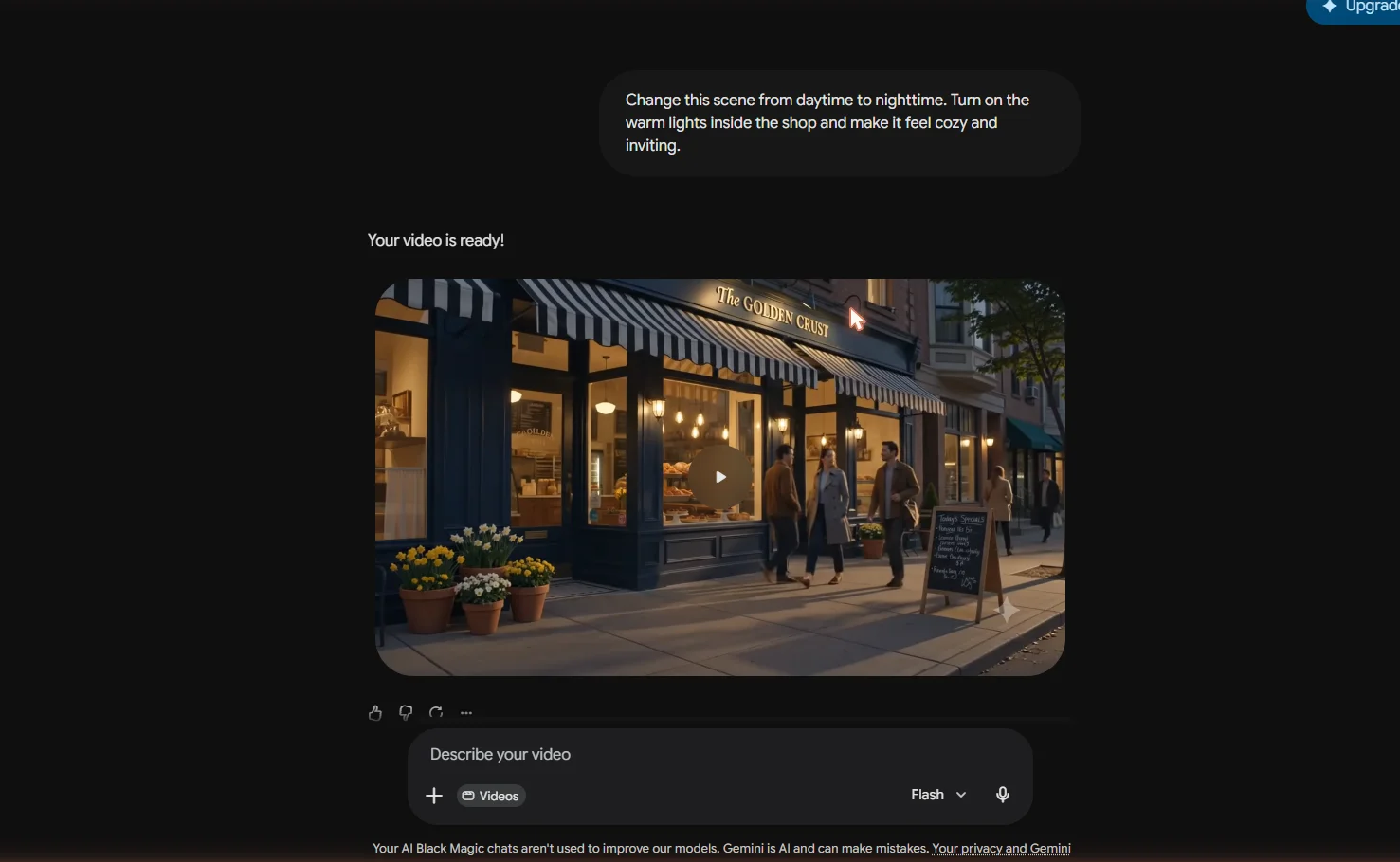
Say your bakery clip came out great, but you wish it were nighttime instead of morning. You do not start over. You type a new instruction right under your video, something like this:
Change this scene from daytime to nighttime. Turn on the warm lights inside the shop and make it feel cozy and inviting.
Click generate again, and Omni hands you the same video, now at night. It kept your storefront, your customers, and your camera move. It only changed what you asked it to change. This back-and-forth has a name. Google calls it conversational editing, or multi-turn editing, and it is the heart of why Omni feels different. You make a video, look at it, ask for a tweak, look again, and keep going until it is right.
Key habit to build: iterate on the video Omni made, not your original idea. Generate something, then refine it one instruction at a time. Small, single changes work better than asking for five things at once.
There is a flip side worth knowing. Sometimes a result comes out so far off that no amount of tweaking saves it. When that happens, do not keep editing the bad version. Go back, change your original prompt, and generate fresh. Knowing when to refine and when to restart is a skill you will pick up fast, and it saves a lot of frustration.
Five Fun Things to Try Next
Once your first video and your first edit feel easy, here is where it gets genuinely fun. These are the features that make people say "wait, it can do that?" You do not need any of them to get value out of Omni, but they are worth playing with.
1. Turn your photos into video
Omni can take a still photo and bring it to life. You can upload up to five photos as references, and it will use them to build a moving clip. This is perfect for a product shot you want to animate, or a place you photographed that you want to turn into a moving scene. Click the plus icon, upload your image or images, describe what should happen, and generate.
2. Make an avatar of yourself
This is the feature that gets the most attention. You can create a digital version of yourself, an avatar, that looks and sounds like you. Once it is set up, you can put yourself in videos without ever turning on a camera again. Setup is a one-time thing. You scan a code with your phone, then record a short clip where you say some numbers out loud and rotate your head.
Why the numbers? That recording step is a safety feature. By making you say specific numbers and move your head, Google confirms it is really you, so nobody can build an avatar of your face from a random photo. Only you can use your avatar. It is friction on purpose, and it is a good thing.
After setup, you call on your avatar in the prompt box, give it a line to say, and Omni generates you delivering it. You can even have your avatar speak in different languages, which is a clever way to reach an audience that does not share your first language.
3. Borrow a style from a reference image
Upload an image with a look you like, a cartoon style, a painting, a particular color palette, and tell Omni to apply that style to your video. It is a quick way to give a plain clip a distinct visual personality without knowing anything about color grading or filters.
4. The fake drone shot (this one went viral)
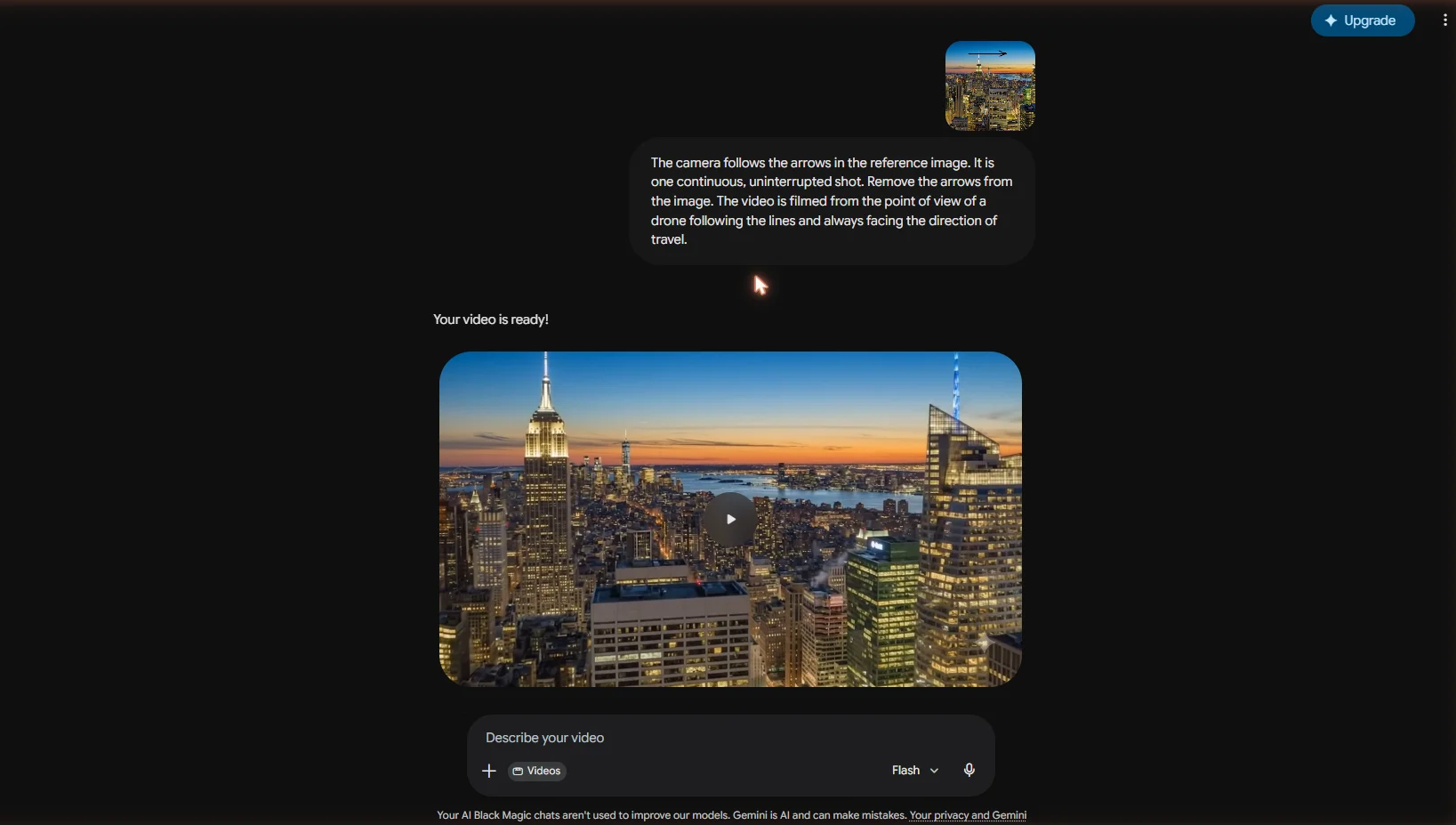
Here is a trick worth the price of admission. Take a single photo of a scene, draw a line or arrows on it showing the path you want the camera to travel, and upload it. Omni will fly the camera along that path, and the result looks like a smooth drone shot. People use this to turn one still image into a sweeping cinematic moment.
The camera follows the arrows in the reference image. It is one continuous, uninterrupted shot. Remove the arrows from the image. The video is filmed from the point of view of a drone following the lines and always facing the direction of travel.
5. Make a quick explainer video
Because Omni knows real facts, you can ask it to explain a topic and it will build the whole thing, narration and visuals included. Type "create an explainer video that explains how rockets work," and you get a narrated, illustrated clip without writing a script. Swap in your own topic and you have a fast way to make educational content for your audience.
The location swap: upload a clip filmed from inside a car, plus a screenshot of any place on Google Maps, and ask Omni to make the car drive through that location. People have placed the same drive in New York one moment and London the next. It is a fun example of how flexible the editing really is.
Prompting Tips That Actually Matter
Your results live or die by your prompt. The good news is that good prompting is mostly common sense once you know a few habits. Here is what separates a clip that wows from one that disappoints.
Give more detail, not less
A vague prompt gets a vague video. Instead of "a dog in a park," try "a golden retriever running across a sunny park, chasing a red ball, slow motion, leaves blowing in the wind." Name the subject, the setting, the lighting, the action, and the mood. The more of those you include, the closer the result lands to what you pictured.
Let Gemini write your prompt for you
You do not have to be a great writer to get great prompts. You can ask the regular Gemini chat to help you craft a video prompt, then paste the result into Omni. It is a useful shortcut when you know the idea in your head but cannot find the words.
Name your timings
Because clips are 10 seconds, you can direct what happens when. Try instructions like "for the first 3 seconds, show the closed door, then have it swing open." Telling Omni where in the clip something should happen gives you far more control than describing one frozen moment.
One change at a time
When editing, resist the urge to fix everything in one prompt. Change the lighting. Look. Then change the camera. Look again. Stacking many edits into a single instruction is the fastest way to get a confusing result.
Honesty check: Omni is impressive, but it is not perfect. You will get the odd glitch, a hand that looks wrong, or an effect that fires at the wrong second. That is normal for AI video right now. Generate a couple of versions, keep the best, and do not expect every single try to be flawless.
Saving, Sharing, and Finding Your Videos
Making the video is only half the job. Here is how to get it out into the world and how to find it again later.
When you are happy with a clip, look for the share icon. It gives you a public link you can send to anyone, and options to post straight to social platforms. If you would rather keep the file, use the menu (often shown as three dots) and choose download to save the video to your computer.
Worried about losing track of everything you make? Don't be. The Gemini app keeps a Library. Look for the Library icon in the left sidebar, and you will find every video you have generated sitting there. Click any one of them to jump back into the chat where you made it, so you can keep refining it or download it whenever you like.
How to Know It's AI
One question comes up a lot, and it is worth answering plainly. Every video you make with Omni carries an invisible watermark called SynthID. You cannot see or hear it, but it lets Google identify the clip as AI-made. Google also attaches something called Content Credentials, which work the same way.
This matters for two reasons. First, you can be honest with your audience, because the provenance travels with the file. Second, if you ever want to check whether a video you find was made with Google AI, you can upload it and have Gemini tell you. It is a quiet feature, but it is part of using these tools responsibly, and it is good to know it is there.
Your 10-Minute Starter Challenge
Reading about this only gets you so far. The way you actually learn Omni is by making something, so here is a tiny project you can finish in about ten minutes. Do all three steps in order, and you will have practiced generating, editing, and refining, which is the whole core loop.
Step 1. Generate. Paste this into the prompt box and create your clip:
A cozy coffee shop interior in the morning. Steam rising from a fresh cup on a wooden table by the window, soft natural light, the camera slowly pushing in toward the cup.
Step 2. Edit by talking. Once it generates, refine it without starting over:
Make it rainy outside the window with soft raindrops on the glass. Keep everything else the same.
Step 3. Add a finishing touch. One more single change:
Add a small open sign glowing in the window. Keep the rain and the coffee cup exactly as they are.
That is the full rhythm of working in Omni. Make something, change one thing, change one more thing. If you can do this, you can make almost anything the tool is capable of.
Make it yours: once you have run the challenge, swap the coffee shop for your own business or a scene from your life. The fastest way to get good is to keep the loop going on ideas you actually care about.
You're Ready. Now Go Make Something.
You now know what Google Omni is, how to get into it, how to make a video from a sentence, and how to refine it just by talking. That is more than enough to start creating things people will actually want to watch. When your ideas outgrow quick clips and you want more control over bigger projects, Google has a companion tool called Google Flow that runs on the same Omni technology and is built for larger productions. That is a great next step, and a guide for another day. For now, open the Gemini app, run the challenge above, and see what you can make in the next ten minutes.