
How to Use Claude Design
Anthropic's Claude Design turns a conversation into polished decks, landing pages, and mobile prototypes. A practical walkthrough with three worked examples and the advanced moves most users miss.
Most people read about Claude Design and stop there. They see a launch post, watch a 90-second demo, think "neat, I'll try it later." Then later never comes, because nobody actually walked them through the thing. So here's that walk-through. This is a hands-on tutorial built around the way a real user actually opens Claude Design, picks a project, types a prompt, and ships something. You'll see three short examples (a pitch deck, a landing page, and a mobile app prototype) plus the advanced moves that separate "I made an okay slide" from "this looks like a designer made it." By the end you'll know enough to open claude.ai/design tonight and walk out with something usable.
What Claude Design Actually Is
Claude Design is Anthropic's new visual workspace. It launched in April 2026 under the Anthropic Labs banner, which is their way of saying "this is a real product but we're still polishing it." You describe what you want, Claude draws a first version on a canvas, and you refine it through conversation and a few clever interface tricks. Inline comments, sliders, direct edits. The whole thing runs in your browser.
The product lives at claude.ai/design, has its own URL, and exists outside the regular Claude chat. It's also separate from Claude Code, which is the coding product some users may already know. Same parent company, same underlying model (Claude Opus 4.7), totally different jobs. Claude Design draws stuff. Claude Code edits codebases.
What it builds well
- Pitch decks and slide presentations
- Landing pages and microsites
- Mobile and web app prototypes that actually run, not just static images
- Marketing assets and one-pagers
- Dashboard and admin tool mockups
- Wireframes you can hand off to a developer
What it isn't
- A replacement for Figma if you're doing pixel-level production design
- A photo editor or image generator (different tools for different jobs)
- A free product (more on that in the next section)
Getting In
Claude Design is included in every paid Claude plan: Pro, Max, Team, and Enterprise. Free users do not have access. Enterprise admins have it switched off by default, so if you're on an Enterprise plan and don't see it, you'll need IT or your admin to flip the toggle under Organization Settings, Capabilities, Anthropic Labs.
The plan tiers map to how much you can produce per week. Anthropic charges Claude Design separately from your regular chat usage, so building a deck doesn't eat into your prompting allowance. Here's the practical breakdown.
| Plan | What you get |
|---|---|
| Pro | Weekly allowance, perfect for trying it out and light use |
| Max 5x | Semi-regular use, for product managers and engineers building mockups often |
| Max 20x | Power use, for designers and creatives shipping daily |
| Team | Per-seat allowances, with Premium seats giving more capacity |
| Enterprise | Either seat-based or usage-based at standard API rates |
The allowance resets every week and is per user, not pooled. If you blow through your allowance, you can pay for extra usage, same as with the regular Claude product. To get in, open a browser, go to claude.ai/design, and sign in with your Claude account. That's it. There's no separate app to download. Web-only right now, which means iPad use is cramped but workable on a desktop or laptop.
The Interface in 60 Seconds
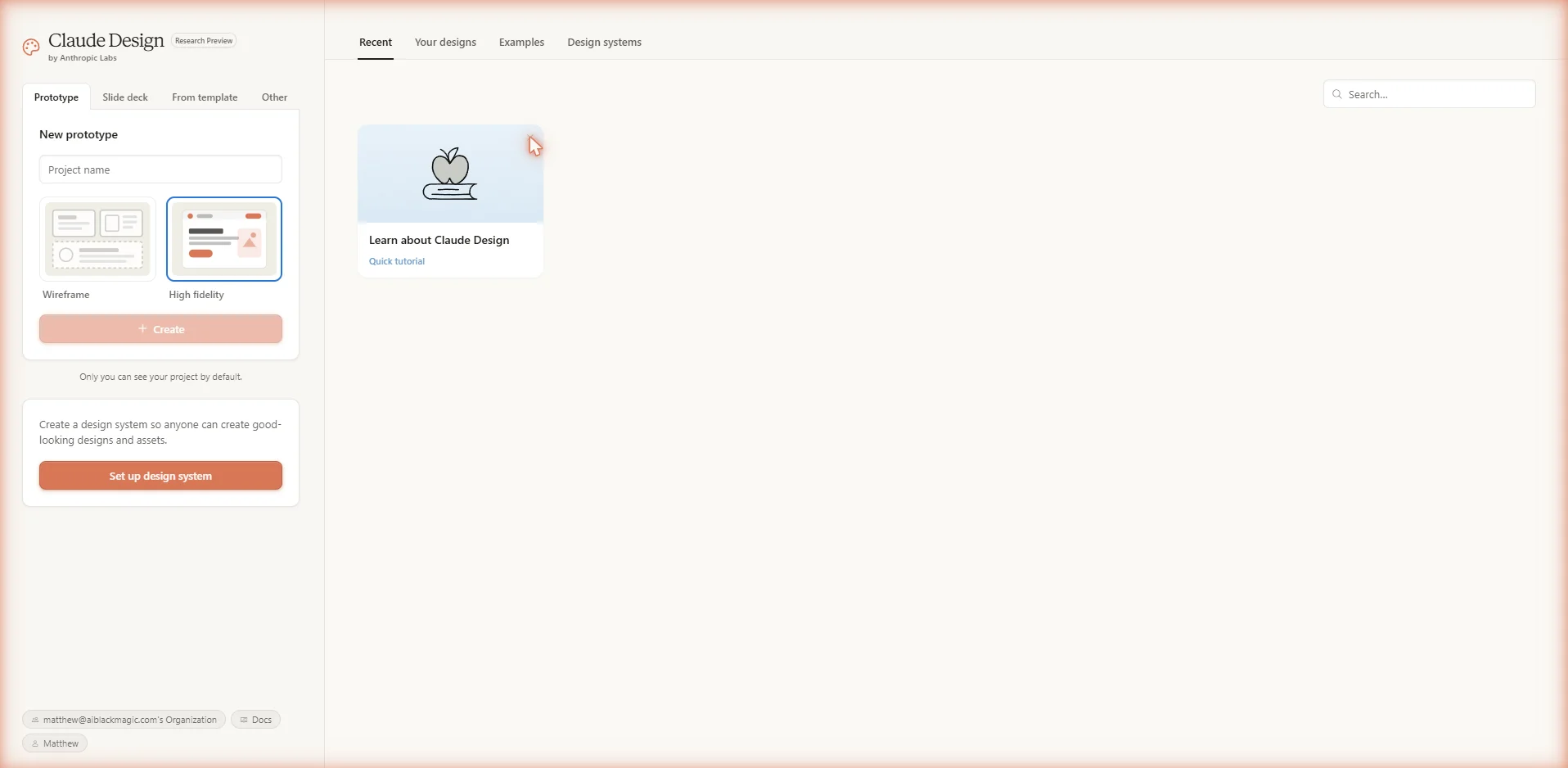
When you land on claude.ai/design, the first thing you see is a project picker modal. It asks what you want to make and gives you four starting points.
Prototype
For app screens, dashboards, interactive UI work. Has a sub-toggle for Wireframe (low fidelity) or High fidelity (polished).
Slide deck
For presentations, pitches, and on-brand decks. Exports to PPTX, PDF, or Canva.
From template
Start from a pre-built design you can remix. Faster than starting from scratch when something close already exists.
Other
Open-ended. Useful for one-pagers, microsites, infographics, anything custom.
Above the picker are four tabs: Recent, Your designs, Examples, and Design systems. Examples is worth a quick visit on day one because Anthropic showcases reference designs you can poke at and copy.
Once you create a project, the screen splits into two panes. Chat on the left, canvas on the right. You write a prompt in the chat, Claude generates a design on the canvas. You refine, Claude updates. The canvas isn't just a static preview. You can click on elements, comment directly on them, and edit text inline without asking Claude to change it.
Pro Tip: Before you start typing into the chat, take a second to think about your audience and the outcome. Claude Design responds dramatically better to "Build a landing page for a sleep coaching service aimed at busy parents, with a calm modern feel" than it does to "make a landing page."
Example One: A Pitch Deck
Let's start with the easiest win. Slide decks are the use case where Claude Design quietly outperforms expectations, mostly because Anthropic trained the model on what good slides look like, not just what's possible.
Open claude.ai/design, click "Slide deck," give the project a name, and click Create. Then drop this prompt into the chat.
Claude will think for about 30 seconds, then generate all 10 slides on the canvas. You can scroll through them, click on any slide, and start editing. Right out of the gate the deck will be presentable. Not perfect, but presentable.
Now the part most users skip: refining. Switch to comment mode on the canvas, click the cover slide, and say "the headline feels generic, give me three alternatives that are more memorable." Claude generates options inline. Pick the one you like, and it commits to the deck.
Want to change the whole vibe? Go back to chat and type "make the entire deck darker and more minimalist, more like Linear or Notion's style." Claude rebuilds the visual treatment across all 10 slides. This is one of the more impressive things to watch in real time.
Export when you're done. PPTX if you want to keep editing in PowerPoint, PDF if you're emailing it, or "Send to Canva" if you want full editorial control. The Canva integration is genuinely useful because once your design is in Canva, your team can collaborate on it natively.
Example Two: A Landing Page
Landing pages are where Claude Design starts to feel like it's reading your mind. Because the model has been trained heavily on production web design patterns, the first draft usually nails the structure (hero, value props, social proof, FAQ, CTA) without you having to ask.
Click "Other" in the project picker, name it "Sleep Coach Landing," and click Create. Then prompt:
Claude renders the page in about 45 seconds. Now this is where the advanced moves come in.
Move 1: Inline edits. Click directly on the headline and type a replacement. No prompting needed. Same for the pricing number, the CTA button text, any copy on the page.
Move 2: Comment-driven changes. Switch to comment mode, click the hero image area, and write "replace this with an illustration of a parent and child sleeping peacefully, illustrated style, soft palette." Claude swaps it.
Move 3: Sliders. When you've got the layout mostly right but want to tweak proportions, Claude generates custom sliders for things like section padding, button border radius, or font scale. Drag the slider and watch the page update in real time. This is a feature borrowed straight from Figma, and it's a quiet competitive shot.
When you're happy, hit Export and pick "Standalone HTML" to get a single deployable file. Or "Hand off to Claude Code" if you want to take this into production with real APIs and a backend.
Example Three: A Mobile App Prototype
This is the example that'll make some users pause and reconsider whether they need a designer at all. (Spoiler: you probably still do for real production work, but the gap is closing fast.)
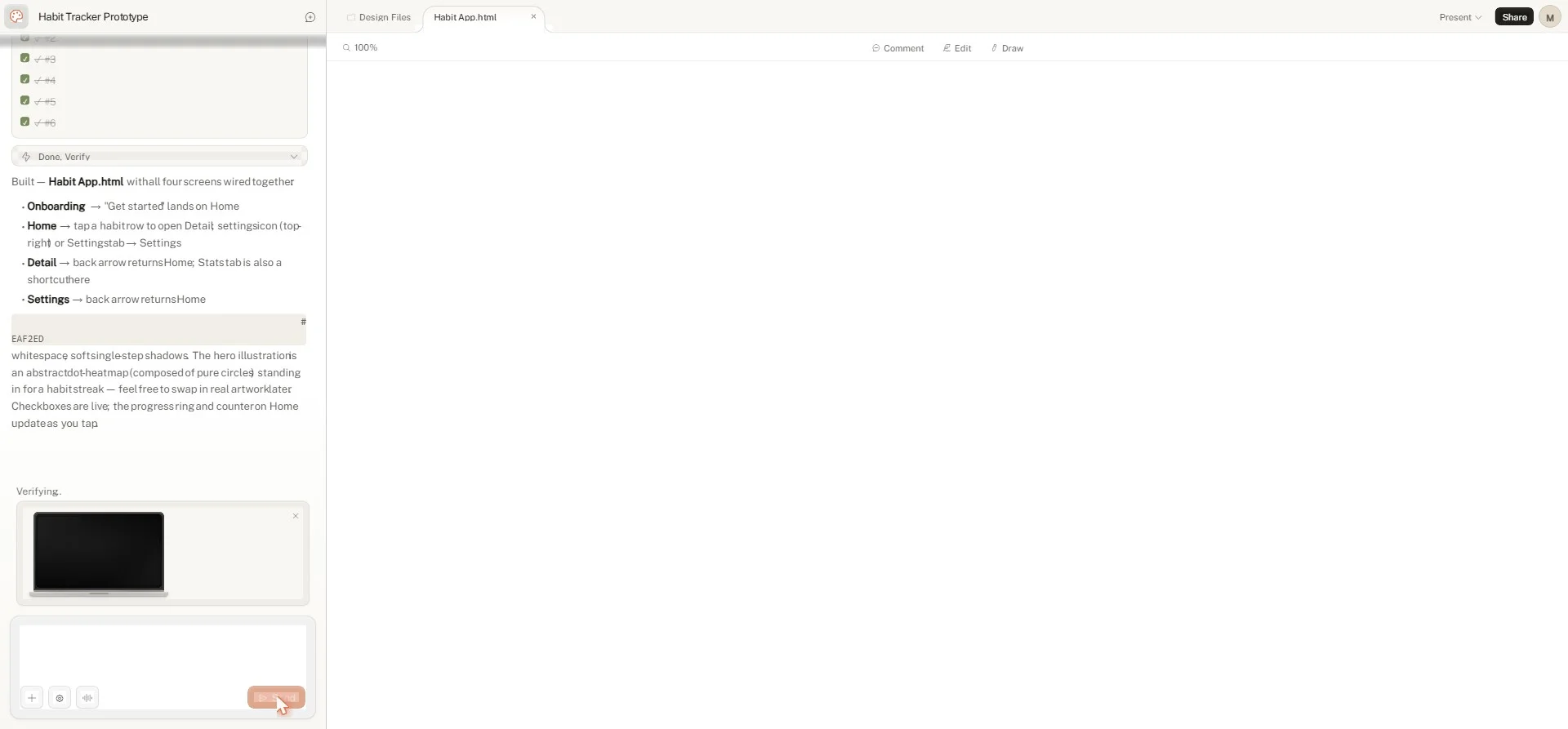
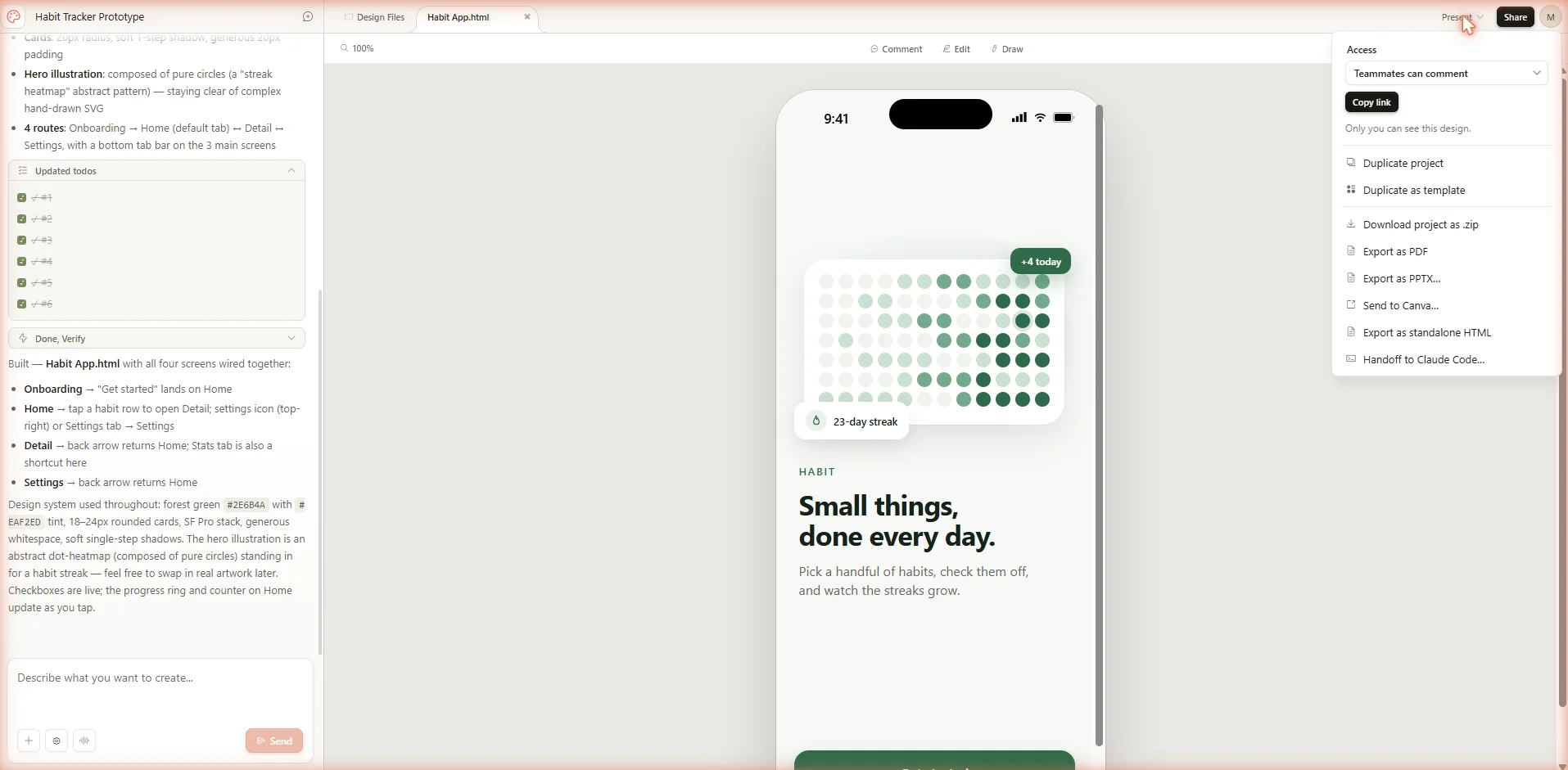
Click "Prototype" in the project picker, toggle "High fidelity," name it "Habit Tracker Prototype," and click Create. Prompt:
The first draft will give you four screens with navigation between them. Tap any element to interact, just like a real app. This isn't a static mockup. It actually runs.
Now the advanced trick: ask Claude to add micro-interactions. Drop this into chat:
Claude rebuilds the prototype with the animations baked in. This is what Anthropic calls "frontier design" in their launch post, and it's worth playing with. You can add voice input, video, even simple 3D elements directly into a prototype without writing a line of code.
Two notes of caution. First, the more complex the prototype, the more likely you'll hit a rough edge. Lag, animation glitches, the occasional regression when Claude rebuilds. Second, this is still a research preview, not a production-ready prototype tool. Treat the output as a high-fidelity demo, not a final shipping app.
The Four Ways to Refine a Design
This is the section that separates beginners from intermediates. Most new users only talk to Claude through the chat, and they get frustrated because every change requires a paragraph of explanation. The advanced users know there are four refinement paths, and each one is best at a specific job.
Chat
Best for broad, structural changes. "Add a sidebar," "make it darker," "show me three alternative layouts." If you're rearranging or rethinking, use chat.
Inline comments
Best for targeted, component-level fixes. Click an element, type your fix. "Make this button padding bigger," "change this to a dropdown." Fast and precise.
Direct text edits
Best for copy. Click a headline, replace the text, done. No prompt, no waiting, no risk that Claude misinterprets what you wanted.
Custom sliders
Best for fine-tuning a value. Spacing, color saturation, font weight, border radius. Drag and see the change live.
The pattern that works is: chat to set up the structure, then switch to comments and sliders for refinement. Direct edits for any copy you want exact control over. Stop trying to do everything through chat. It's slower and the results are less predictable.
Power Move: If your inline comments aren't being picked up (a known bug Anthropic has documented), paste the comment text into the chat instead. Same effect, more reliable.
Design Systems: The Brand Feature That Matters
This is the feature that makes Claude Design feel like more than a toy, and it's the one most users skip because it requires upfront work. Here's the short version. You can teach Claude what your brand looks like, and every project after that automatically uses your colors, typography, and component patterns.
To set it up, click your organization name in the bottom-left corner of the project picker, then run through the design system onboarding flow. You upload at least one of:
- A codebase with your existing components (best for tech-savvy users)
- A slide deck or PDF that reflects your visual identity
- Brand assets like logos, color palettes, and typography specs
Claude extracts a design system from whatever you give it. The output includes a color palette, typography scale, common components (buttons, cards, navigation), and layout patterns. You review what Claude pulled out, accept it (or remix it), then publish.
After that, every new project in your organization uses your brand by default. No re-uploading, no re-explaining your colors, no "actually our brand blue is more like this hex code, not whatever you picked." Once it's set, it stays set.
Why this matters: Without a design system, every Claude Design output looks the same as everyone else's. Generic, competent, forgettable. With one, your decks and landing pages start looking like your business actually made them.
If you plan to use Claude Design more than three or four times, set up your design system before your fifth project. It's one of those rare features where 30 minutes of upfront work saves dozens of hours later.
Exporting and Sending to Claude Code
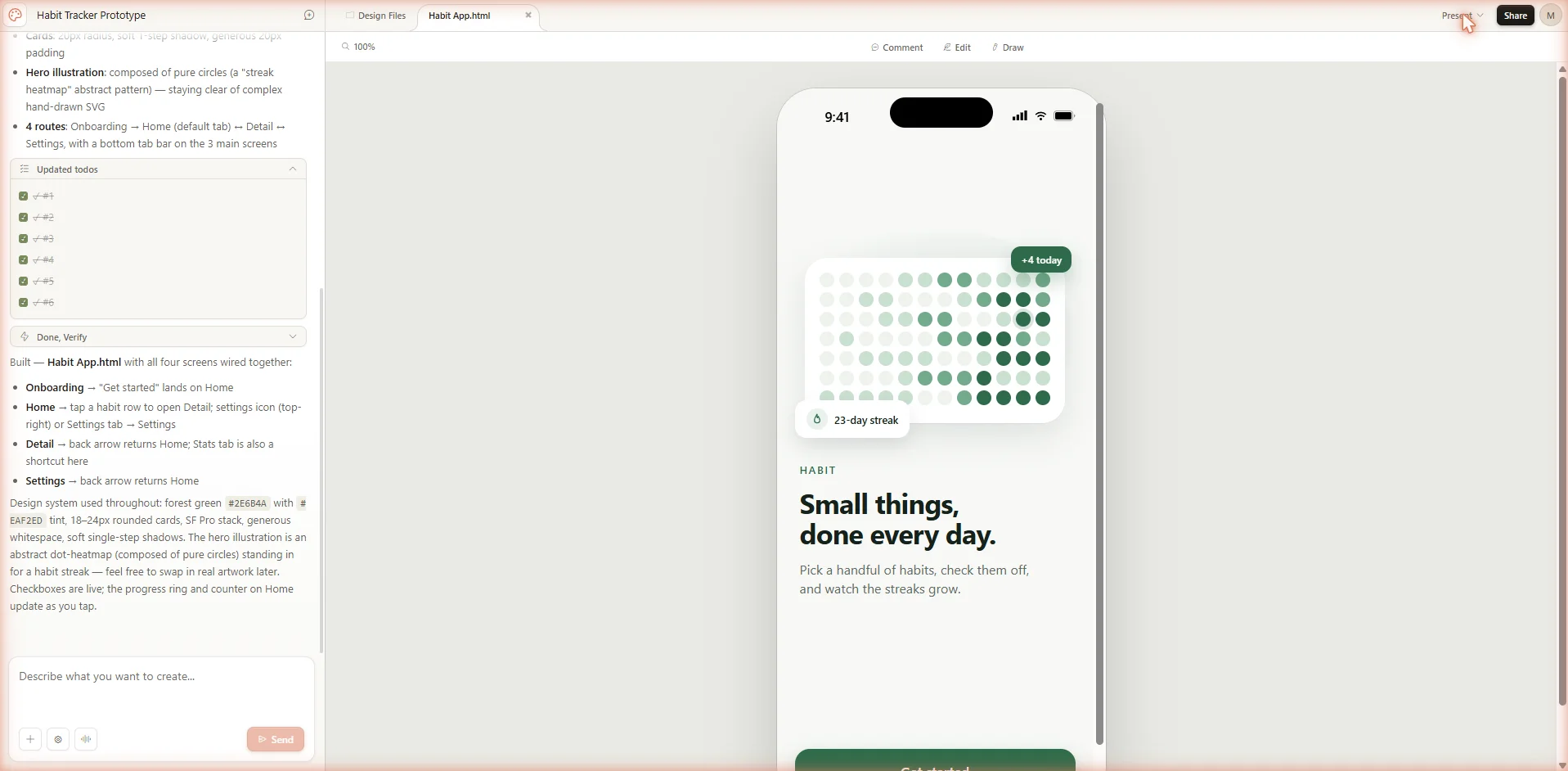
Once you've built something you like, the Export button in the top-right of the canvas gives you seven destinations.
- Download as .zip, the full project bundle, useful for archiving
- Export as PDF, for printing or emailing
- Export as PPTX, for PowerPoint editing
- Send to Canva, opens the design directly in Canva for further editing
- Export as standalone HTML, a single self-contained file you can host anywhere
- Send to local coding agent, passes the design to Claude Code running on your machine
- Send to Claude Code Web, passes the design to the cloud version of Claude Code
The Claude Code handoff is the secret weapon. When you hand off a design to Claude Code, Anthropic packages the design intent (layout, components, behavior, even your design system) into a structured bundle. Claude Code then picks it up with a single instruction and turns the design into actual production code. The mental model is simple. Idea, prototype in Claude Design, working code in Claude Code. That's the entire shippable product cycle in two tools.
For sharing without exporting, every project supports organization-scoped links. View-only, comment-only, or full edit access. Edit access is interesting because a teammate can modify the design and chat with Claude in the same conversation as you. Multiplayer AI design, basically.
Power-User Tips and Prompt Patterns
A few patterns that consistently produce better output.
Pattern 1: The four-part prompt formula
Goal, layout, content, audience. Every prompt should answer all four. "Build a dashboard" is bad. "Build an analytics dashboard for an e-commerce founder, single page with a top metrics row and a chart below, showing revenue and conversion data, dark theme" is good.
Pattern 2: Reference by name
If you've set up a design system, mention your component names directly. "Use the Primary Button component" or "Apply the Card layout pattern." Claude will respect them more reliably than a vague description.
Pattern 3: Ask for variations
Instead of guessing whether you want a darker theme or a brighter one, ask Claude to "show me three alternative layouts" or "give me two more color treatments." Comparing is much faster than iterating from one starting point.
Pattern 4: Save before exploring
Before you make a major change, tell Claude "save what we have and try a different approach." Claude saves a checkpoint, so you can return to it if the new direction doesn't work. This is the equivalent of git for design exploration.
Pattern 5: Ask Claude to critique itself
After Claude generates a design, ask "review this for accessibility issues, contrast problems, and information hierarchy." Claude will catch its own mistakes, and you can have it fix them in the same conversation.
Pattern 6: Use the web capture tool
If you want a design to look like a real product you've seen, use Claude Design's web capture feature to grab UI elements directly from any website. Paste a URL, point at what you want to copy, and Claude pulls in the structure and style as reference.
The biggest mindset shift: Stop treating Claude Design like a magic box that produces finished work. Treat it like a junior designer who needs direction. The more specific your direction, the better the output. The more variations you ask for, the faster you converge on the right answer.
Limits, Bugs, and Honest Trade-Offs
A few things to know before you commit a real project to Claude Design.
Bugs Anthropic has already acknowledged
- Inline comments occasionally disappear before Claude reads them (workaround: paste into chat)
- Compact view mode can trigger save errors (workaround: switch to full view)
- Very large monorepos cause lag (workaround: link a subdirectory instead of the whole repo)
- "Chat upstream error" messages happen (workaround: start a new chat tab in the same project)
Things it doesn't do yet
- No native Figma import or export. You can't take a .fig file in or send a .fig file out.
- No audit logs or admin usage reporting for enterprise teams
- No data residency support (matters if you have compliance requirements)
- No desktop or mobile app, web-only
Where it's weaker than dedicated tools
- Pixel-perfect production design (Figma still wins for component libraries with design tokens)
- Photo editing or image generation (use a real image tool for those)
- Highly customized motion design (basic animations yes, choreographed motion no)
What it's genuinely great at
- Going from idea to a presentable first draft in under five minutes
- Maintaining brand consistency across projects once your design system is set up
- The Claude Code handoff for going from design to working product
- Letting non-designers ship work that doesn't look like it was made by a non-designer
Anthropic explicitly calls Claude Design a complement to Canva and Figma, not a replacement. That's the honest framing. Use it for early exploration, first drafts, decks, prototypes, and concept work. Use the specialized tools for the parts they're better at.
Try This Now
Open claude.ai/design in a new tab. Create a slide deck project. Then grab any AI Black Magic prompt from your library and feed it directly into Claude Design's chat panel.
The pattern works like this. AI Black Magic prompts are already engineered for specificity. They include the four critical pieces (goal, audience, content, style) that Claude Design responds to best. So instead of writing a prompt from scratch, you're plugging in a tested template and watching Claude Design build it.
Try this with a marketing prompt, a pitch deck prompt, or even a content strategy prompt. The output will be visibly better than what you'd get from a generic prompt typed in a hurry. That's the point of using a curated prompt library inside a tool like this. You skip the prompt-engineering trial and error and go straight to a usable first draft.
Two parting thoughts. First, the people who get the most out of Claude Design aren't necessarily the most technical, they're the most specific. Specificity beats sophistication every time. Second, don't wait for the product to leave research preview to start using it. The whole point of being early is finding the patterns that work before everyone else does.
Your Next Move
Pick one AI Black Magic prompt today, open claude.ai/design, paste it in, and see what comes out. Share what you build. The best way to learn this tool is to ship something with it.