
← Back to Tutorials Business Strategy

Build Your Own AI Command Center

Turn Claude into your personal chief of staff. This step-by-step build gives you an AI command center that triages your inbox, maps out your day, and drafts your replies, all from a single morning command.

Business Strategy⏱ 15 min read● Intermediate

Most AI tools wait for you. You open them, you type, they answer, you close them. That is a chatbot. An assistant is something else. It works in the background, checks your inbox and your calendar, and tells you what matters before you have even sat down with your coffee.

That gap is the big story of 2026. AI tools got dramatically better at doing multi-step work on their own this year, and a wave of new agentic tools showed up to ride it: OpenClaw, Hermes Agent, Odysseus, and plenty more. They're genuinely impressive. They're also, for the most part, self-hosted frameworks built for developers. You do not need any of them to get started.

If you have the Claude desktop app, you already have what you need to build a personal command center that reads your email, checks your calendar, and briefs you every morning. Mostly it's just a conversation. This is the full walkthrough, the same system built step by step, so you can copy it.

What you'll build: a small set of read-only AI helpers that triage your Gmail, scan your Google Calendar, write you a "Morning Brief," and render it as a clean visual dashboard you can open in your browser. It only ever looks. It never sends or deletes anything without your say-so.

What a command center actually is

Forget the sci-fi picture for a second. Your command center is three simple things working together: a few specialist helpers that read your accounts, a handful of commands you type to kick things off, and a dashboard that shows you the result. That's it.

Here's the part that makes it feel like magic instead of just another chat window. Every morning you type one command, and a few seconds later you get a clear readout: the top three things that matter today, your calendar with any clashes flagged, your inbox sorted into "needs a reply," "good to know," and "ignore," plus a suggested plan for your day. The noise gets pushed down. The real stuff floats up.

This is the line that separates a chatbot from an assistant. A chatbot answers when asked. An assistant watches your inbox and your calendar and surfaces what needs you. The big agentic platforms of 2026 are all chasing this same idea. OpenClaw leans on connecting agents to the apps you already use, Hermes Agent focuses on learning how you work over time, and Odysseus gives you a local workspace to run agents and keep memory. They're powerful, and they're mostly aimed at people comfortable running their own servers.

Claude Code gets you to the same outcome without any of that. It runs inside an app you can install in a couple of minutes, and you build the whole thing by talking to it in plain English.

The honest version: you're not coding an app here. You're describing what you want in plain language, and Claude writes the files that make it real. If you can write an email, you can build this.

The three building blocks

Before you build, it helps to know the three pieces you're working with. You don't need to understand them deeply. You just need to know what each one does.

Claude Code

An AI agent that lives inside the Claude desktop app. Unlike a normal chat, it can read and write files on your computer and carry out multi-step tasks. It's the worker.

MCP connectors

Standard "plugs" that let Claude reach into your other apps, like Gmail and Google Calendar, in a controlled way. MCP is just the agreed-upon shape of the plug.

Sub-agents

Specialist helpers you define once. Each gets a narrow job and only the tools it needs. One reads email, one reads your calendar. Nothing more.

Your profile

A plain text file that tells Claude who you are, how you work, and what counts as important. Every helper reads it. It's the brain of the whole thing.

The magic is in how they stack. The connectors give Claude eyes on your accounts. The sub-agents do focused jobs with those eyes. Your profile tells them what matters. And a few commands tie it together into a routine you actually use.

Setup on Windows

This is the part where beginners usually get stuck, so take it slowly. There are three things to set up: the app, the connectors, and a working folder.

1. Install the Claude desktop app

Go to Claude's website and download the desktop app for Windows. Install it like any other program and sign in. Claude Code is built into the desktop app, so once you're signed in, you already have the agent that does the building.
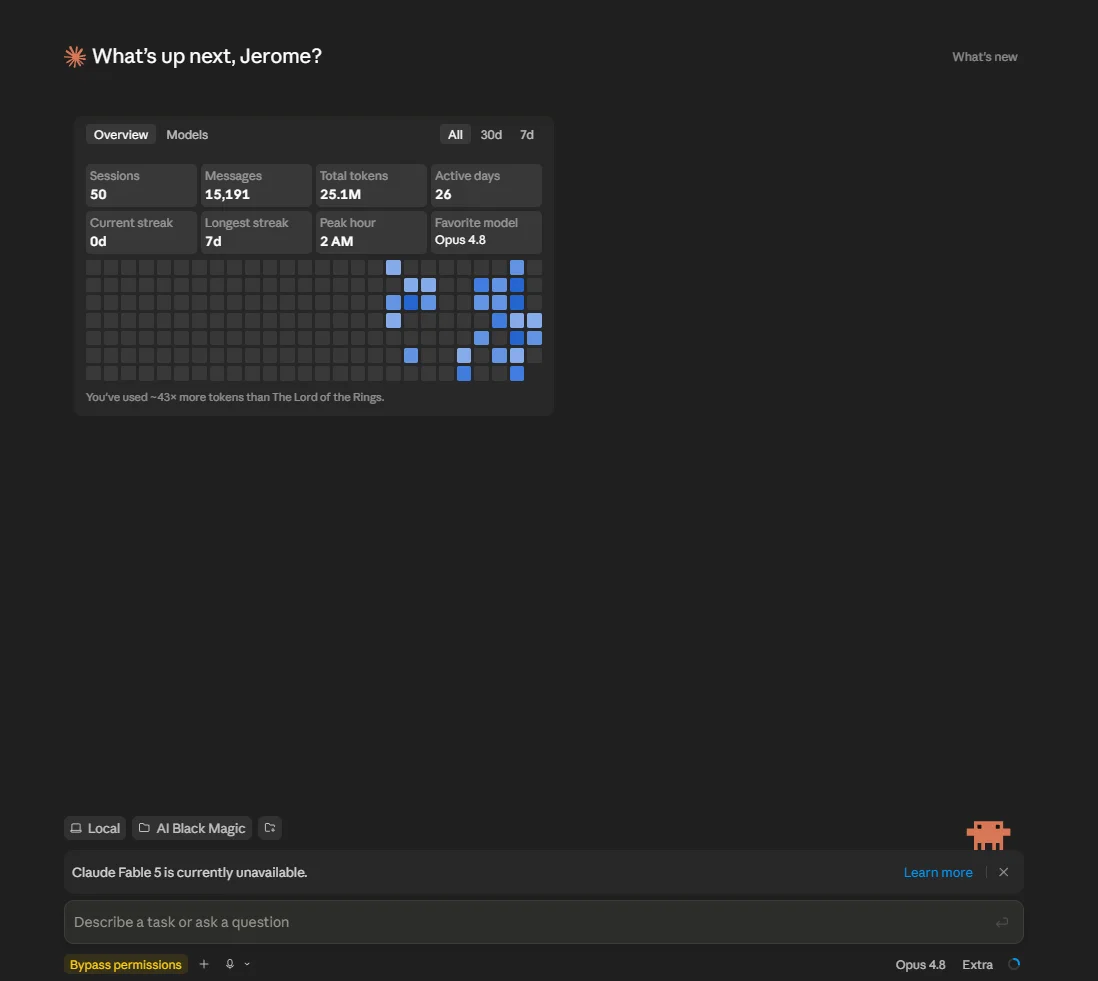
The Claude desktop app open on Windows, showing the main interface where you type to Claude Code.

2. Connect Gmail and Google Calendar

This is how Claude gets to see your email and your schedule. The Gmail and Google Calendar connectors are official, and they connect through your Claude account settings.

Open your account settings on Claude's website, find the Connectors section, and turn on Google Workspace (Gmail and Google Calendar). You'll be asked to sign in to Google and approve access. Once that's done, the connectors automatically show up inside the desktop app and Claude Code. You connect them once on the website, and they're available everywhere.
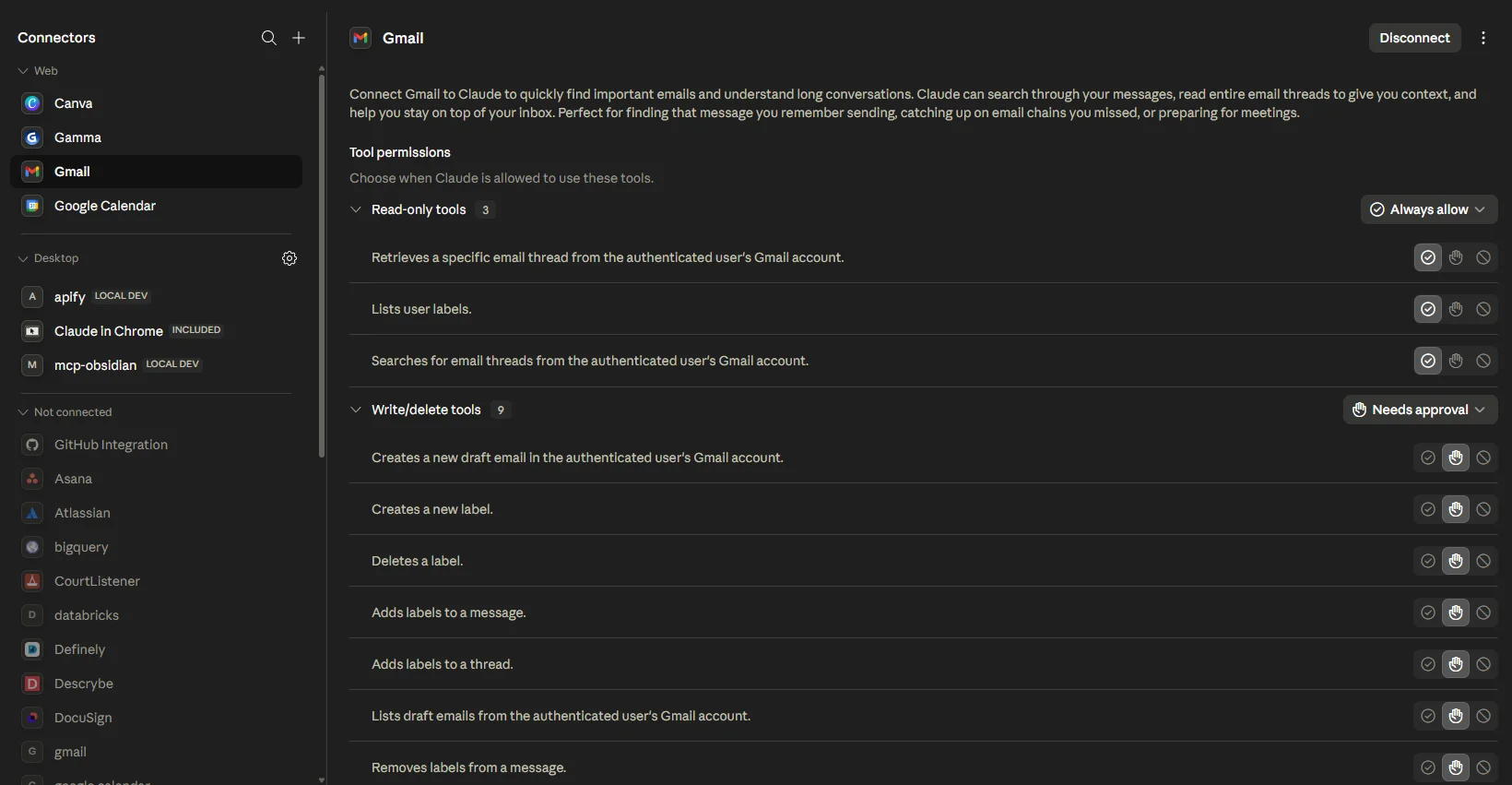
The Connectors settings screen showing Gmail and Google Calendar connected and enabled.

Good news on safety: we build this so it only ever drafts, never sends. A reply gets written for you to review, and you're always the one who clicks send. Reading and drafting is the assistant's job. Sending stays yours.

3. Make a working folder

Create a folder somewhere easy to find, for example on your Desktop, and call it something like "Command-Center." This is where Claude will keep your profile, your helpers, and your dashboard. When you start Claude Code, point it at this folder. Everything it builds lives here, which means it's all yours and easy to back up.

Step 1: Teach it who you are

This is the on-ramp, and it's the friendliest part. Before Claude can decide what matters in your inbox, it needs to know who you are and how you think. So the first thing you do is let it interview you.

Open Claude Code in your folder and paste this prompt. Then just answer the questions, one at a time, like a conversation.

Prompt: the profile interviewYou're helping me set up a personal AI "Command Center" in Claude Code. Before building anything, interview me to create my profile. Ask me these ONE AT A TIME and wait for each answer: 1. My name, what I do, and my business. 2. My timezone and typical working hours. 3. My VIPs, people whose emails always matter (names, emails, or domains). 4. What makes an email genuinely important to me vs. noise (clients, money, deadlines, specific projects). 5. Senders or topics to always treat as low-priority or ignore (newsletters, automated notifications). 6. My email reply voice. Paste 2 to 3 real emails I've written, OR describe my tone (e.g. warm, concise, no corporate fluff). 7. My top 3 current priorities or projects. When I've answered all 7, write a file called CLAUDE.md in this folder capturing it as my profile, PLUS a section titled "How to decide what's important" with clear, specific rules you can follow later. Show me the file and ask me to confirm before saving.

When you're done, Claude saves a file called CLAUDE.md. That file is the brain of your command center. Every helper you build from here reads it, so the triage reflects your judgement, not some generic default. Spend real time on questions 4, 5, and 6. The more honest you are about what counts as important and how you actually write, the smarter everything downstream gets.

Pro Tip: for the voice question, paste two or three real emails you've sent. Describing your tone is fine, but real examples teach it far more than adjectives ever could.

Step 2: Build the command center

Now you build the helpers and the commands. This is one prompt. Paste it, and Claude creates the whole structure: two read-only sub-agents, three commands, and a folder for your daily notes.

Prompt: build the command centerNow build my Daily Command Center as a Claude Code project, using my CLAUDE.md profile. Create these files: SUB-AGENTS (in .claude/agents/): - inbox-analyst.md: Reads my recent Gmail (unread + last 24h). Classifies each email as "Needs Reply", "FYI", or "Ignore" using the importance rules in CLAUDE.md. For important ones, returns a one-line summary: who it's from, what they want, and a suggested action. Uses the Gmail connector. READ-ONLY, never sends, archives, or deletes. - calendar-analyst.md: Reads today's events plus tomorrow morning from Google Calendar. Flags conflicts, back-to-backs, and anything that needs prep. READ-ONLY. SLASH COMMANDS (in .claude/commands/): - /brief: Runs inbox-analyst and calendar-analyst as sub-agents IN PARALLEL, then writes a "Morning Brief": 1) Top 3 things that matter today 2) Calendar at a glance (with prep notes / conflict warnings) 3) Inbox, grouped as Needs Reply / FYI / Ignore 4) Three suggested time blocks for today Also save a copy to daily/.md. - /replies: For each "Needs Reply" email in the latest brief, draft a reply in MY voice (per CLAUDE.md). Show me the drafts. Only create Gmail drafts if I explicitly say so. NEVER auto-send. - /wrap: End of day, ask what got done, then summarize open loops and carry-overs for tomorrow and append them to today's daily/ note. Rules: everything is READ-ONLY by default. Never send, delete, or archive anything without my explicit "yes." When done, list every file you created and tell me exactly how to run the command center.

A few things worth understanding about what you just built:

  • The two sub-agents run in parallel. One reads your email, one reads your calendar, at the same time. That's why the brief comes back fast.
  • The commands are how you drive it. Type /brief in the morning, /replies when you want to clear your inbox, and /wrap at the end of the day.
  • Read-only is the default everywhere. The helpers can look at everything and act on nothing. That's the whole point.

Heads up: after Claude creates new sub-agents, you may need to restart the app once so it picks them up. If a command says it can't find your helpers, close Claude and reopen it. That fixes it.

Step 3: Give it a face

The brief is useful as text, but a dashboard is what makes you actually want to look at it every morning. So the next prompt adds a visual layer: a single web page that Claude fills with your brief's data, which you can open by double-clicking.

Prompt: add the dashboardAdd a visual dashboard to my Command Center. 1. Whenever I run /brief, after you gather the brief, ALSO write a single self-contained file dashboard.html in this folder, with the brief's data inlined directly into the HTML (no external files, no server) so I can just double-click it to open in any browser. 2. Layout: header with today's date and a greeting, a "Top 3 things that matter today" hero, my calendar as a timeline, my inbox in three columns (Needs Reply / FYI / Ignore) with counts, suggested time blocks, and a footer with a generated-at timestamp. 3. Add a /dashboard command that regenerates dashboard.html from the latest daily note and opens it in my browser. Keep it read-only and visual. No buttons that send email. When done, run /brief once and open the dashboard so I can see it.

That first version works, but it probably looks a little generic. This is where you get to be picky. The version in the screenshots below was refined with a second prompt that gave it a real identity: a dark "command console" look, a proper calendar timeline sized by how long each meeting runs, and a single accent color used only for the most important item in each section. You can push your own design the same way, just by describing what you want.
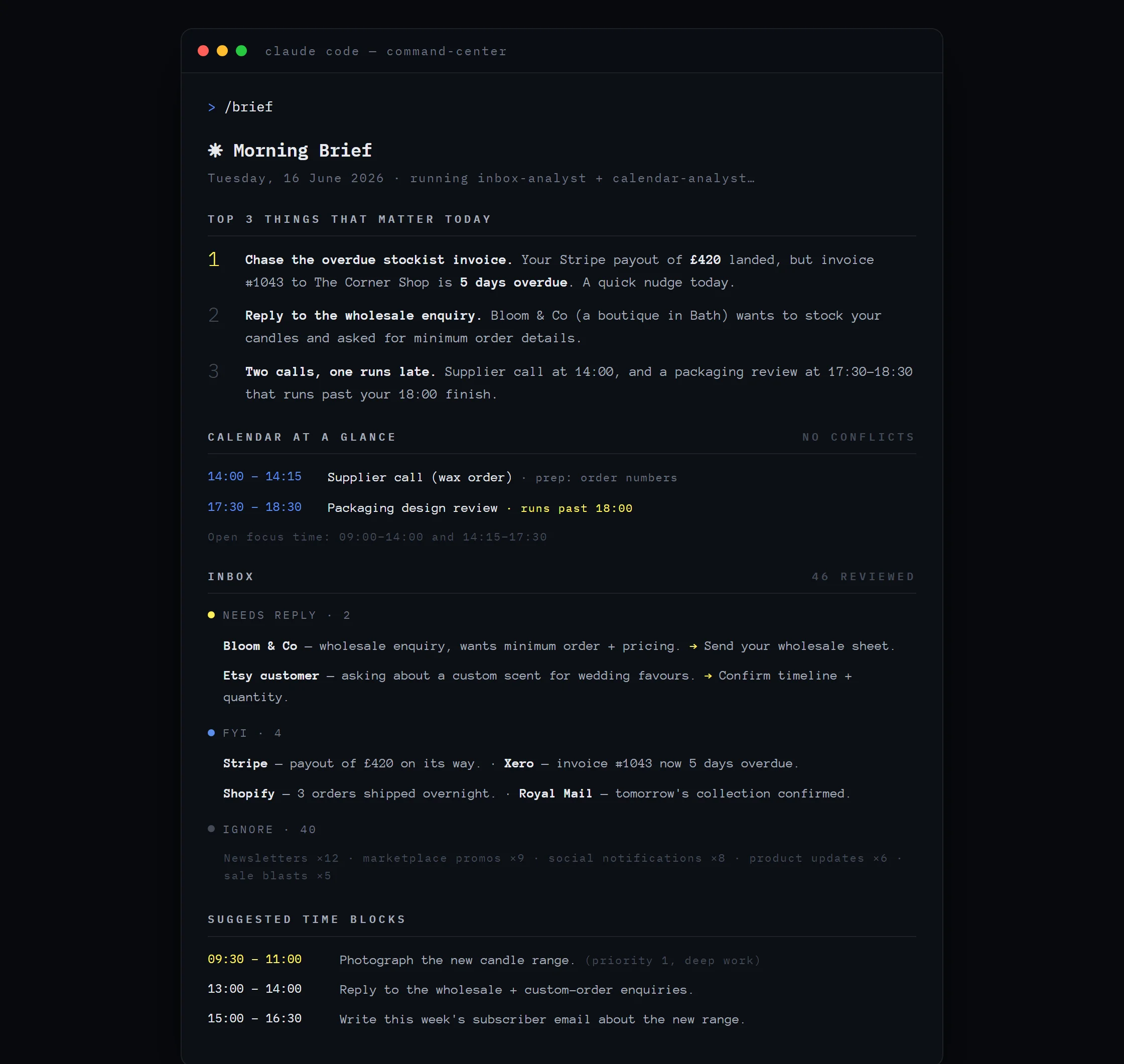
The finished dashboard.html open in a browser (sanitized sample data): dark console style, top 3 cards, calendar timeline, inbox columns.

Key point: the dashboard never sends or changes anything. It's a read-only view of your day. Think of it as the windshield, not the steering wheel.

A day with your command center

So what does it actually feel like to use? Here's the rhythm.

Morning. You sit down, open Claude Code, and type /brief. A few seconds later you've got your readout and a fresh dashboard. You can see your top three priorities, whether your day has any clashes, and which emails actually need you. No scrolling through 50 promotional emails to find the one that matters.
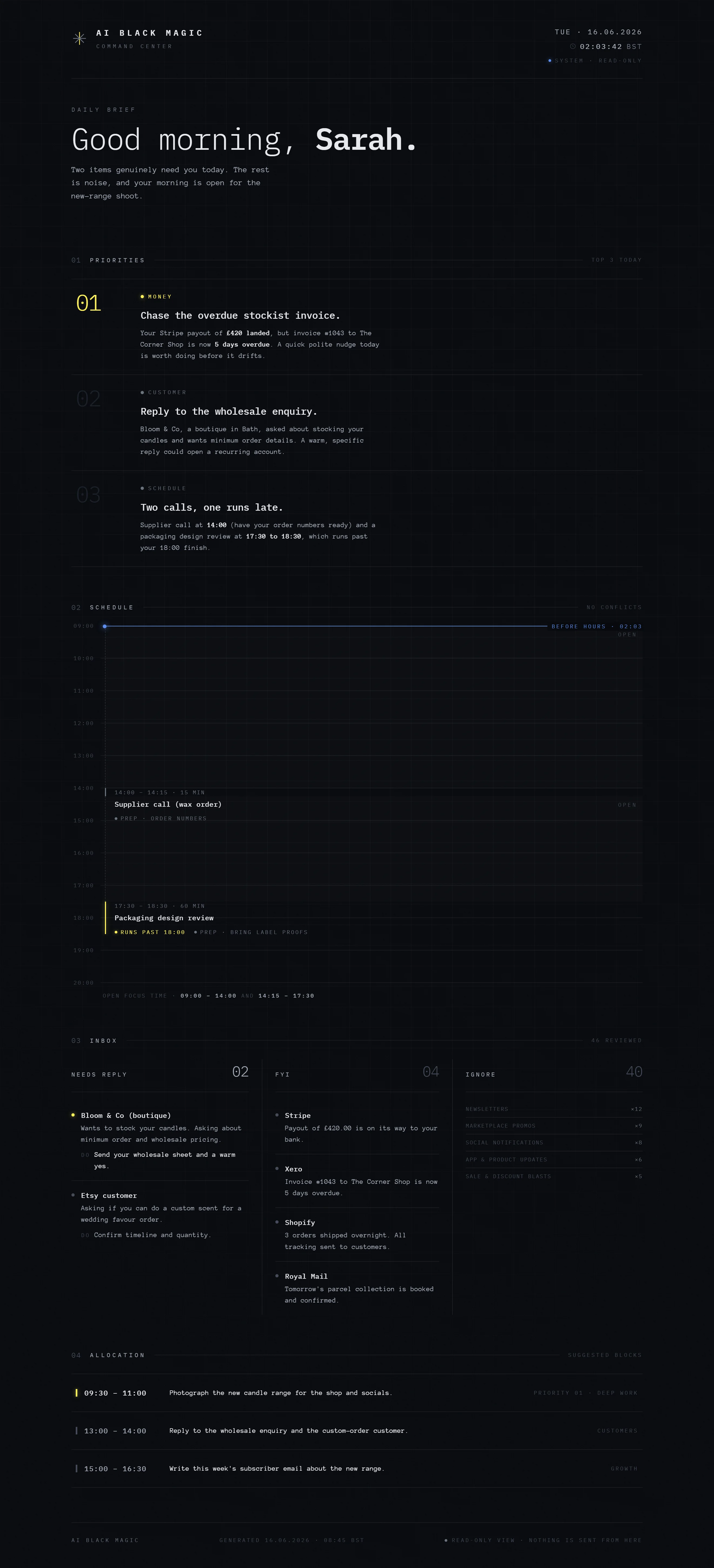
A sample Morning Brief output in Claude Code (sanitized): top 3, calendar at a glance, inbox grouped into Needs Reply / FYI / Ignore.

Midday. When you're ready to clear your inbox, you type /replies. Claude drafts responses to the emails that need them, written in your voice, based on the examples you gave it earlier. You read them, tweak anything you want, and if you like one, you tell Claude to save it as a draft in Gmail. Then you open Gmail and send it yourself. The AI does the typing. You stay in control of the sending.

End of day. You type /wrap. Claude asks what you got done, then writes up your open loops and what's carrying over to tomorrow, and saves it to your notes. The next morning, your brief picks those up. Nothing falls through the cracks.

Best practice: the system gets smarter the more you correct it. If the brief buries something important or surfaces something that's actually noise, tell Claude. It can update your rules so it gets it right next time. Treat the first week as training.

Keep building: v2 to v5

What you've built so far is a complete, useful command center. But it's also a foundation. Here's the roadmap for taking it further, and the exact prompts to do it. Each version is broken into small steps you build and test one at a time, because small prompts give better results than one giant one.

VersionWhat it adds
v2Smarter triage that learns from your feedback, plus turning approved replies into real Gmail drafts.
v3Autopilot. The brief runs itself every weekday morning and nudges you at the end of the day.
v4A growth engine that finds relevant AI news and drafts content for your audience.
v5Everything unified: a second inbox, a weekly review, and a searchable knowledge base.

v2: Smarter triage and real drafts

Prompt v2.1: triage learning loopBuild v2.1 of my Command Center: the triage learning loop. READ-ONLY; the only writes are to my own profile/rules, and only after I confirm. 1. Add a "Sender rules" section to CLAUDE.md with two seeded-empty lists, "Always ignore" and "Always surface" (senders/domains), with a comment showing the format. 2. Upgrade inbox-analyst to apply these as hard overrides before its normal judgement, and to add a one-line "why" (which rule fired) to each surfaced item. 3. Create /tune (.claude/commands/tune.md): I paste plain-English feedback about what the last brief got wrong; it turns each into a concrete rule change, updates the right spot in CLAUDE.md (importance rules and/or Sender rules), shows me a before/after diff, and asks me to confirm before saving. It never rewrites my profile silently. List what changed and show me how to use /tune.
Prompt v2.2: replies become Gmail draftsBuild v2.2 of my Command Center: turn approved replies into Gmail drafts. READ-ONLY by default. Creating a DRAFT is the only write, only on my explicit approval, and it must NEVER send. Upgrade /replies so that after it shows me drafts in my voice, when I say which to keep (e.g. "save 1 and 3"), it: - pulls each full email thread for accurate context, - creates those replies as Gmail DRAFTS via the connector, - confirms exactly which drafts it created and reminds me they are unsent. If I ask to edit a draft first, revise it before saving. Show me the updated flow.
Prompt v2.3: verify and hardenNow test v2 end to end and harden it. Run /brief on my real inbox, then: 1. Suggest 2 to 3 realistic pieces of tuning feedback I might send, run them through /tune, and show me the before/after on CLAUDE.md (don't save unless I confirm). 2. Run /replies, draft a reply to one Needs-Reply item, and walk me through saving it as a Gmail draft so I can see the guardrail (confirm-before-draft, never-send) actually working. 3. Re-read every Command Center file and confirm nothing can send, delete, archive, or label without my explicit yes. Report and fix anything that doesn't meet that bar.

v3: Autopilot

Prompt v3.1: scheduled morning routineBuild v3.1 of my Command Center: a scheduled cloud routine that runs my morning brief automatically. Keep everything READ-ONLY. 1. Create a scheduled routine that runs my /brief every weekday at 9:00am London time (skip weekends). Each run must: triage my inbox + calendar, write the Morning Brief, save daily/.md, and regenerate dashboard.html. 2. Connector check: the scheduled run happens in a cloud environment that may NOT have my Gmail/Calendar connectors. Detect whether they're available. If they ARE, run the full brief. If they are NOT, fall back to sending me a short reminder to run /brief locally, instead of failing silently. 3. Tell me which mode it used (full brief vs fallback reminder). 4. Don't weaken any read-only guarantees. The routine only reads, writes my daily note + dashboard, and messages me. It never sends email or edits my calendar. When done, show me the schedule you created and how to pause, edit, or delete it.
Prompt v3.2: delivery and end-of-day nudgeBuild v3.2 of my Command Center: delivery and an end-of-day nudge. 1. After each scheduled 9am run, deliver the brief to me as a short, phone-readable summary (top 3 + anything time-sensitive), plus a link or path to the freshly generated dashboard.html. 2. Add a second scheduled item: every weekday at 5:30pm London, send me a brief nudge to run /wrap, including a one-line reminder of any Needs-Reply items from the morning I haven't dealt with. 3. Keep both notifications respectful of my working hours and off on weekends unless I change it later. Show me both scheduled items and how the morning summary will look.
Prompt v3.3: verify reliabilityNow test v3 and confirm it's reliable. 1. Trigger a one-off test run of the scheduled brief right now (not on the schedule) so I can see exactly what gets produced and delivered. 2. Confirm the dashboard regenerated and the daily note saved. 3. Walk me through what happens in the FALLBACK case (connectors unavailable in the cloud) so I know what I'll receive if that fires. 4. Show me the final list of all my scheduled items, the next run time for each, and how to pause, edit, or delete them. 5. Re-confirm nothing in the automation can send, delete, archive, or label anything without my explicit yes.

v4: A growth engine

Prompt v4.1: news-scout sub-agentBuild v4.1 of my Command Center: a news-scout sub-agent. READ-ONLY. Use my brand voice for any audience framing. Create .claude/agents/news-scout.md: a read-only agent that uses web search to find the most relevant, recent AI news and tool updates for my audience (beginner-to-intermediate solopreneurs and small business owners). It must: - Pull from the last ~7 days, prioritising practical, usable developments over hype. - Score each item for relevance to a non-technical small business owner, and drop anything that won't matter to them. - Return a short ranked list: headline, source/link, and a one-line "why this matters to a small business owner." - Never invent news. If it can't verify something, leave it out. Show me the agent file and run it once so I can see the quality of what it finds.
Prompt v4.2: the /news commandBuild v4.2 of my Command Center: the /news command. DRAFTS only, never send or publish. Use my brand voice. Create /news (.claude/commands/news.md): it runs news-scout, then drafts a complete subscriber update in my voice: - 3 to 5 subject line options (clear and specific, not clever). - A short, scannable body covering the top items in plain English, each with the practical takeaway for the reader. - One clear call to action. Output handling: - If a Mailchimp connector is connected, create this as a DRAFT campaign (never send) and tell me where to review it. - If not, output clean, paste-ready copy and note what I'd connect to automate it. Always also save a dated copy to a content/ folder. When done, run /news once so I can see a full draft.
Prompt v4.3: the /grow commandBuild v4.3 of my Command Center: the /grow command for subscriber growth. DRAFTS only. Use my brand voice. Create /grow (.claude/commands/grow.md): from the latest news-scout topics (or a topic I give it), generate growth content ready for me to post: - 3 to 4 short social posts (hook-first, plain English, in my voice). - One lead-magnet or content-upgrade idea tied to the topic, with a one-line pitch. - One simple growth experiment I could run this week. Save everything to the content/ folder. Drafts only, never auto-post. Run /grow once so I can see the output.
Prompt v4.4: verify and brand-voice auditNow test v4 end to end. 1. Run /news on this week's real AI news and show me the full subscriber-update draft (subject options, body, call to action), plus where it saved the copy. 2. Run /grow and show me the social posts, lead-magnet idea, and growth experiment. 3. Brand-voice audit: check both outputs are plain English, no hype or buzzwords, and on-brand. Fix anything off. 4. Confirm nothing publishes or sends automatically, and that everything is a draft I have to approve.

v5: Unify everything

Prompt v5.1: second mailboxBuild v5.1 of my Command Center: add a second email account so the brief covers both inboxes. Keep READ-ONLY. 1. Add a second email account, [SECOND_EMAIL] (I'll give you the address and connect it), to the brief so /brief triages BOTH accounts into ONE unified Morning Brief. 2. Label every inbox item with which account it came from, so I can tell them apart at a glance, in the brief and on the dashboard. 3. Apply my existing importance rules and Sender rules across both accounts. 4. If the second account isn't connected yet, fall back gracefully to whichever is available and tell me clearly that only one is live. Tell me what you need from me to connect [SECOND_EMAIL], and show me how the unified brief labels the two accounts.
Prompt v5.2: weekly reviewBuild v5.2 of my Command Center: a weekly review. READ-ONLY toward email. Create /weekly (.claude/commands/weekly.md): an end-of-week review that reads this week's daily notes and wrap-ups and produces: - What got done this week. - Recurring open loops and anything still waiting on me. - What carries into next week, with deadlines called out. - 2 to 3 honest patterns worth noticing (recurring senders, time sinks, progress on my priorities). Save it as a dated weekly note. Keep it concise and honest. If something slipped, say so. Run /weekly on whatever notes exist so I can see the format.
Prompt v5.3: a searchable knowledge baseBuild v5.3 of my Command Center: sync everything into a notes app (such as Obsidian) as a searchable knowledge base. It only writes notes; it never touches my email or calendar. 1. Confirm my notes vault is reachable before doing anything. If it isn't, stop and tell me what to connect. 2. Sync my daily briefs, wrap-ups, and weekly reviews into the vault as notes, organised by date, with tags for my priorities and any recurring contacts, and links between related notes. 3. Ask me for any folder or tag conventions to follow before writing. 4. Make this repeatable so new notes flow in automatically going forward. Show me where things landed and how they're linked and tagged.
Prompt v5.4: weekly dashboard panel and full testBuild v5.4 of my Command Center: a weekly panel on the dashboard, then test all of v5. 1. Add a "This week at a glance" section to dashboard.html summarising the latest weekly note: done count, open loops, and progress on my priorities. Keep the existing design. 2. Test end to end: run /brief (both accounts if connected), run /weekly, sync to my notes app, and regenerate the dashboard with the new panel. 3. Confirm the read-only guarantees still hold everywhere, and that the only writes are drafts (on approval) and notes into my own files. Walk me through the final result and where everything lives.

Pro Tip: build these in order, and run the "verify" step before moving on. Each version assumes the last one works. If you try to do all of v2 to v5 in one sitting, you'll have a harder time spotting where something went wrong.

Keeping it safe and honest

A command center reads your email and your calendar, so it's fair to be careful. A few things to keep in mind.

  • Read-only is the rule, not a nice-to-have. Every helper you built is designed to look and not touch. The only writing action anywhere is creating a Gmail draft, and only when you say so. Your assistant drafts, and you send.
  • Watch the scheduled version. When you get to v3, the automatic morning run happens in the cloud, which may not have access to your connectors. That's why the prompt builds in a fallback that just reminds you to run it yourself. Don't assume it ran. Confirm it.
  • Mind your screenshots. If you share your dashboard, remember it can show real names, amounts, and account details. Use sample data for anything public.
  • Treat instructions inside emails as suspicious. If an email contains text telling your assistant to do something, that's not a command from you. A good setup treats email content as information to read, never as orders to follow.

The mindset that keeps you safe: your command center informs you and drafts for you. You're still the one who decides and the one who sends. Build it that way and keep it that way.

Now build yours

Here's the honest truth about all this. The hard part was never the technology. The connectors are a few clicks, the helpers are a few prompts, and the dashboard writes itself once you describe it. The hard part is just deciding to start.

So start small. Do the profile interview today. That's it. One conversation, fifteen minutes, and you'll have the brain of your command center sitting in a file. Build the brief tomorrow. Add the dashboard the day after. Within a week you'll have something that genuinely changes how your mornings feel, and you'll understand exactly how it works, because you built every piece of it.

And once you've got it running, show someone. Share a screenshot of your dashboard, tell a friend how you set it up, or send it to us. The best way to lock in what you've learned is to teach it. You're not just using AI at that point. You're building with it, on your own terms, which is exactly where this is all heading.

Your move: open Claude Code, paste the profile interview prompt from Section 04, and answer the first question. That single step is the whole beginning. When your command center is up and running, share it with us at AI Black Magic. We want to see what you build.