
How To Use Claude Projects
This article walks users through Claude Projects, showing them how to set up persistent workspaces that remember their business context, writing style, and preferences across every conversation. It covers everything from creating a first project and writing effective custom instructions to using the knowledge base, choosing the right model, and building reusable templates for tasks like content creation, customer support, and data analysis.
Claude Projects: Getting Real Work Done with AI
Stop treating Claude like a search engine. Projects turn it into a business partner that knows your goals, remembers your data, and gives advice grounded in your real numbers.
In This Guide
What is a Claude Project?
Most people use Claude the same way they use Google. They open it up, type a question, get an answer, and move on. Maybe they come back later and ask something else. But here's the problem: every time they come back, Claude has no idea who they are. It doesn't know about their business. It doesn't remember the pricing discussion from last Tuesday. It doesn't know they have two employees and a 90-day goal to hit $50k in monthly revenue.
So they get generic advice. The kind of thing you could find in any business blog. "Consider diversifying your revenue streams." Thanks. Very helpful.
A Claude project fixes this. Think of it as a room in your house. Your kitchen is set up for cooking. Your office is set up for work. You don't bring your filing cabinet into the kitchen. Each room has its own tools, its own purpose, and its own context.
A project is a container where you store three things:
Files
- Business plans, SOPs, transcripts
- Financial data, analytics
- Any docs that give Claude context
Custom Instructions
- Claude's role in this project
- Your preferences and rules
- What files to reference and when
Conversation History
- Every chat stays in the project
- Context builds over time
- Come back in 3 months, it remembers
Claude also builds up project memory automatically as you chat. Little things it picks up about your preferences, your business details, your working style. These get stored in the project and inform future conversations without you needing to repeat yourself.
Rule of thumb: If you need Claude to show up differently for a specific type of work, make a project. Asking about the weather? Just use regular chat. Strategizing about your business? That's a project.
Setting Up Your First Project
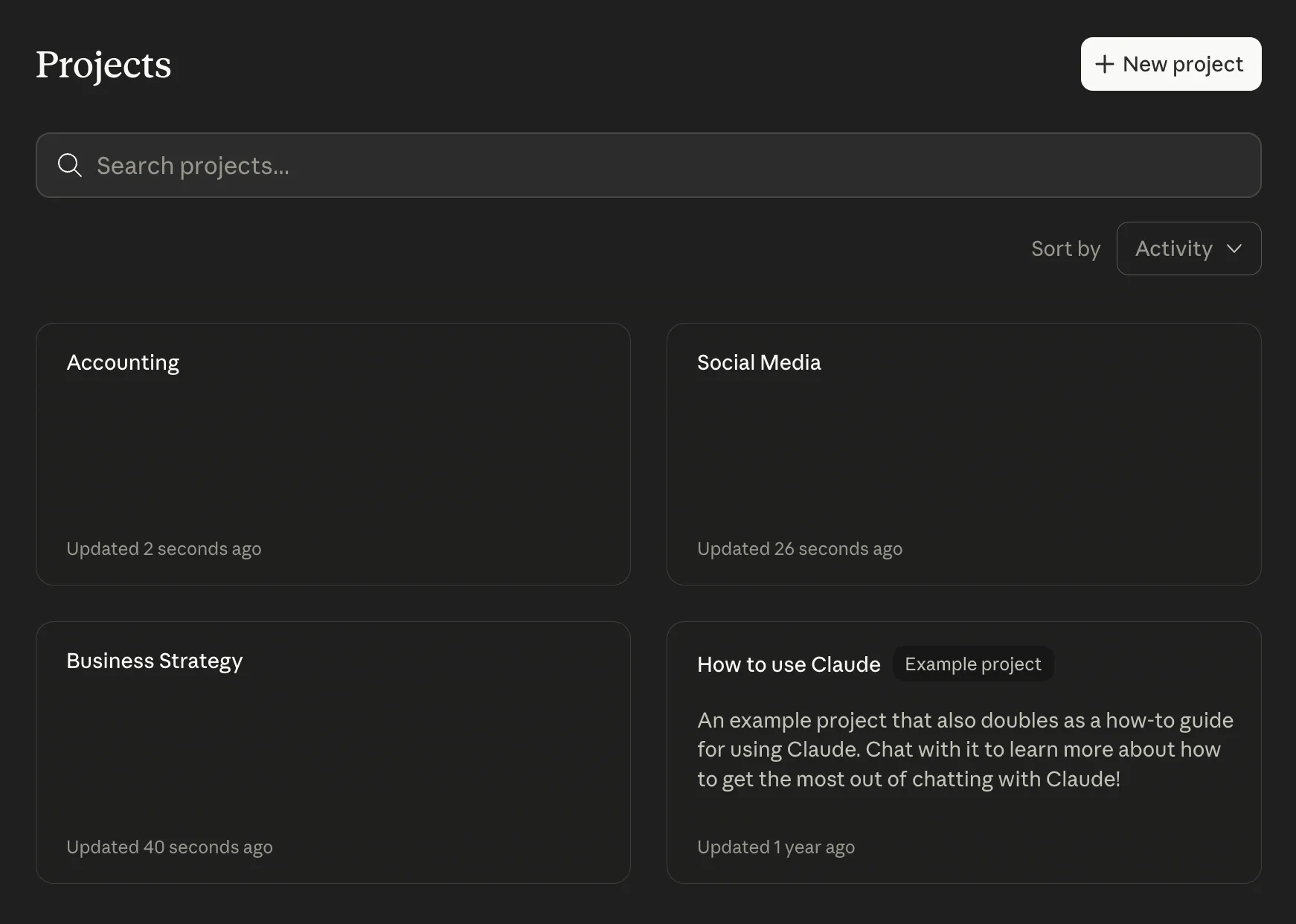
Creating a project takes about 30 seconds. Here's the process:
- Open Claude and go to Projects
- Click "New Project" in the upper right corner
- Give it a name (e.g., "Business Strategy Room")
- Add a short description of what you're trying to achieve
- Click Create and you're in
The name and description are mostly for your own organization, but they do help Claude understand the context. Something like "Business Strategy Room" with a description of "Ongoing business strategy discussions to hit goals faster and maintain context around ideas" is plenty. Don't overthink it.
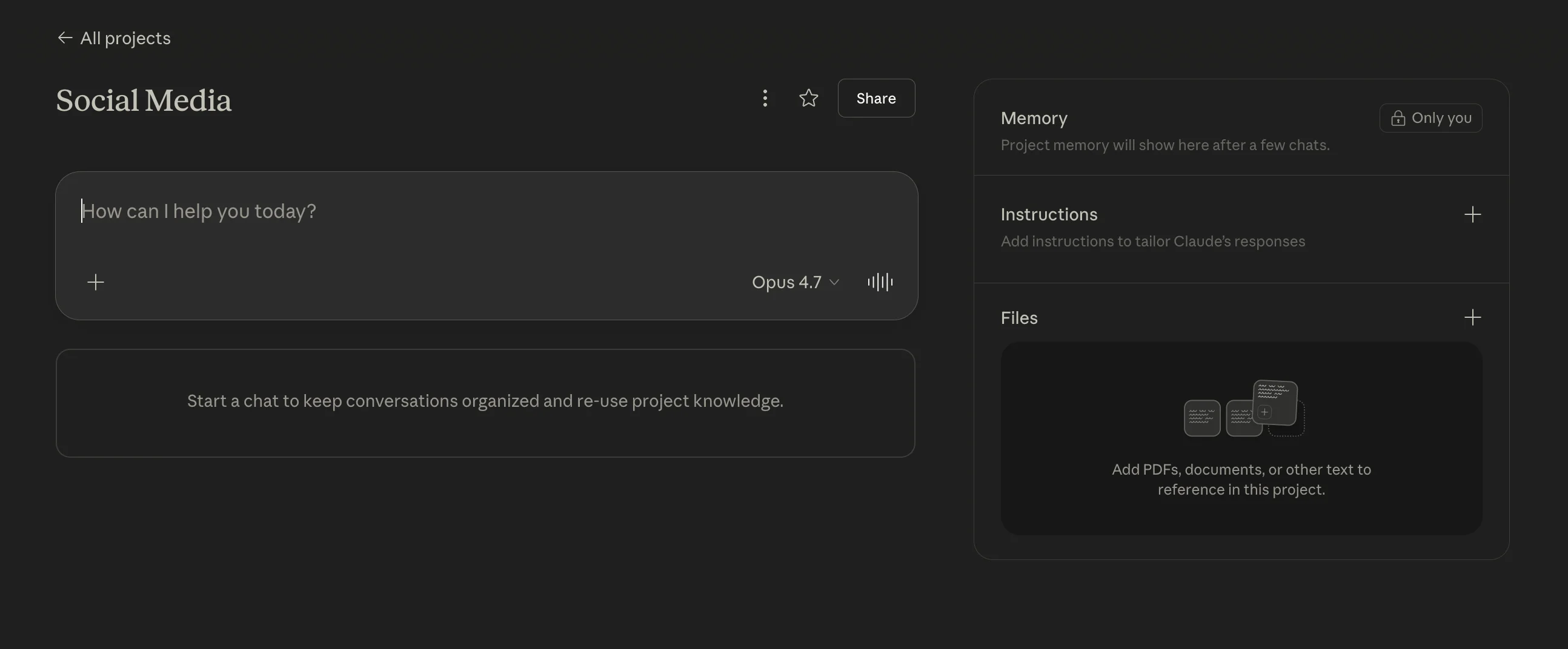
Once you create the project, you'll land in a workspace that looks similar to a regular Claude chat but with some important differences. On the right side, you'll see sections for Memory, Instructions, and Files. These are the three pillars that make projects powerful.
Pro tip: You can favorite a project to pin it in your sidebar. If you're in a project daily, pin it so it's always one click away.
The Foundation: Your Business Overview Document
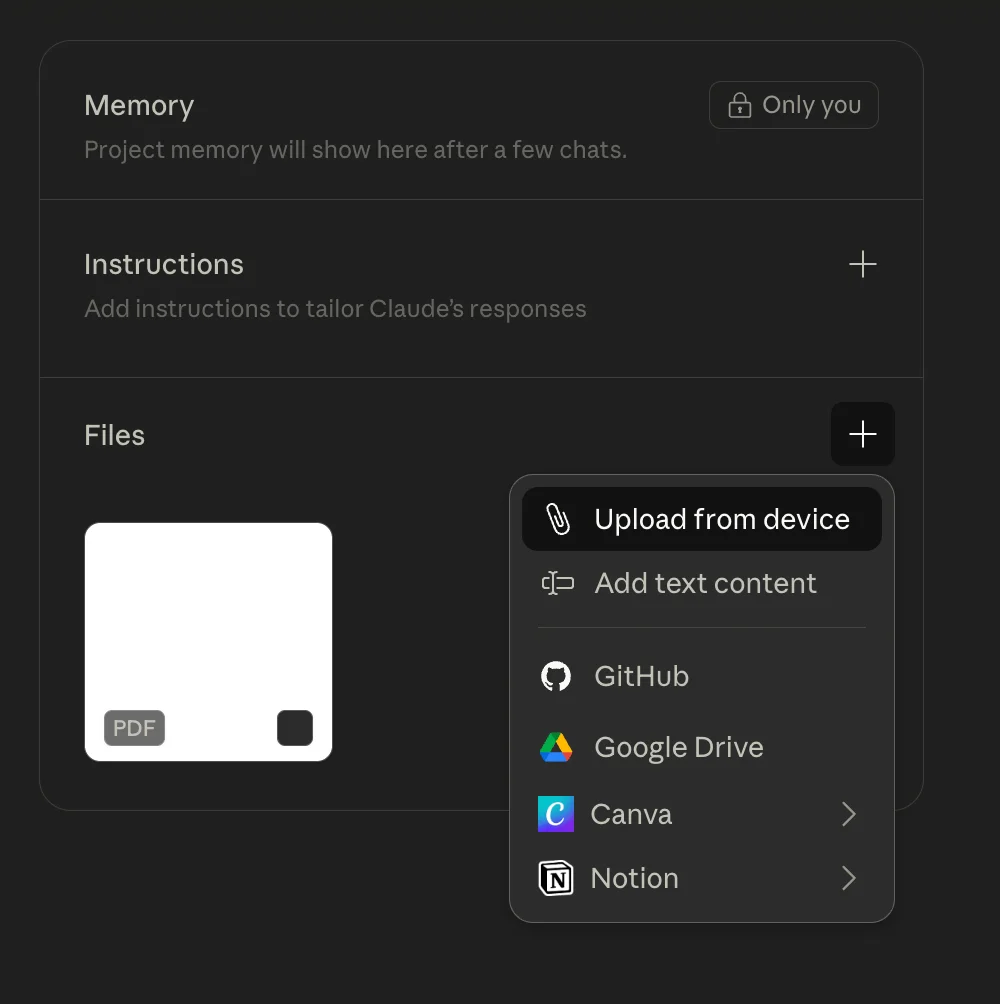
Before you write a single instruction or start chatting, upload a business overview document. This is the single most impactful thing you can do to improve Claude's output. Without it, Claude is guessing. With it, Claude is working from your actual data.
A good business overview covers seven sections. You don't need to write a novel for each one. A few bullet points per section is fine. What matters is that the information is specific and current.
| # | Section | What to Include |
|---|---|---|
| 1 | Company Identity | Who you help, how long you've been in business, one-sentence description |
| 2 | Revenue Model | Pricing tiers, how money comes in. Use real numbers, not ranges. |
| 3 | Offer Stack | Every product/service with price points and what's included |
| 4 | Team & Operations | Who's on your team, what they do, your operational constraints |
| 5 | Market Position | How you're different from competitors, why clients choose you |
| 6 | Growth Profile | How you acquire customers, with percentages if you have them |
| 7 | 90-Day Priorities | Specific goals. Not "grow revenue." Try "add 4 new group coaching clients." |
That seventh section is the most important one. Claude is best when it's looking at a target it can actually see, not a target it can't see. "Increase monthly recurring revenue from $12,000 to $18,000 by adding 4 new group coaching clients" is a goal Claude can help you work toward. "Grow revenue" is not.
And here's something that might surprise you: Claude projects have a lot of storage capacity. You can upload up to 30MB per file, and the total project knowledge base is generous. In testing, 15 full YouTube video transcripts (each around 30 minutes of talking) only used about 10% of the available capacity. So don't hold back. SOPs, P&L statements, client onboarding procedures, content guidelines, legal documents, past strategies. If it's relevant, put it in.
Quick start: Don't have a business overview yet? Use Claude to create one. Paste in a prompt asking Claude to walk you through a Q&A covering all seven sections. It'll interview you and generate the document. Then upload the result to your project.
Writing Project Instructions That Actually Work
Here's where most people either skip a step or do it badly. Project instructions are the single biggest factor in how Claude responds within a project. And yet, a lot of people leave them blank or write something vague like "Be helpful and professional."
That's not an instruction. That's a wish.
Good project instructions are usually 200 to 500 words. Much shorter and they're too vague. Much longer and Claude can start losing track of specifics during long conversations.
Two Layers of Instructions
You actually have two layers available:
- Personal instructions (in your account settings) that apply everywhere, across every conversation and project. Your name, general preferences, broad context about who you are.
- Project instructions that only apply within a specific project. This is where you customize Claude's behavior for a particular type of work.
Both layers work together. Personal instructions provide the baseline. Project instructions layer on top for specific contexts. So you don't need to repeat your name and preferences in every project.
Example: Business Strategy Room
Here's what good project instructions actually look like:
You are a business strategist. Help me make decisions about my business. Always reference my business overview document so answers are grounded in real data, not generic advice.
Rules:
- Use my real numbers, real offers, and real goals. No generic advice.
- Be direct. Lead with your recommendation, then explain why.
- If I pitch an idea, poke holes in it before helping me build it.
- Name the trade-off on every recommendation.
- If something doesn't connect to my 90-day priorities, flag it.
- Use tables, calculations, and data breakdowns whenever possible.
Notice what this does. It puts Claude in a specific role. It tells Claude to reference a specific uploaded file. It sets the tone: direct, challenging, data-driven. And it defines specific behaviors that change how every response in this project sounds.
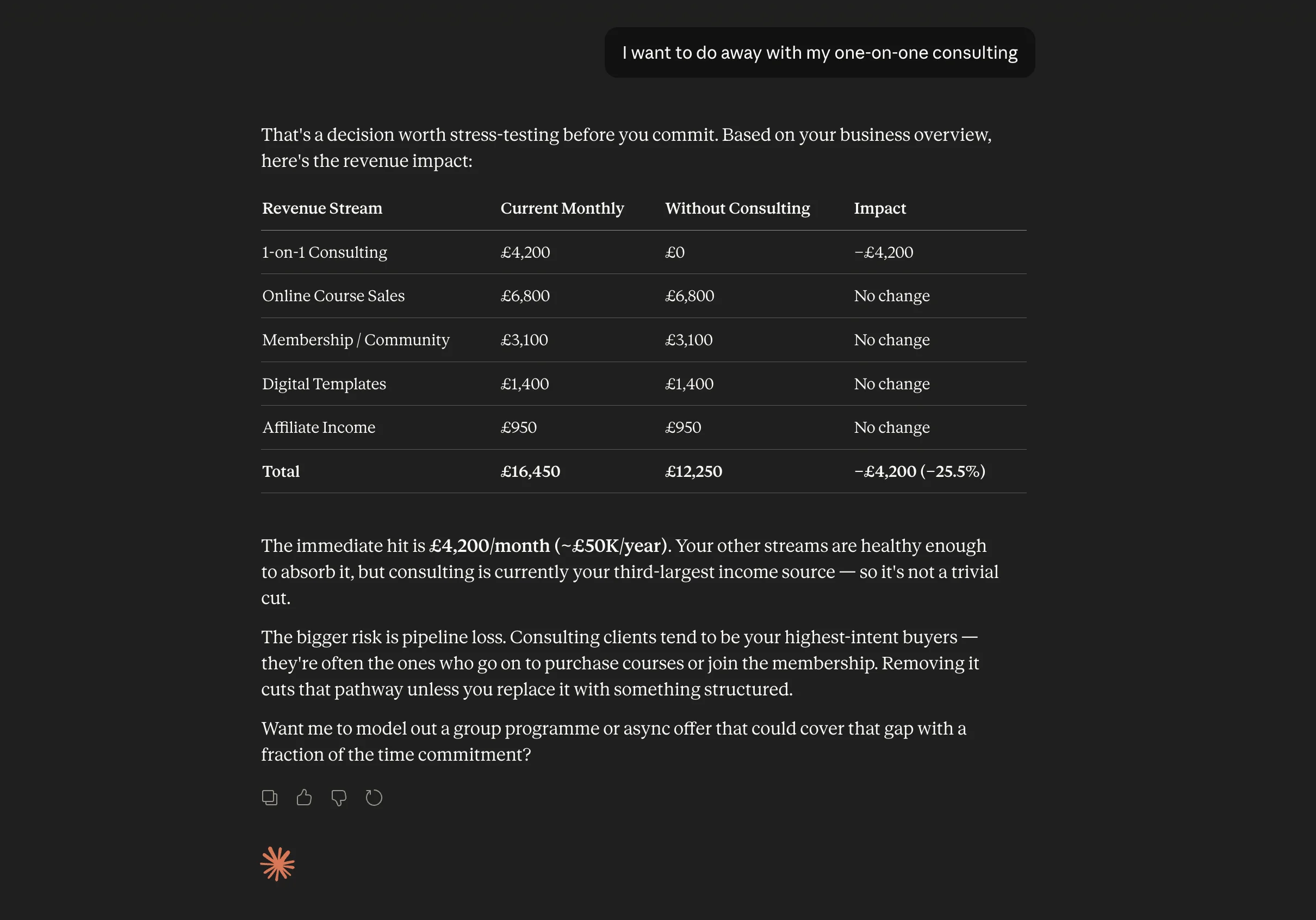
The result? When you say "I think I want to completely do away with my one-on-one consulting today," Claude won't just nod along and agree. It'll come back with something like: "That's a $23,000 per month decision. Let me poke some holes in that. Your one-on-one consulting is 55% of your revenue. Those clients have a $6,000 lifetime value and the highest referral rate across your offers."
That's not generic advice. That's a strategic analysis based on your actual business data. And it happened because of a simple business overview document and a few lines of instructions.
Important: You can tell Claude in your instructions to reference specific files before doing certain tasks. For example: "Always reference my business overview before answering questions about pricing." This is one of the most powerful patterns in project instructions, and most people don't know about it.
Think of Your Project Like a Pyramid
Here's a mental model that makes everything click. A well-built Claude project has layers, and each one depends on the ones below it.
At the base, you have your files. This is the foundation. Your business overview, your SOPs, your analytics data, transcripts, whatever gives Claude raw material to work with. Without this layer, everything above it is weaker.
Next up is instructions. These tell Claude how to use those files, what role to play, and how to communicate. Instructions shape the behavior. Files provide the substance.
Above that, conversations and memory build over time. The more you use a project, the more Claude learns about your preferences, your decisions, and the context behind them. This layer grows organically.
At the top, outputs: the strategies, the content, the analyses, the decisions that come from having all of those lower layers working together. The quality of what comes out the top is directly proportional to how solid the layers beneath it are.
This is why the business overview document goes in nearly every project you create. Whether you're doing data analysis, creating content, or strategizing about your next quarter, Claude benefits from knowing who you are and what you're working toward.
Claude Desktop and Cowork: The Next Level
Everything we've covered so far works in Claude on the web. But there's a whole other level available through the Claude desktop app, specifically through a feature called Cowork.
The difference is this: Claude on the web is great for back-and-forth conversations. You talk, Claude responds, you refine. Claude Cowork, on the desktop app, is more task-focused. You tell Claude to do something, and it goes and does it. It can create files, save them to your computer, run research, and produce finished deliverables without you babysitting every step.
Setting Up a Cowork Project
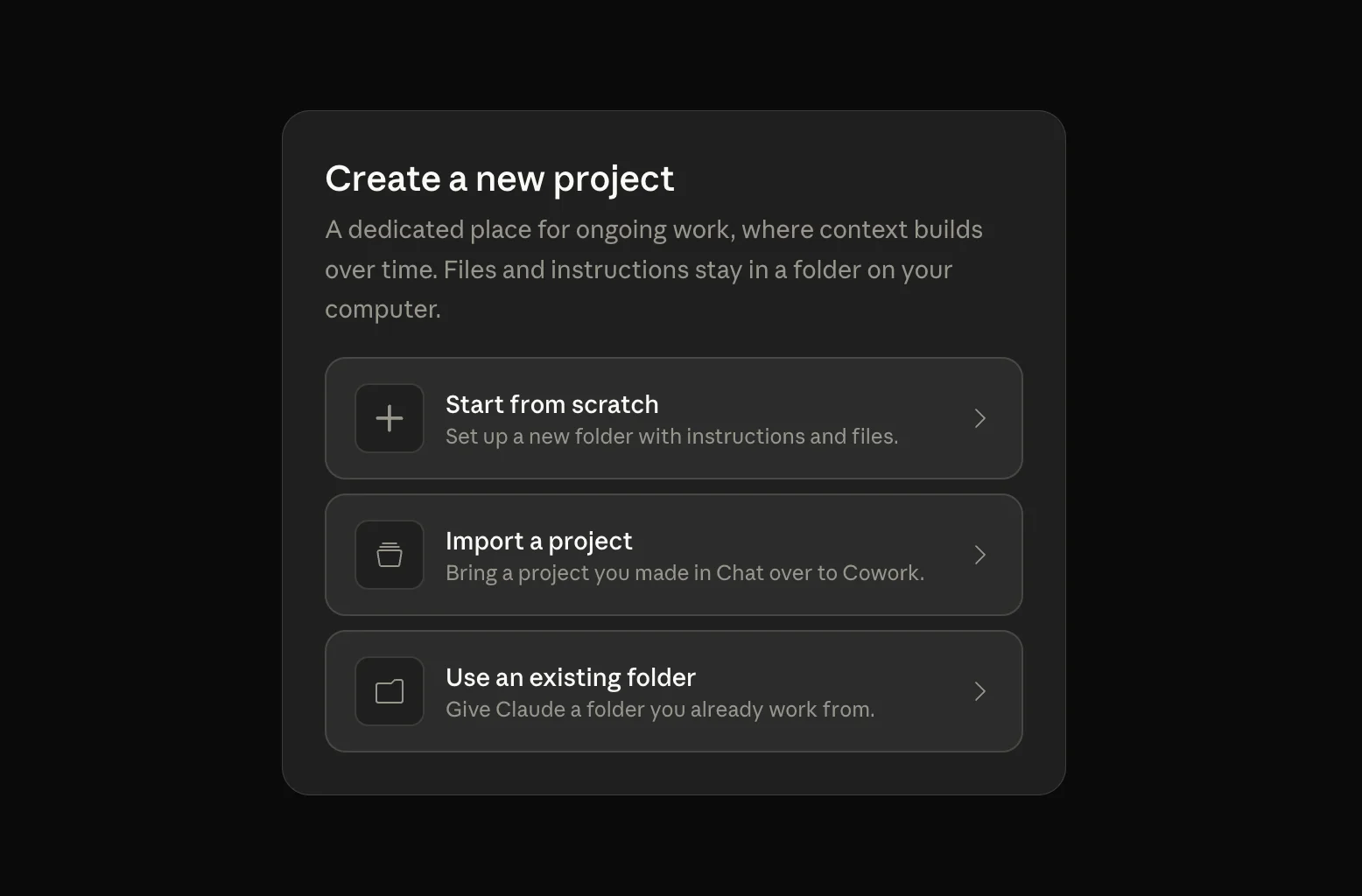
On the desktop app, switch to the Cowork tab at the top. Click "New Project" and you'll get three options:
- Start from scratch, just like on the web
- Import a project from Claude web
- Use a folder on your computer as the project base
That third option is the interesting one. Since Cowork runs on your machine, it can read and write files directly to a folder on your computer. Choose where it lives: your Desktop, iCloud Drive, Google Drive, anywhere. Claude works from that folder, and anything it creates gets saved right there.
⏰ Scheduled Tasks
This is probably the most powerful Cowork feature. You can set up tasks that Claude runs automatically on a schedule. Have Claude check your email every morning and draft responses. Compile a weekly metrics report every Friday. Pull industry news daily at 8 AM. As long as your computer is on, the task runs in the background within your project, using all the context and instructions you've set up.
To set one up, type /schedule in any Cowork task, or use the "Scheduled" section in the sidebar. You can set tasks to run daily, weekly, biweekly, monthly, or on a custom cadence.
Connectors
Cowork supports connectors that let Claude interact with other apps and services. Gmail, Google Calendar, Slack, Notion, and dozens more. This means your scheduled tasks can pull data from and push data to the tools you already use.
Imagine a project called "Content Repurposing System" where you upload a YouTube transcript, tell Claude to create seven LinkedIn posts based on it, and walk away. Claude researches what makes a LinkedIn post perform well, extracts key themes from your transcript, writes the posts, checks them against your content guidelines, and saves everything to your computer. All in about 90 seconds.
That's not hypothetical. That's a real use case. And it's the kind of thing that takes 30-45 minutes manually.
Web vs. Desktop: If you're on a Teams account, Claude web lets you share projects with your team. Everyone operates out of the same environment with the same context. Cowork is local to your machine, more powerful for task execution but less suited for collaboration. Choose based on what matters more for each project.
Practical Project Ideas
You don't need to build all of these. Pick the one that would save you the most time this week and start there.
Business Strategy Room
- Upload your business overview
- Claude acts as a direct, data-driven strategist
- Pricing decisions, quarterly planning
- Builds history of your strategic thinking
Content Engine
- Upload brand voice guidelines
- Add anti-AI-slop writing rules
- Social posts, newsletters, scripts
- Schedule weekly batch creation on Cowork
Client Onboarding
- Upload onboarding SOP and templates
- Drop in a new client's intake form
- Get personalized welcome emails
- Auto-generate first session agendas
Data Analysis
- Upload financials, analytics, surveys
- Focus on actionable insights, not summaries
- Connect trends to your specific goals
- Ask "what's driving this?" questions
Video & Podcast Repurposer
- Upload transcripts of your long-form content
- One 30-min video becomes 7 LinkedIn posts, 3 tweet threads, an email newsletter, and a blog outline
- Automate on Cowork so it runs every time you drop a new transcript in
Common Mistakes to Avoid
After watching hundreds of people set up Claude projects, a few mistakes show up over and over again.
Vague instructions. "Be helpful" isn't an instruction. "Lead with your recommendation, then explain your reasoning, and always reference my business overview when discussing pricing" is an instruction. Be specific about what you want Claude to do differently in this project.
Not uploading enough context. People create a project, write great instructions, and wonder why Claude still gives generic answers. The answer is almost always: Claude doesn't have enough data to work with. Upload the files.
One giant project for everything. If you're using the same project for strategy, content, and data analysis, the context gets muddled. Create separate projects for separate types of work. It takes 30 seconds each and the results are dramatically better.
Treating it like a search engine. A project is not for one-off questions. Projects are for ongoing work where context builds over time and compounds. The value of a project increases with every conversation you have in it.
Getting Started Today
If you've read this far, you already know more about Claude projects than 99% of people using the tool. But knowledge without action doesn't count for much. Here's what to do in the next 20 minutes:
- Create one project. Pick the type of work you do most often. Name it and give it a description.
- Write a business overview. Open a regular Claude chat, paste in a prompt asking it to walk you through the seven-section structure, and answer its questions honestly. Download the result.
- Upload the business overview to your new project.
- Write 3-5 lines of instructions. What role should Claude play? What files should it reference? What format do you prefer?
- Start a conversation. Ask Claude something you'd normally ask a business advisor. "What are the blind spots in my pricing strategy?" See how different the response is.
That first conversation will sell you on projects more than anything in this article. When Claude comes back with specific analysis based on your real numbers instead of "consider evaluating your pricing strategy," you'll understand why this matters.
The people getting the most out of AI right now aren't the ones using the fanciest prompts. They're the ones who set up the right context and let the tool do what it's built to do.