
Build a Daily AI Dashboard in Claude Cowork
Turn Claude Desktop into a single morning view of your tasks, meetings, and email. About 30 minutes of setup, no code, and you keep it forever.
Most people start their day by opening four or five apps. Email. Calendar. A to-do list. Maybe Slack or Discord. Maybe a news reader. By the time you've checked everything, half an hour is gone and you haven't actually decided what matters today.
This guide shows you how to build a single dashboard inside Claude that pulls all of it into one screen. Your meetings for the day. Your task list. Your inbox, sorted into categories so you instantly see what needs a reply versus what can wait. A news feed that reads your newsletters for you and tells you which ones are actually worth opening.
Every step is just typing a message to Claude, like sending a text. The whole thing takes about 30 minutes to set up, and once it's done, it refreshes itself every morning at 8 AM. This walkthrough is based on a community tutorial by Fabian Markl, with extra notes on the gotchas and a few additions that aren't obvious from the original.
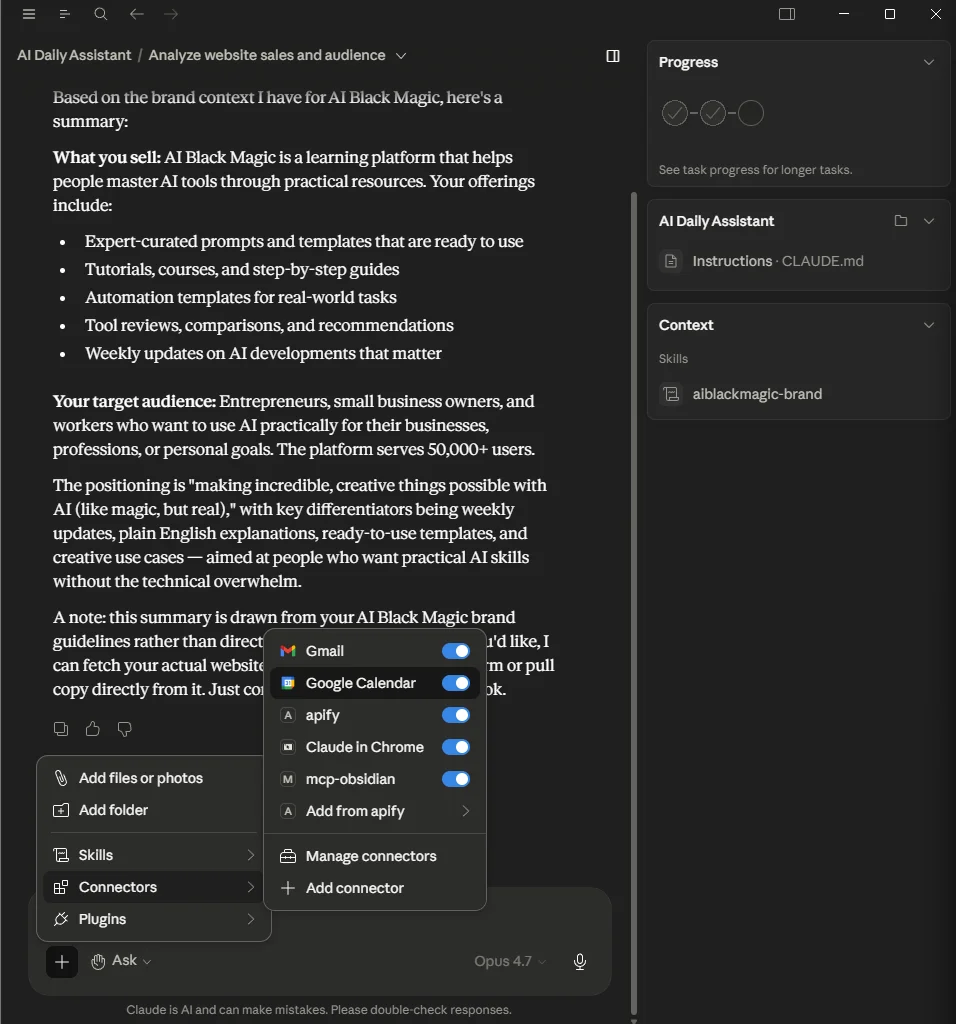
What you'll actually have when you're done
Before you start, it's worth knowing what the finished thing looks like. The dashboard lives in Claude's sidebar and opens with one click. Every morning it shows you four panels:
Pulled live from Google Calendar. Times, names, and meeting titles.
A persistent to-do list with checkboxes. Updates when you tell Claude what you finished.
Your last 7 days of email, sorted into High Priority, Needs Reply, Newsletters, Promos, and a few more.
Every newsletter from the past week, summarized into five bullets, with the most relevant ones flagged Must Read.
You can also reply to emails, send new ones, add calendar events, and update your task list, all from chat. You won't need to open Gmail again unless you want to.
What you need before you start
This setup runs entirely inside Claude Desktop, on a feature called Cowork. If you've only used Claude through your browser, you'll need to download the desktop app first.
- Claude Desktop for Mac or Windows. Download it from Anthropic's site if you don't have it yet. Cowork is not available on the web or mobile.
- A paid Claude plan. Pro at $20 a month is enough. Cowork doesn't run on the free tier.
- A Gmail address with 2-Step Verification turned on. We'll get to that part in Section 06.
- A Google Calendar connected to that same Gmail.
- About 30 minutes of uninterrupted setup time.
- Optional but useful: the URL of your business website, or any public page that describes what you do.
What is Cowork? Cowork is Anthropic's name for the agentic mode inside Claude Desktop. Instead of answering one question at a time, Claude can take a multi-step task ("read my email, sort it, and build me a dashboard"), do all the steps on its own, and hand you the result. It's the same engine that powers Claude Code, but for everyday work instead of coding.
If you don't have Claude Desktop installed, install it first and sign in with the same account you use on the web. Then come back here.
Create your project
Everything you're about to build lives inside a Project. A Project is a workspace that remembers your preferences, instructions, connected tools, and files across every conversation. Without one, every chat would be a blank slate and you'd have to re-explain yourself constantly.
Inside Claude Desktop:
- Click New Project in the left sidebar.
- Give it a name.
AI Daily Assistantworks fine. So does your first name plusDaily Dashboard. - Click Create. You'll land inside an empty project.
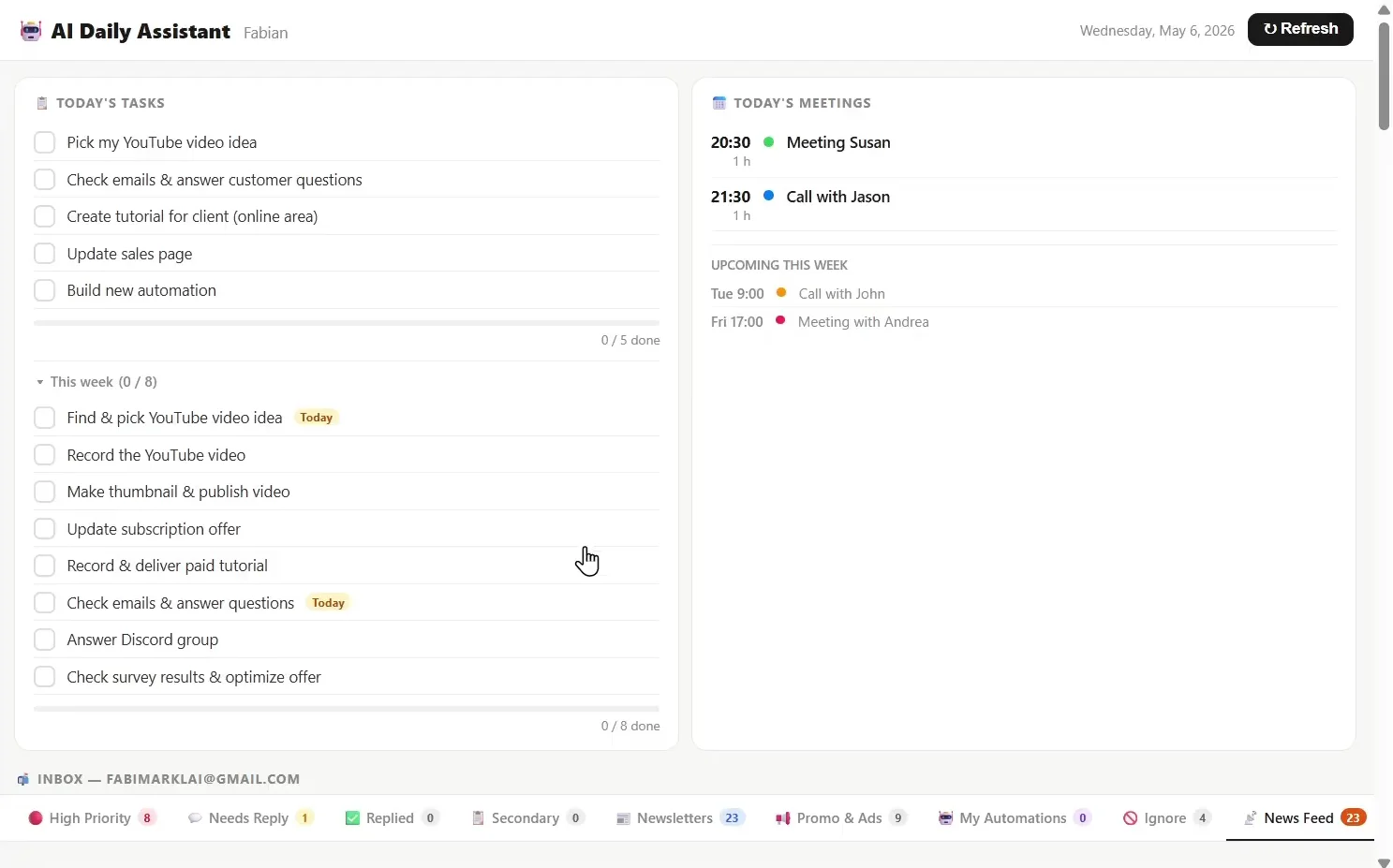
On the right side of the project view, you'll see a settings panel. Two fields matter here: Instructions and Links. We'll fill them in next.
Write your project instructions
Project instructions are a short description of who you are and how you want Claude to behave inside this project. Claude reads them at the start of every conversation, so you never have to re-introduce yourself or repeat your preferences.
Copy the template below into the Instructions field. Replace every part in square brackets with your own information.
Here's a filled-in example to show what good looks like:
The more specific you are, the better. "I do marketing" is too vague. "I run a Shopify store selling skincare products to women aged 30-50, and my main growth channel is Instagram" gives Claude a real picture to work with. That specificity shows up in every email it writes for you.
Add your website as a context link (optional but worth it)
Below the Instructions field is a section called Links. You can paste in any public page that describes what you do. Claude will read it and use that context when it helps you with tasks.
Good pages to add:
- Your homepage
- Your products or services page
- Your About page
If you don't have a website, you can use a public LinkedIn profile, a Substack about page, or any other public page that describes your work. If you don't have any of those, just put more detail in the Instructions field instead. The website isn't required, it just saves you from typing the same context every time.
To test that it worked, type this in the project chat:
If Claude answers accurately, you're good. If not, the page is probably behind a login. Claude can't read pages that require sign-in.
Connect Google Calendar
Google Calendar is where your meetings live. Connecting it lets Claude pull today's events into the dashboard and add or remove events when you ask.
- In your project, find the Connectors section (usually a sidebar or a button labeled Connectors or Plugins).
- Search for Google Calendar.
- Click Connect, sign in to your Google account, and approve the permissions.
- Once connected, set the connector to Always allow so you don't get a permission prompt every single time Claude reads your calendar.
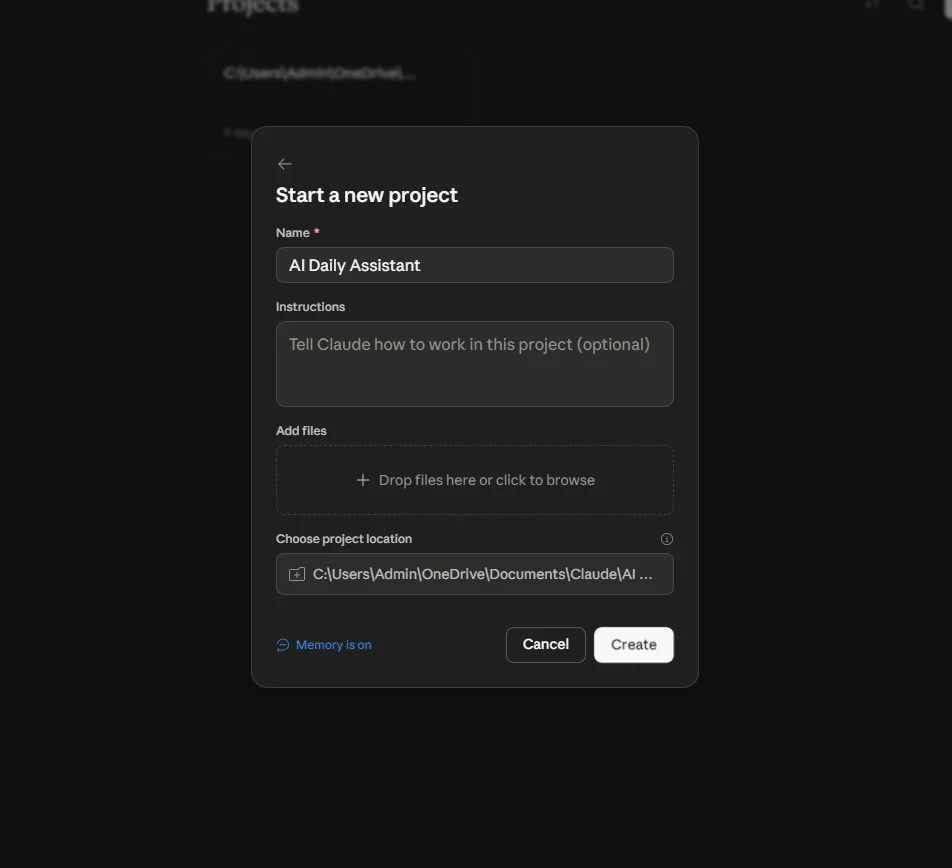
To test it, type:
If Claude lists your events, the calendar is connected. If your calendar is empty, ask Claude to add a test event ("Add an event today at 3pm called Test"). Then ask again.
If you hit an "account mismatch" error: this happens when the Google account signed into your browser is different from the Claude account in your desktop app. Sign out of Claude on the web, sign back in with the same email you use on the desktop, then click Relaunch in the connector dialog. Skip this step if it doesn't apply.
Connect Gmail (two paths, pick one)
This is where most beginners get confused, because there are two ways to connect Gmail and they do different things.
Easy. OAuth sign-in like Calendar. Lets Claude read your inbox. Good if you only want the dashboard view and don't need Claude to send emails for you.
A bit more setup. Requires 2-Step Verification. Lets Claude both read and send/reply to emails from your address. Pick this one if you want the full assistant experience.
Most people will want Path B. The whole point of having an AI command center is that it can act, not just look. The rest of this guide assumes Path B. If you go with Path A, just install the Gmail connector the same way you installed Calendar and skip ahead to Section 07.
Step 1: Turn on 2-Step Verification
App passwords only work on Google accounts with 2-Step Verification enabled. To check, open a browser and go to:
Scroll to the section called How you sign in to Google. Find 2-Step Verification. If it says On, skip to the next step. If it says Off, click it and follow Google's prompts. You'll need a phone number or authenticator app to complete the setup.
Step 2: Create an app password
An app password is a 16-character code that gives a specific tool access to your Gmail without sharing your real password. Think of it as a guest key that only opens one door. You can revoke it any time without changing your main password.
In your browser, go to:
You'll see a field labeled App name. Type Claude, click Create, and Google will show you a 16-character code that looks like xxxx xxxx xxxx xxxx.
Copy this code immediately. Google only shows it once. If you close the window without copying it, you'll have to delete the password and create a new one. Save it in a password manager, not a sticky note.
Step 3: Tell Claude your Gmail address and app password
Go back to your project in Claude Desktop. Paste this prompt into the chat, replacing the values in brackets with your own:
Claude will save your credentials to a file inside the project, send a test email to yourself, and confirm when it lands. Check your inbox to verify. If you see the test email, you're done with the hard part.
Where the password lives. The email_config.json file stays inside your Claude project, which is private to your account. It doesn't leave your machine unless Claude needs to send an email on your behalf. You can revoke the app password at any time from myaccount.google.com/apppasswords.
Build the dashboard, one piece at a time
Now the fun part. You're going to build the dashboard in four small steps instead of one giant prompt, because if something goes wrong it's much easier to fix one piece than to debug a wall of features at once.
Step 1: Create your task list
Paste this into the chat. List whatever you actually have to do today and this week.
Faster alternative: just talk. Claude Desktop supports voice input. Click the microphone icon, say "I want to create a to-do list with the following tasks, first I need to do X, then Y, then Z", and Claude will transcribe and format it. Much faster than typing if your list is long.
Step 2: Build the inbox dashboard
This is the prompt that does the heavy lifting. It reads your last 7 days of email, sorts them into eight categories, and saves everything to a file so future updates don't have to re-fetch from scratch.
This takes a minute or two depending on how many emails you have. Claude will open the dashboard in the right sidebar as an artifact. Open it and scroll through the categories to make sure they look reasonable.
If something looks wrong, push back. The first build sometimes misses emails or miscategorizes them. Tell Claude exactly what you're seeing: "I see only one email in High Priority, but I know there are at least four from that sender this week. Check again." It will re-run and usually get it right on the second pass.
Step 3: Add a news feed for your newsletters
This adds a tab that reads every newsletter from the past week and gives you a short summary of each, scored by relevance to your work.
Depending on how many newsletters land in your inbox, this can take two to five minutes. When it's done, open the artifact and click the News Feed tab.
"I don't see the News Feed tab anywhere." You probably do, but it's hidden because the tab bar is wider than the artifact panel. Try widening the artifact panel by dragging its edge, or take a screenshot of what you're seeing and paste it back to Claude with "I don't see the News Feed tab here, what's wrong?" Claude can read screenshots and will usually spot it.
Step 4: Build the ultimate dashboard
This is the final piece. It combines your task list, today's meetings, and the full inbox view into one artifact that lives in your sidebar permanently.
That last bit, about saving a separate template file, is what makes the auto-refresh work cleanly later. Claude will read this template each morning, inject the latest data, and re-render the dashboard, instead of rebuilding the whole thing from scratch every time.
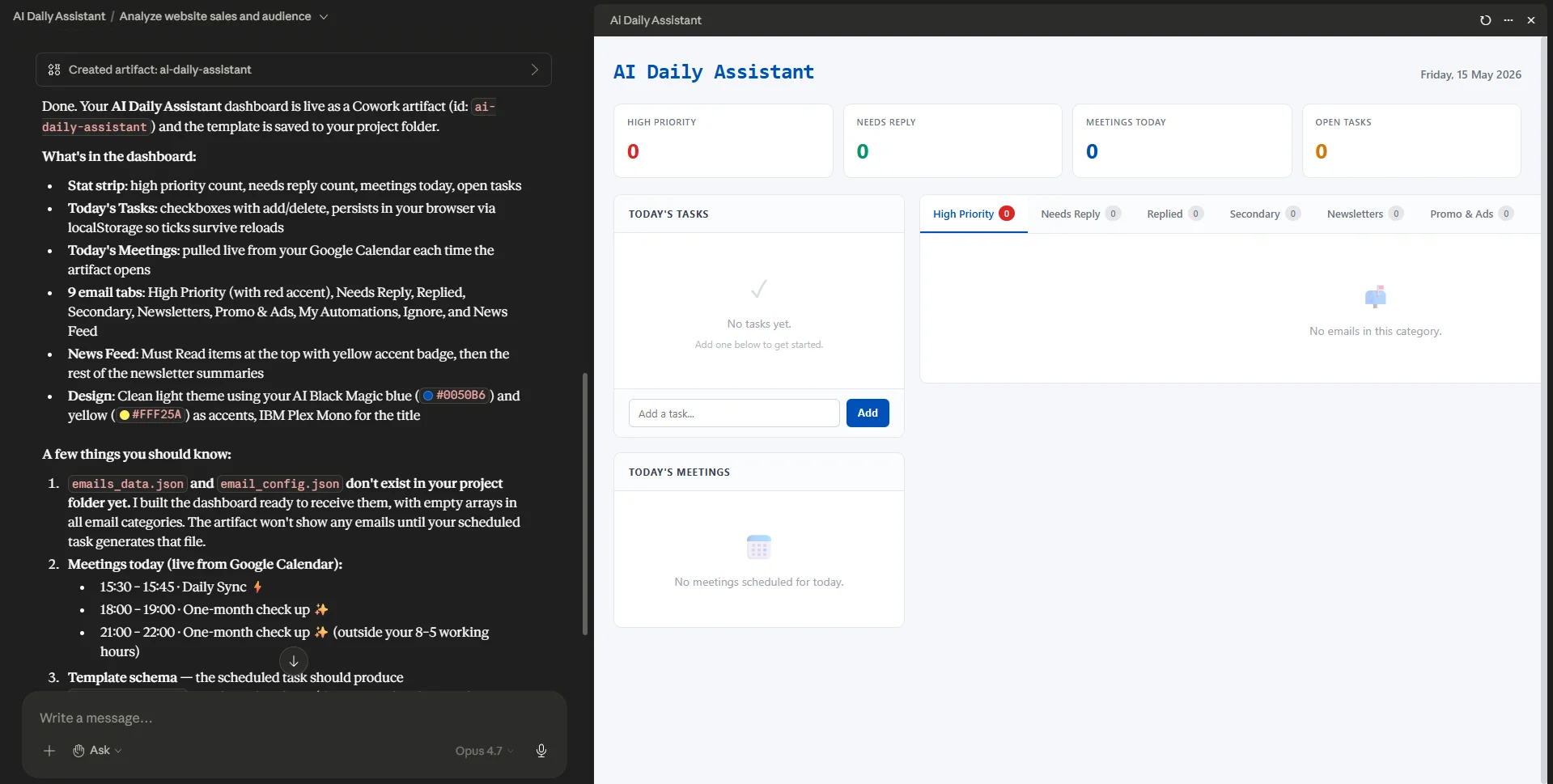
Automate it with scheduled tasks
Right now, your dashboard is a snapshot. It shows the state of your inbox and calendar at the moment you built it. To make it refresh every morning automatically, you need to set up two scheduled tasks.
Paste this prompt:
Two important things will happen after Claude creates the tasks:
- You need to manually run each scheduled task once. Go to the Scheduled section in your project, find each task, and click Run now.
- When the task asks for permission to use Gmail and Calendar, click Allow for all scheduled runs. Without this, the task can't run unattended at 8 AM.
The "my to-do list disappeared" fix. The first time the scheduled task runs, it sometimes wipes the task list because it rebuilds the dashboard from scratch. If that happens, paste this fix into the chat: "Whenever you update the dashboard from this scheduled task, do not remove the previous task list. Always load it from the task file in the project folder. Only change the task list when I tell you what tasks I have completed." Then re-run the task. The fix sticks for future runs.
Using it every morning
Once the dashboard is live and the scheduled tasks are running, your morning routine looks like this:
- Open Claude Desktop. Your project should already be pinned in the sidebar.
- Click the dashboard artifact. Glance at meetings, tasks, and what's in your inbox.
- Decide what you're doing first based on the High Priority and Needs Reply piles.
- Skim the News Feed Must Read items if you have a minute.
Marking tasks as done
The dashboard has checkboxes, but in practice Claude doesn't always notice when you click them. The reliable way to update your task list is to tell Claude in chat:
Replying to email without opening Gmail
This is where the app password path pays off. You can reply to anything in your inbox without leaving Claude:
Claude will find the thread, draft the reply, and send it from your Gmail address. You'll see it in your Sent folder a few seconds later.
If Claude says it can't send emails: sometimes Claude forgets it has Gmail connected and refuses. Just remind it: "You have my Gmail credentials in email_config.json, so you can send emails. Please try again." It usually only needs the correction once.
Other things you can ask
Once you're set up, the dashboard becomes a starting point for natural-language commands. Try these:
| What you want to do | What to type |
|---|---|
| Add a calendar event | Add a new event: kickoff call on Friday at 3pm for one hour. |
| Delete a calendar event | Delete the event called "Kickoff call" from my calendar. |
| Send a new email | Send an email to alex@example.com. Subject: Quick question. Say: ... |
| Find emails from someone | Check my inbox for emails from Sarah in the last 30 days. Summarize them. |
| Refresh the dashboard manually | Refresh my inbox dashboard. Re-fetch the last 7 days and update the artifact. |
| Draft a sponsorship reply | Draft a friendly reply to the sponsorship enquiry in my High Priority tab. Ask about their budget. |
When things go wrong
This setup involves a lot of moving parts, and at least one of them will misbehave the first time. Here are the four problems most people hit, with fixes that actually work.
The News Feed tab seems to be missing
It usually isn't missing. The dashboard's tab bar is often wider than the artifact panel, so the last tab gets cut off. Drag the artifact panel wider, or scroll the tab bar horizontally. If it's still not there, paste a screenshot of what you're seeing and ask Claude to check.
A scheduled task got created in the wrong project
This happens if you have multiple Claude projects with similar names. Claude sometimes attaches the new task to the wrong one. The fix is to tell it explicitly:
Claude insists it can't send emails after Gmail is connected
Same fix as in Section 09. Remind Claude that the credentials are in email_config.json and ask it to try again. You may only have to do this once.
The dashboard wipes your to-do list overnight
This is the scheduled-task bug from Section 08. The fix is to tell the scheduled task to load the task list from its file every time, instead of rebuilding the dashboard from scratch. The exact wording is in that section.
The pattern that fixes most issues: when Claude does something wrong, tell it specifically what you're seeing and ask it to check again. "I only see one email but I know there are four" works better than "this is wrong." The more concrete you are, the faster Claude self-corrects.
Making it your own
The default dashboard is generic. The interesting part is bending it to fit your actual work. Here are a few tweaks that pay off.
For a content creator
Add YouTube Studio links to your Project Links. Add high-priority senders for your manager, sponsor contacts, and frequent collaborators. In the inbox prompt, expand the High Priority rules to flag emails containing "video", "script", or "podcast" in the subject if those are how brand partners reach out.
For a freelancer
Add your services page to Project Links so Claude knows what to quote. Set High Priority to flag anything from current clients (use their email domains, not individual addresses). Add a sign-off that includes your phone number, so Claude includes it automatically when it writes for you.
For an online store owner
Add your Shopify storefront and policies pages to Project Links. Set High Priority for your customer service alias and any payment processor (Stripe, PayPal) so chargebacks and disputes never get buried. Add a category for order issues by flagging subject lines with "order", "refund", or "shipping".
Split tasks into morning and afternoon
If your day is split, ask Claude to restructure:
Filter which newsletters appear in your News Feed
If your News Feed is overrun with low-value newsletters, narrow it down:
Where to go from here
Run the dashboard as-is for at least a week before you start tweaking. The first few days will surface things you didn't anticipate. Maybe your High Priority bucket is too noisy. Maybe a key sender keeps landing in Secondary. Maybe Claude is being too formal in your replies. These are all easy fixes, but only after you've seen the system run in your real life.
Once it's stable, think about what other parts of your day this pattern fits. The mechanics you just learned (Project + Connectors + Artifact + Scheduled Tasks) are the same building blocks for almost anything Claude can do unattended. A weekly competitor scan that emails you a digest every Monday. A lead-tracker that watches a specific email alias and logs new prospects to a file. A content-idea generator that reads your top-performing posts and suggests new angles every Friday. The dashboard you just built is the simple version. Once the pattern clicks, the harder ones aren't actually harder.
If something breaks or behaves oddly, the fastest path forward is almost always to describe what you're seeing to Claude in plain English. "The dashboard isn't updating, what's wrong?" is a valid prompt. Claude can read its own artifact, check the scheduled tasks, look at the data file, and tell you what happened. You don't need to know how any of it works under the hood. You just need to know how to ask.
For a deeper, step-by-step walkthrough of the same pattern, grab Fabian Markl's free Claude Cowork guide. It's the original source for this tutorial.
One last thing. The point of this dashboard isn't the dashboard. It's the half-hour you get back every morning, and the brain space you stop spending on triage. Whether you check it religiously or just glance at it once a day, what you're really doing is moving low-value attention work from your head into a system that handles it for you. That's the actual win.