
Claude Code: The Complete Beginner's Guide
What it is, how to install it on Mac and Windows, and what you can use it for. No coding experience required to follow along.
If you've been chatting with Claude in your browser and heard people mention "Claude Code" like it's a whole different tool, you're not wrong. It is. Same Claude brain, very different job. This guide walks you through what Claude Code actually is, how to get it installed on your Mac or PC, and what you can do with it once it's running. We'll go slow. If a term is new to you, we'll explain it the first time it shows up.
- Meet Claude Code
- Regular Claude vs Claude Code: The Real Difference
- Where You Can Use Claude Code
- What You Need Before You Start
- What Is a Terminal, Anyway?
- Installing Claude Code on Mac
- Installing Claude Code on Windows
- Logging In for the First Time
- Your Very First Session
- The Four-Step Pattern That Actually Works
- Writing Prompts That Actually Work
- The CLAUDE.md File: Your Project's Sticky Note
- Skills: Teaching Claude Specific Jobs
- Agents and Sub-agents: Specialists Claude Can Call
- Connecting Claude to Your Other Tools (MCP)
- The Slash Commands Worth Knowing
- Eleven Things You Can Actually Build
- Five Beginner Projects You Can Try Tonight
- Keeping Your Bill Under Control
- When Things Don't Work: Common Problems and Fixes
- Privacy and Security in Plain English
- The Features Still Being Tested
- Your Next Steps
Meet Claude Code
Think about the difference between asking a friend for advice and hiring someone to actually do the job. That's the difference between regular Claude and Claude Code.
Regular Claude, the one you open in a browser tab, is a brilliant assistant who can explain things, write drafts, and think through problems with you. But Claude can't touch your computer. Claude can tell you what code to type, but you have to type it yourself. Claude can suggest how to organize your files, but you have to move them yourself.
Claude Code is different. Claude Code runs on your computer. It can open your files, read them, make changes, run programs, and save its work. It's still the same Claude, asking the same careful questions, giving the same thoughtful answers. The difference is that Claude Code has its hands on the keyboard with you.
The one-sentence version: Regular Claude is a helpful conversation. Claude Code is a helpful teammate who can do the actual work on your computer.
Anthropic, the company that makes Claude, released a new version of Claude Code today (April 23, 2026). It now runs in seven different places: a text app on your computer called the terminal, code editors like VS Code and JetBrains, a desktop app, a web version, Slack, and GitHub. You don't need to know or use all of these. Most people pick one or two and stick with those. We'll walk through each one so you can decide which makes sense for you.
Regular Claude vs Claude Code: The Real Difference
Let's make this concrete with a real example. Say you want to update the pricing on your website.
With regular Claude (claude.ai): You copy your current pricing page into the chat. You ask Claude to rewrite it. Claude gives you the new version. You copy that back into your website builder, paste it in, and save. Claude helped you think, but you did all the doing.
With Claude Code: You point it at the folder where your website lives. You say "update the pricing on my site to reflect the new plans in pricing.md." Claude Code reads your website's files, finds the right places, makes the edits, shows you exactly what it changed, and waits for your OK before saving. If you say yes, it saves. If you say no, nothing changed.
Here's how the two tools stack up on the things that matter.
| What you want | Regular Claude | Claude Code |
|---|---|---|
| Brainstorm ideas | Great | Works, but overkill |
| Write a document from scratch | Great | Also great |
| Edit files already on your computer | Can't do it | What it's for |
| Run programs or scripts | Can't do it | What it's for |
| Review dozens of files at once | Copy-paste nightmare | Handles it easily |
| Remember your project over time | Forgets between chats | Keeps notes in your project |
| Connect to GitHub or your tools | Limited | Built for it |
You don't have to pick one. Lots of people use both. Regular Claude for thinking and writing. Claude Code for the actual doing.
Where You Can Use Claude Code
Claude Code lives in seven different places. This is confusing at first, but the idea is simple. Anthropic built the same helpful assistant and stuck it inside different apps so you can reach it wherever you're working. All seven share the same brain. They differ in what the window looks like.
The Terminal (most powerful)
A text-only app that comes with every Mac and PC. This is where Claude Code has the most features. Don't worry, we'll explain the terminal in a minute.
VS Code
A free code editor made by Microsoft. If you use VS Code, Claude Code lives right inside it as a plugin. You see changes highlighted in your files.
JetBrains IDEs
Another family of code editors, popular for specific languages. Works the same way as VS Code. Nice if you already use PyCharm, WebStorm, or IntelliJ.
Desktop App
A window that opens like any normal app on your computer. No terminal needed. Nice for beginners who prefer buttons and clicks over typing commands.
Web
Runs on Anthropic's computers, not yours. Useful when you want Claude working on something long-running while your laptop is asleep. Still in early testing.
Slack
If your team uses Slack, you can mention Claude in a channel and it'll work on the task for you. Good for teams where everyone watches the same channels.
GitHub
GitHub is where most software code lives online. Claude Code can join your GitHub projects and review changes automatically. You mention @claude and it responds.
Phone (remote control)
Still in early testing, but you can watch or continue a session from your phone while Claude keeps working on your laptop.
For most people starting out, here's the short advice. Install the terminal version first because it has everything. Then, if you already use VS Code, add the VS Code plugin too. If terminals scare you, skip to the desktop app instead. You can always add more later.
What You Need Before You Start
Before you install anything, check this short list.
| What | Details |
|---|---|
| Your operating system | macOS 13 or newer, or Windows 10 (the version from late 2018 or later) or Windows 11 |
| Memory | At least 4 GB RAM. Most computers from the last five years have this. |
| Internet | A regular internet connection. Claude Code talks to Anthropic's servers often. |
| An account | A paid Claude account. Free accounts don't include Claude Code. A Pro or Max plan works. |
| On Windows only | A free program called Git for Windows. We'll install it as we go. |
Paid plan required: If you're on a free Claude plan, Claude Code won't work until you upgrade. The cheapest option is Claude Pro. For teams, Team or Enterprise plans also include it.
That's the whole list. No special hardware. No coding experience. If you've managed to open a web browser and read this guide, you have enough skills to use Claude Code.
What Is a Terminal, Anyway?
Before we install Claude Code, let's get one thing out of the way. A lot of these instructions mention "the terminal." If that word makes you nervous, read this short section first. It'll make everything less intimidating.
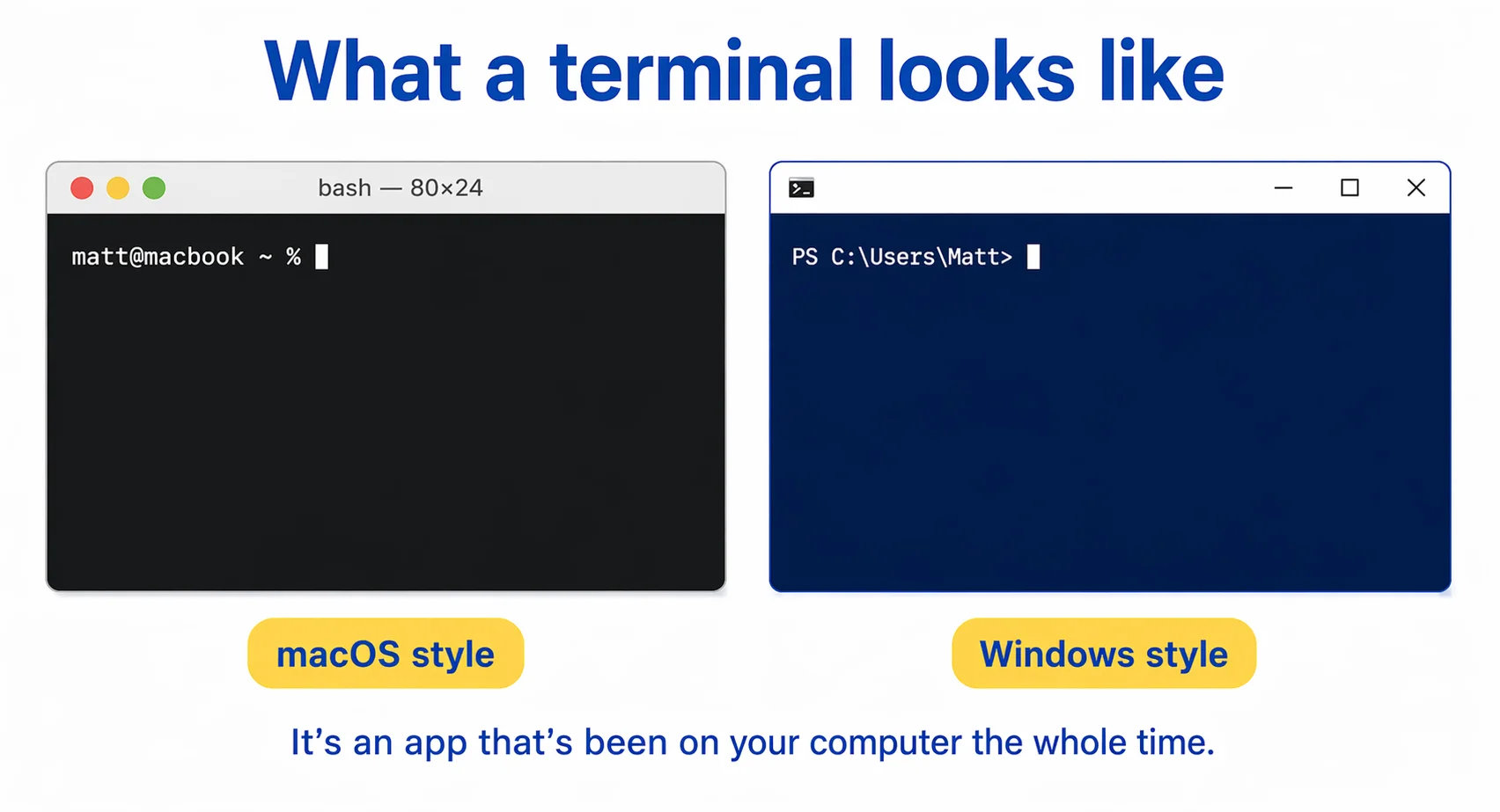
The terminal is an app that's already on your computer. It's been there since you bought it. You just probably never opened it. On a Mac, it's called Terminal. On Windows, the modern version is called PowerShell, and there's an older one called Command Prompt (or CMD).
When you open the terminal, you see a mostly empty window with a blinking cursor. You type commands. The computer runs them. That's the whole thing. Think of it like texting your computer directly instead of clicking menus and buttons.
How to open the terminal
On Mac: Press Command + Space to open Spotlight search. Type "terminal" and press Return. A small window will open.
On Windows: Click the Start menu. Type "powershell" and click the result that says Windows PowerShell. A blue or black window will open.
The terminal isn't dangerous. It just runs what you type. The commands we'll use in this guide are copy and paste from official Anthropic instructions. You don't need to memorize anything.
Quick reassurance: If you type a command wrong, the terminal will say so and nothing will break. You can always close the window and open a new one to start over.
Installing Claude Code on Mac
Mac is the simpler of the two paths. Here's the whole process in three steps.
Step 1: Open Terminal
Press Command + Space, type "terminal," and press Return. A window opens.
Step 2: Paste this one line and press Return
Copy the command below and paste it into the terminal. Then press Return.
curl -fsSL https://claude.ai/install.sh | bash
You'll see some text scroll by as your computer downloads Claude Code. This takes about thirty seconds. When it's done, you'll get your cursor back.
Step 3: Check that it worked
Type this and press Return:
claude --version
If you see a version number (something like 2.1.118), you're in. If you see "command not found," skip ahead to the "claude not found" fix below.
If "claude not found" appears
This is the most common hiccup on Mac. It means your computer installed Claude Code but doesn't know where to find it. The fix is three lines. Paste them into the terminal one at a time, pressing Return after each.
echo 'export PATH="$HOME/.local/bin:$PATH"' >> ~/.zshrc
source ~/.zshrc
claude --version
After the third line runs, you should see the version number. You're ready to log in.
Alternative: Homebrew users. If you already use Homebrew (a tool that manages other apps), you can run brew install --cask claude-code instead. This works fine but doesn't update itself automatically like the first method does.
Installing Claude Code on Windows
Windows has two paths. Don't overthink this. If you mainly work with tools that came with your PC, use the first path. If you're a web developer or you use programming languages like Python or Node, use the second path.
Path 1: Normal Windows (PowerShell)
Step 1: Click the Start menu, type "powershell," and click Windows PowerShell. A window opens with a dark blue background.
Step 2: Paste this one line and press Enter.
irm https://claude.ai/install.ps1 | iex
Step 3: Check it worked.
claude --version
Path 2: WSL (for web and open-source work)
WSL stands for Windows Subsystem for Linux. It's a way to run a Linux environment inside Windows. If you already use Ubuntu, Debian, or any Linux inside Windows, this is for you. Open your Linux app and run:
curl -fsSL https://claude.ai/install.sh | bash
claude --version
The number-one Windows mistake: Using the wrong command in the wrong window. If PowerShell complains about &&, you pasted the CMD command by mistake. If Command Prompt says irm is unknown, you pasted the PowerShell command. Stick to PowerShell and the first command above, and you'll avoid this.
One extra step: Git for Windows
On normal Windows (not WSL), Claude Code needs a free program called Git for Windows. If the installer complains about Git, go to the Git for Windows website, download the installer, run it, and keep clicking Next. Default settings are fine. Then try installing Claude Code again.
If "claude is not recognized" appears
Like on Mac, this means Windows installed Claude Code but doesn't know where to find it. Paste this into PowerShell to fix it, then close PowerShell and open it again.
$currentPath = [Environment]::GetEnvironmentVariable('PATH', 'User')
[Environment]::SetEnvironmentVariable('PATH', "$currentPath;$env:USERPROFILE\.local\bin", 'User')
Logging In for the First Time
Claude Code is installed. Now you log in. This is the easy part.
In your terminal (or PowerShell), type claude and press Return. Here's what happens next.
- Claude Code opens your web browser automatically.
- The browser lands on a Claude.ai login page.
- You sign in like you normally would.
- The page says "you can close this tab" and the terminal beeps or shows a welcome message.
That's it. You're logged in. Claude Code now remembers who you are on this computer. You don't have to log in again unless you log out or switch accounts.
If the browser doesn't open
Sometimes the browser won't pop up on its own, especially on Windows. If that happens, the terminal shows you a link and asks you to press c to copy it. Press c, paste the link into your browser yourself, and log in. The terminal will sort itself out from there.
For the curious: If you ever want to switch accounts or log out, type claude /logout and press Return. To log back in, type claude /login. Most people never need to do this, but it's good to know the option exists.
Your Very First Session
Now for the fun part. Claude Code is installed. You're logged in. Let's use it.
Before you start, decide which folder you want to work in. This can be literally any folder on your computer. A folder with your website files. A folder with a business plan. A folder with some notes and spreadsheets. Anything.
Starting from scratch is fine too. You don't need an existing project. Make a new empty folder on your desktop, open Claude Code inside it, and tell Claude what you want to build. Claude Code is just as happy writing a brand-new project from zero as it is editing an existing one. This is how a lot of people build their first app.
In your terminal, navigate to that folder. Don't worry if "navigate" sounds fancy, it just means telling the terminal which folder you want to be in. If your project is on your desktop in a folder called "my-site," run these two commands:
cd ~/Desktop/my-site
claude
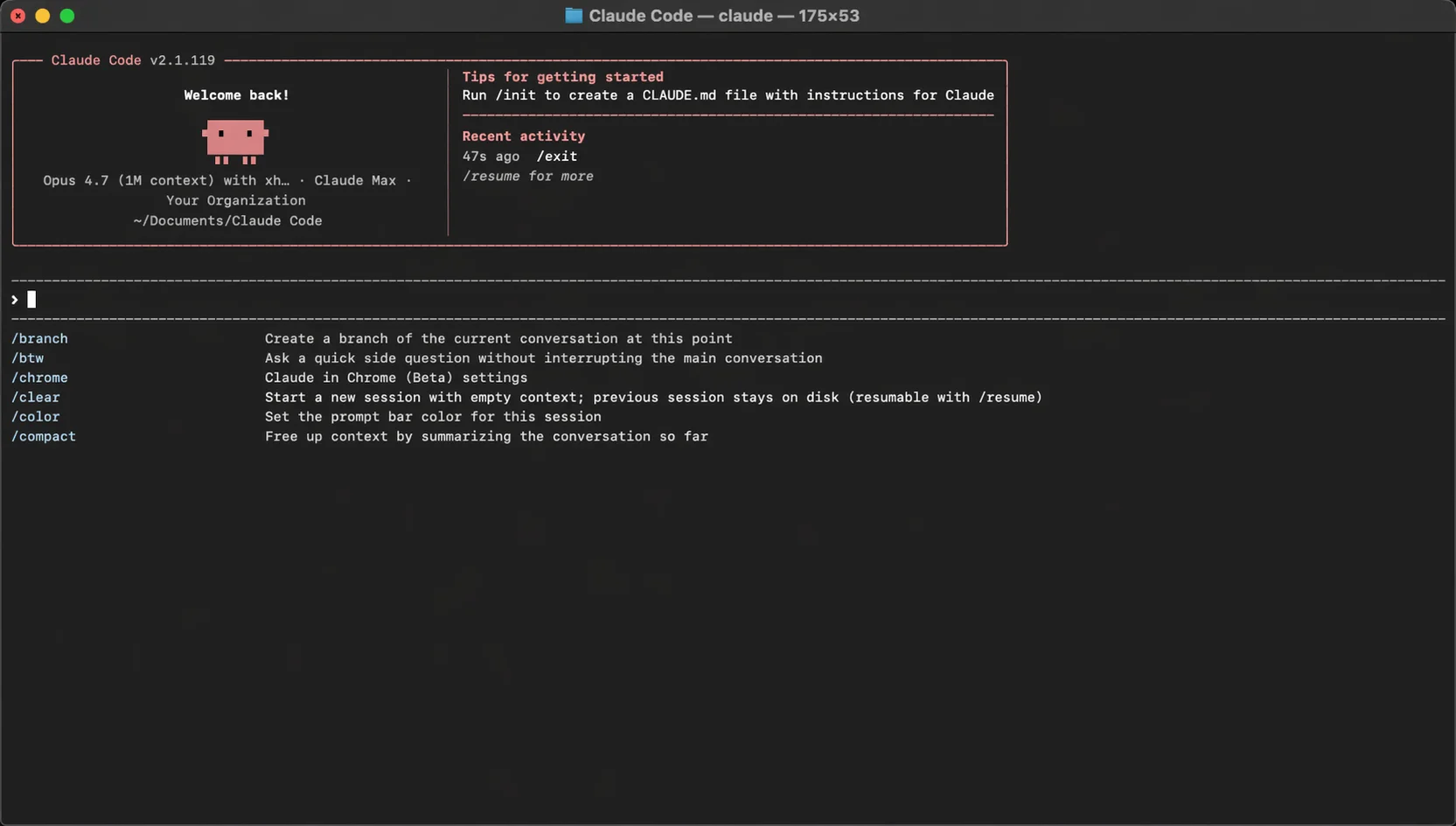
The first line moves you into the folder. The second line starts Claude Code in that folder. What you see next is a friendly welcome screen and a prompt waiting for you to type.
Your first prompt
Try typing this as your first message:
Read the files in this folder and give me a one paragraph summary
of what this project is.
Claude Code will tell you which files it's about to read, ask for your approval (say yes), read them, and then write you a short summary. You've just had your first Claude Code session. Everything else is just variations on this.
Why Claude asks before doing things: By default, Claude Code asks you before it reads files, runs programs, or makes changes. This keeps you in control. As you get more comfortable, you can change these settings, but the safe defaults are a good place to start.
The Four-Step Pattern That Actually Works
This section might be the most useful in the whole guide. Skip it and Claude Code still works, but you'll get frustrated within a week. Follow it and you'll look like a pro by day three.
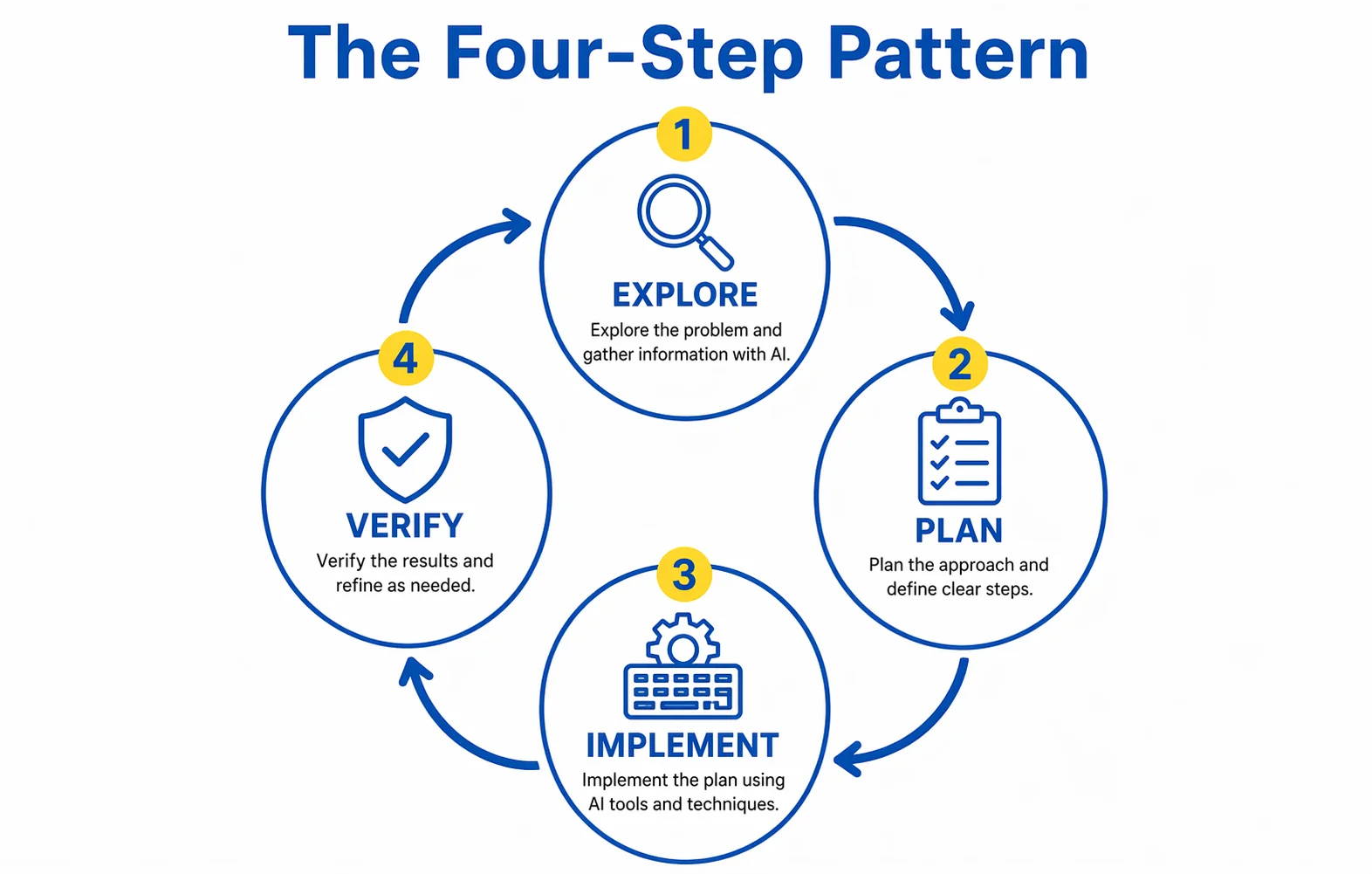
Anthropic recommends the same four-step loop for every non-trivial task: Explore. Plan. Implement. Verify.
The Loop, in Plain English
- Explore. Ask Claude to read the relevant files first. Don't let it guess. Tell it which ones to look at.
- Plan. Ask Claude to tell you what it's going to do before it does anything. Read the plan. Correct it if it's off.
- Implement. Tell Claude to follow the plan. Watch as it makes changes. Approve each one (or set it to auto-approve for trusted tasks).
- Verify. Once it's done, ask Claude to double-check its own work. Run any tests. If it's code, make sure the program still works.
The reason this works is simple. Claude Code is very capable, but it's not a mind reader. When you skip straight to "build me a thing," Claude has to guess at your intent, your project's conventions, and what "done" looks like. Any of those guesses could be wrong, and you won't notice until later.
When you make Claude explore first and plan out loud, you catch misunderstandings before they become wasted work. It's the same reason a good contractor walks through your house before starting a renovation. The walk-through is where you catch the wrong assumptions.
The writer-reviewer trick: After Claude finishes a big task, close the session and open a new one. Ask the fresh session to review what the first session just did. The new session has no attachment to the work, so it catches things the first one missed. It's like asking a different person to proofread.
The three modes (and how to switch between them)
Inside a Claude Code session, there are three different "modes" that change how Claude behaves. Most people don't realize these exist for weeks. Learn them on day one and you'll save yourself a lot of frustration.
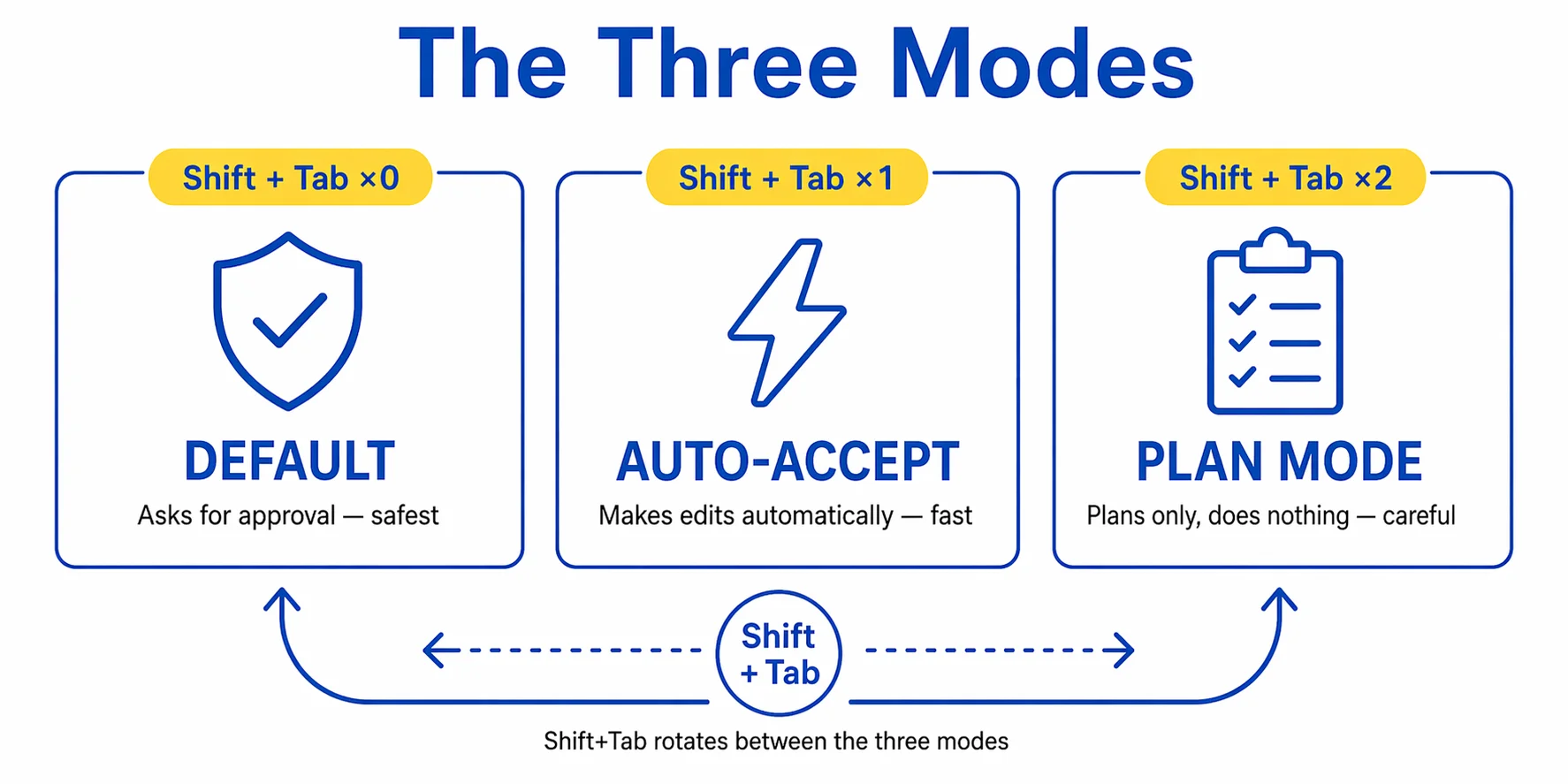
You switch between modes by pressing Shift + Tab. Each press cycles to the next mode. The current mode shows at the bottom of the Claude Code window so you can always see where you are.
Mode 1: Default (asks for approval)
This is the mode you start in. Claude shows you what it wants to do and waits for you to approve before it reads a file, runs a command, or makes a change. Safest mode. Use this when you're not sure what Claude is going to do.
Mode 2: Auto-accept edits
Press Shift + Tab once. Now Claude will make file edits without stopping to ask each time. Handy when you're doing a big repetitive task and trust Claude to follow the plan. You can still stop it at any time by pressing Escape.
Mode 3: Plan mode
Press Shift + Tab again. Now Claude will only plan. It reads files, thinks things through, and writes out a full step-by-step plan for what it's going to do. But it won't touch anything. When you like the plan, press Shift + Tab one more time to switch back to one of the other modes and tell Claude to execute. This is the mode to use for anything important.
The pattern most people settle into: start in plan mode to get a solid plan out of Claude, review it, then switch to auto-accept to let Claude run through the plan quickly. It's the best of both worlds.
When in doubt, stay in default mode. Auto-accept is great when you know what you're doing, but it's the mode that causes the most "wait, why did Claude just delete that?" moments. Beginners should stick to default until they have a feel for how Claude behaves.
Writing Prompts That Actually Work
Claude Code is good at taking instructions. It's not good at reading minds. The difference between a frustrating session and a useful one often comes down to a few prompt-writing habits.
Weak prompt vs strong prompt
Here's a weak prompt: "Add tests for foo.py."
Here's a strong version of the same prompt: "Add tests for foo.py that cover the normal success case, the empty-list case, and the edge case where the input is a negative number. Match the style of the existing tests in test_bar.py. Don't mock the database."
The strong prompt does three things the weak one doesn't: it names exactly what should be tested, it points at an example to copy, and it says what NOT to do.
Five habits that separate good prompts from bad ones
- Be specific. Name the files. Name the behavior. Name the expected result.
- Point at examples. If there's a file in your project that does something similar to what you want, tell Claude to look at it and match the pattern.
- Ask Claude to check itself. "When you're done, run the tests and confirm they pass." This one line prevents a lot of quiet failures.
- Keep sessions clean. If you switch topics, type
/clearto start fresh. Dragging an old topic into a new session makes Claude confused. - Don't ask for the world. Break big jobs into smaller ones. "Build me a website" is too big. "Add a contact form to my website" is just right.
The CLAUDE.md File: Your Project's Sticky Note
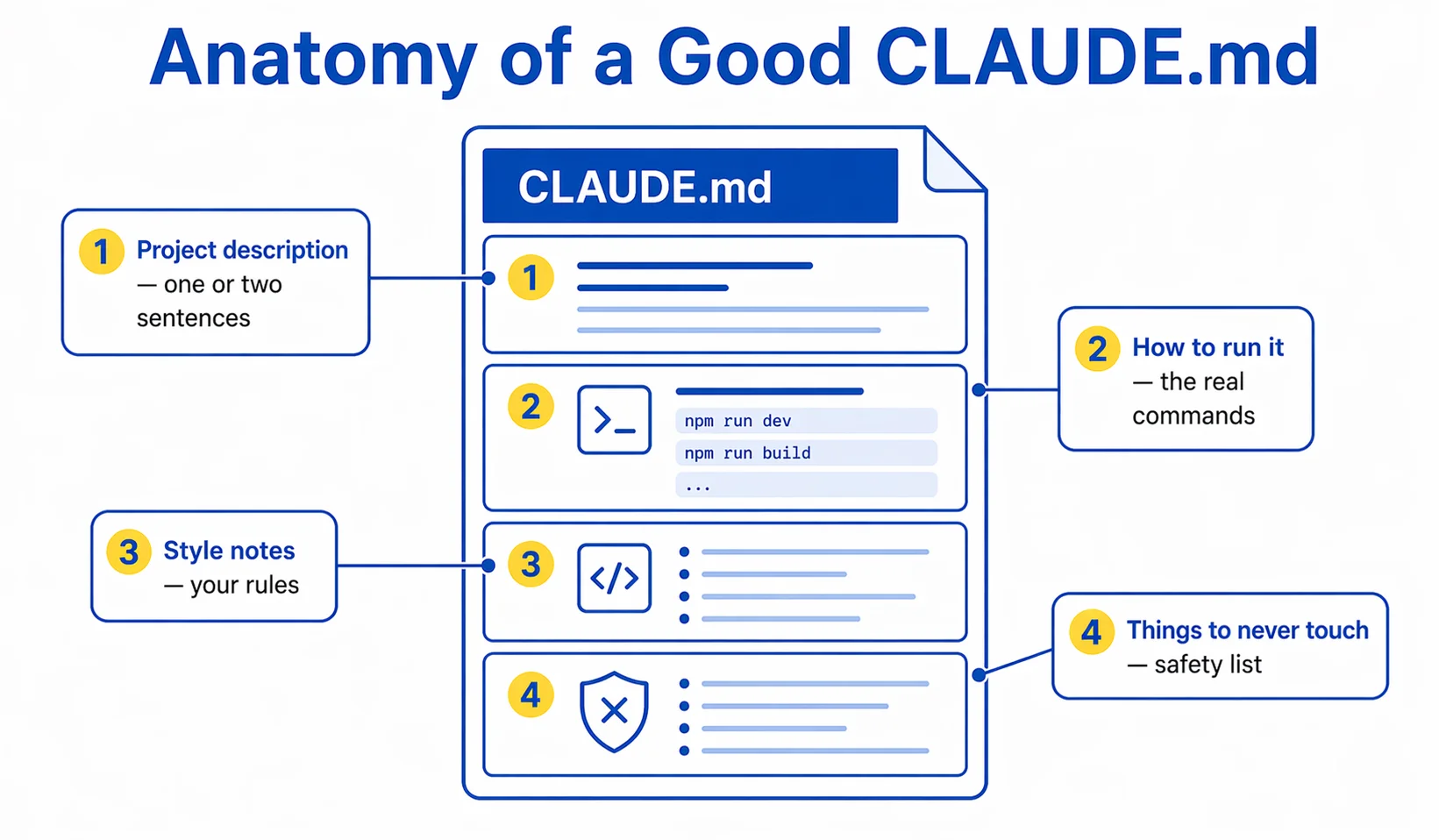
Every project Claude Code works on can have a file called CLAUDE.md at the top. It's a simple text file with notes about your project. Claude reads it automatically at the start of every session. Think of it as a sticky note that lives with your project and tells Claude what to remember.
The lazy way: let Claude write it for you
Here's a trick most beginners miss. You don't have to write CLAUDE.md yourself. Open Claude Code in your project folder, then run this slash command:
/init
Claude will explore your project, figure out what it is, and write a starter CLAUDE.md for you. It covers the basics automatically: what the project is, how to run it, the important folders, the conventions it noticed in the code. Read what Claude wrote, tweak the parts that are wrong, add anything it missed, and save. Five minutes of work instead of thirty.
What a good CLAUDE.md looks like
A good CLAUDE.md is short. Anthropic recommends keeping it under 200 lines. Here's an example for a fictional website project.
# CLAUDE.md

This is a Next.js website for my consulting business.

## How to run it
- Run `npm install` first if dependencies are missing
- Use `npm run dev` to preview locally at localhost:3000
- Use `npm run build` before deploying

## Style notes
- Keep copy in plain English, no jargon
- Brand colors: #0050B6 (blue) and #FFF25A (yellow)
- All prices should be in USD
That's all it is. Short, specific, full of the real commands and rules of the project. Claude reads this at the start of every session, so you don't have to re-explain your project every time.
Tip for non-coders: CLAUDE.md works the same way for any project, not just code. If your "project" is a folder of marketing materials, a CLAUDE.md can tell Claude "this is where we keep our client proposals, use our standard template in template.docx, and always address the client by their first name." Same file, same idea, no code needed.
Skills: Teaching Claude Specific Jobs
Skills are one of the most useful features in Claude Code, and also one of the least explained. Once you understand them, you'll use them constantly.
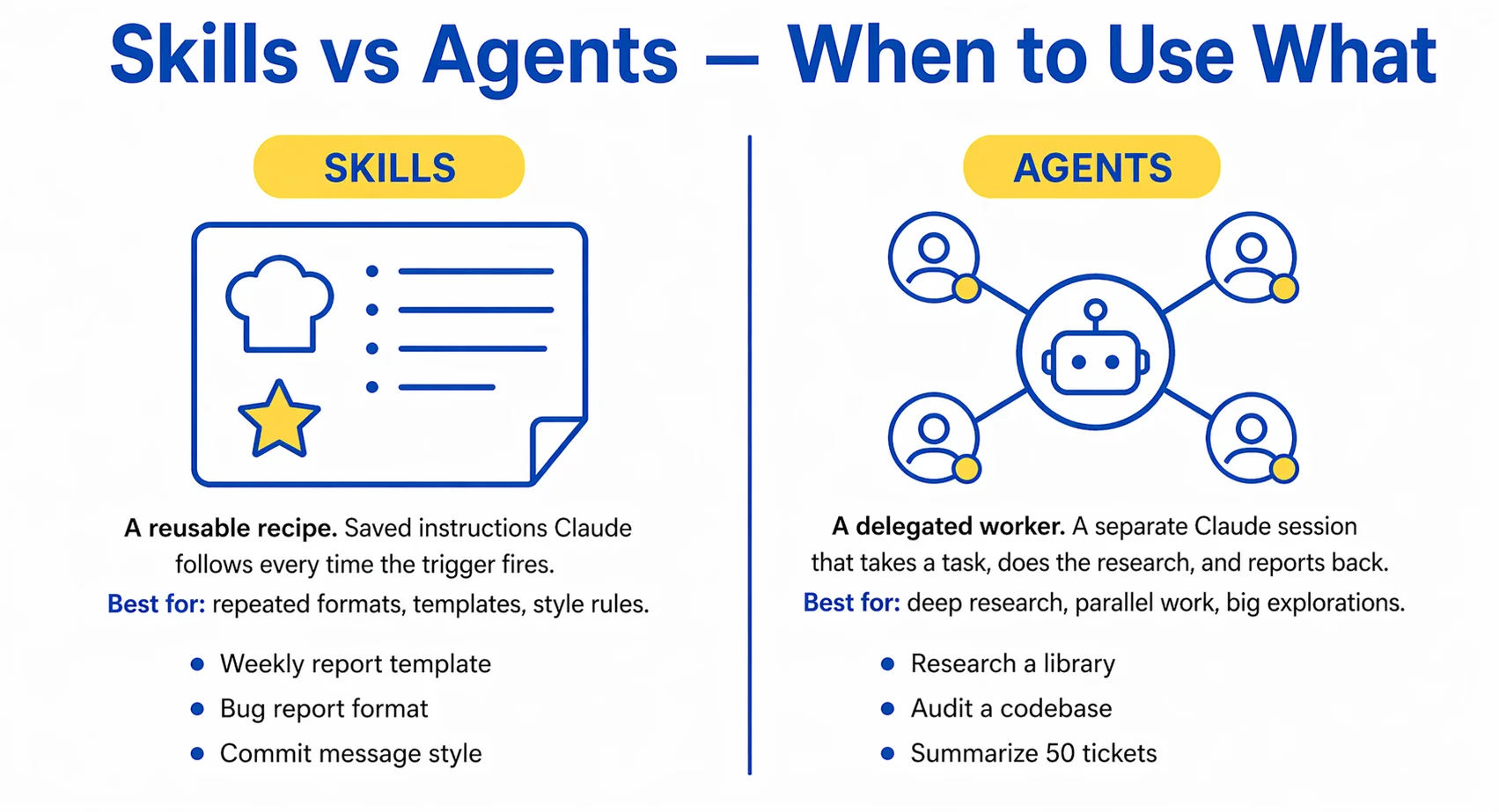
A skill is a folder of instructions that teaches Claude how to do a specific job really well. Think of it like a recipe card. Instead of re-explaining how to write your company's reports every single time, you write the instructions once, save them as a skill, and from then on Claude follows that recipe automatically whenever the job comes up.
A plain-English example
Say your company writes weekly customer reports in a specific format. Logo at the top, a summary paragraph, three charts, a list of action items at the bottom. Without a skill, you'd have to explain this every time.
With a skill called "customer-report," you write those instructions once. Now when you say "Claude, write this week's customer report for Acme Corp," Claude opens the skill, follows the recipe, and produces a report that matches your format exactly. No re-explaining. No drift. No "please use the logo, no the other logo, no smaller."
Where skills live
Skills sit in a folder inside your project at .claude/skills/. Each skill has its own subfolder with a SKILL.md file inside that explains the recipe. Claude reads the skill automatically when the job it describes comes up. You don't have to mention the skill by name.
The two kinds of skills
- Project skills. These live in your project folder and ship with the project. Anyone who opens the project gets the same skills. Good for team conventions.
- Personal skills. These live in your home folder at
~/.claude/skills/and follow you across every project. Good for your personal habits and style.
The lazy way to create one
Just like CLAUDE.md, you don't have to write skills from scratch. Ask Claude to do it for you. Something like:
I keep asking you to write customer reports in a specific format.
Create a skill at .claude/skills/customer-report/SKILL.md that
captures how we do these. Look at the three reports in the
reports/ folder as examples and match that style.
Claude will build the skill for you. From that point on, every time you ask for a customer report, Claude follows the recipe without being reminded.
The big idea: Skills turn repeat work into a one-line request. Anything you find yourself explaining to Claude more than twice is probably a skill waiting to be written.
Agents and Sub-agents: Specialists Claude Can Call
When you run Claude Code, you're talking to the main Claude. But the main Claude can also bring in specialists for specific jobs. These specialists are called agents (or sub-agents). Think of it like a general contractor who brings in an electrician for the wiring and a plumber for the pipes. Same project. Different experts.
An agent is a mini-version of Claude with its own focus. It has its own instructions, its own tools, and its own memory, all separate from your main session. The main Claude calls the agent when a task matches what that agent is good at, the agent goes and does the work, and it reports back with a clean summary.
Why you'll care about this
Three reasons this matters even if you never write an agent yourself.
- Specialization. A code-review agent has been taught specifically how to review code. A research agent is optimized for finding things. They do their one job better than a generalist would.
- Parallel work. The main Claude can spin up several agents at once, each working on a different part of a task. That's much faster than doing each step one after another.
- Clean context. Agents have their own separate memory. They don't clutter your main session with every file they read. You get just the summary. This keeps things fast and focused.
Built-in agents
Claude Code ships with a few useful agents already included. You don't usually call these yourself. The main Claude figures out when to use them. You just notice things getting done faster.
- General-purpose agent for open-ended research across your project.
- Explore agent optimized for quickly searching files and code.
- Plan agent focused on architecture and step-by-step planning.
Custom agents you build yourself
The fun part is building your own. Custom agents live in .claude/agents/ as Markdown files. Each file describes what the agent does and which tools it's allowed to use.
Say you run a marketing business. You might build a "brand-reviewer" agent that checks every piece of content you write against your style guide. Or a "content-repurposer" agent that takes a blog post and turns it into social posts. Or a "weekly-report-writer" that pulls your data and drafts the report in your usual format.
The lazy way to make one
Same trick as with skills and CLAUDE.md. Don't write the agent yourself, ask Claude to write it.
Create an agent at .claude/agents/brand-reviewer.md that reviews
any content I write against the brand guide in brand.md.
It should flag buzzwords, suggest edits, and point out
anything that doesn't match our voice.
From then on, when you say "have the brand reviewer look at this," Claude hands the work to the agent, which returns a clean report. You never had to learn the format.
Skills vs agents (they sound similar but aren't the same): Skills are recipes the main Claude follows itself. Agents are separate workers Claude delegates to. If the job is "always do it this way when it comes up," that's a skill. If the job is "go off and do this whole thing on your own while I keep working," that's an agent.
Connecting Claude to Your Other Tools (MCP)
Up to this point, everything Claude Code has done has been inside the folder on your computer. But a lot of your actual work lives somewhere else. Your Google Drive. Your Slack messages. A Notion database. A GitHub repo. The project management tool your team uses. Claude Code has a way to reach all of that, and it's called MCP.
MCP stands for Model Context Protocol. Don't worry about the name. Think of it as a standard plug that lets Claude Code connect to other apps and services. Once a connection is set up, Claude can read from and sometimes write to that tool the same way it reads from and writes to files on your computer.
Anthropic created MCP, but it's open — any tool company can build a connector, and many have. There's a growing list of official connectors (Google Drive, Slack, GitHub, Sentry, Linear, Notion, and more) plus a large community of unofficial ones.
What this actually unlocks
Once you've connected a tool, you can just mention it in your prompt and Claude handles the rest. Some real examples:
- "Look in my Google Drive and find the latest contract from ACME. Summarise the key terms."
- "Summarise everything that happened in #team-support yesterday and flag anything that needs a reply."
- "Open the GitHub issue Matt assigned me this morning, read the bug report, and start a plan to fix it."
- "Read the latest customer feedback from our Notion feedback board and draft responses I can send tomorrow."
Without MCP, any of those would involve you copying and pasting stuff between apps. With MCP, Claude just does it.
How to add a connection
Inside Claude Code, type /mcp and press Return. You'll see a list of connectors that are installed and ones you can add. Adding an official connector usually takes one command and a quick login screen, the same as installing any app.
claude mcp add github
That command adds GitHub as a connector. Claude Code will open a browser window where you log in and approve the connection, same as the first time you logged into Claude itself. From then on, Claude Code can read your issues, pull requests, and repos on demand.
The big idea: Skills and agents make Claude smarter inside your project. MCP makes Claude aware of everything outside your project. The combination is what turns Claude Code from a coding helper into a real day-to-day work assistant.
A quick note on safety
MCP connections are powerful, so a little caution goes a long way. Three rules:
- Stick to official or well-known connectors. Anthropic keeps a list. Community connectors can be great, but treat them like browser extensions — only install the ones you trust.
- Check the permissions before you approve. Some connectors only read your data. Others can also write, delete, or send on your behalf. Read the scope before you click allow.
- Give Claude read-only access first. When you're just getting started, it's fine to connect tools in a read-only mode. You can always grant more permission later once you trust the workflow.
MCP is still evolving quickly — new connectors appear every week. If you use a tool a lot, it's worth checking whether someone has built a connector for it. Chances are good that they have.
The Slash Commands Worth Knowing
Inside a Claude Code session, you can type special commands that start with a slash. These are shortcuts that do specific things. There are dozens, but most people only use about ten. Here are the ones worth memorizing.
For managing your session
/clear: Wipes Claude's memory of the current chat and starts fresh. Use this when you switch topics./compact: Summarizes what you've talked about so far and keeps going. Use this when one topic gets long./context: Shows you how much of Claude's memory is in use right now.
For checking your setup
/doctor: Tells you if your Claude Code install is healthy./status: Shows which account you're logged into and which settings are active./permissions: Shows what Claude is allowed to do and not do.
For checking your bill
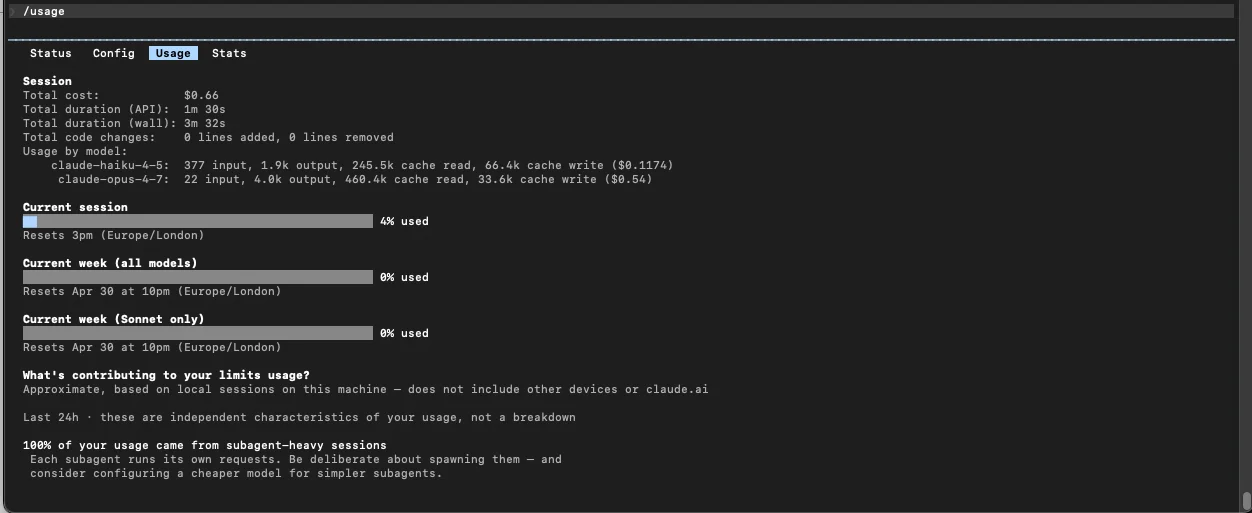
/usage: Shows how much you've used and what's left. In version 2.1.118 (released today), this one command replaced the older/costand/stats.
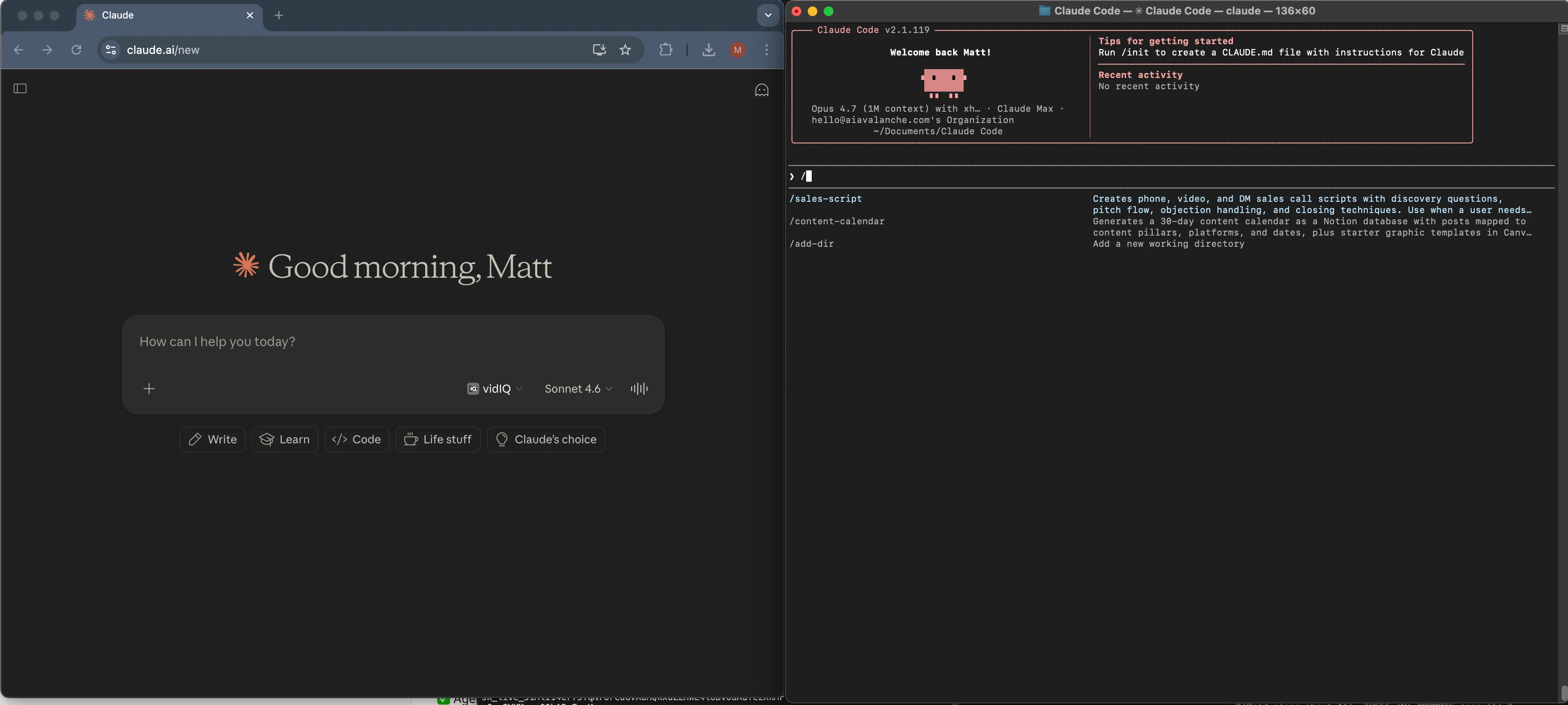
Don't memorize all of them. Type / on its own and Claude Code will show you a menu of all available commands. Browse whenever you're curious.
Eleven Things You Can Actually Build
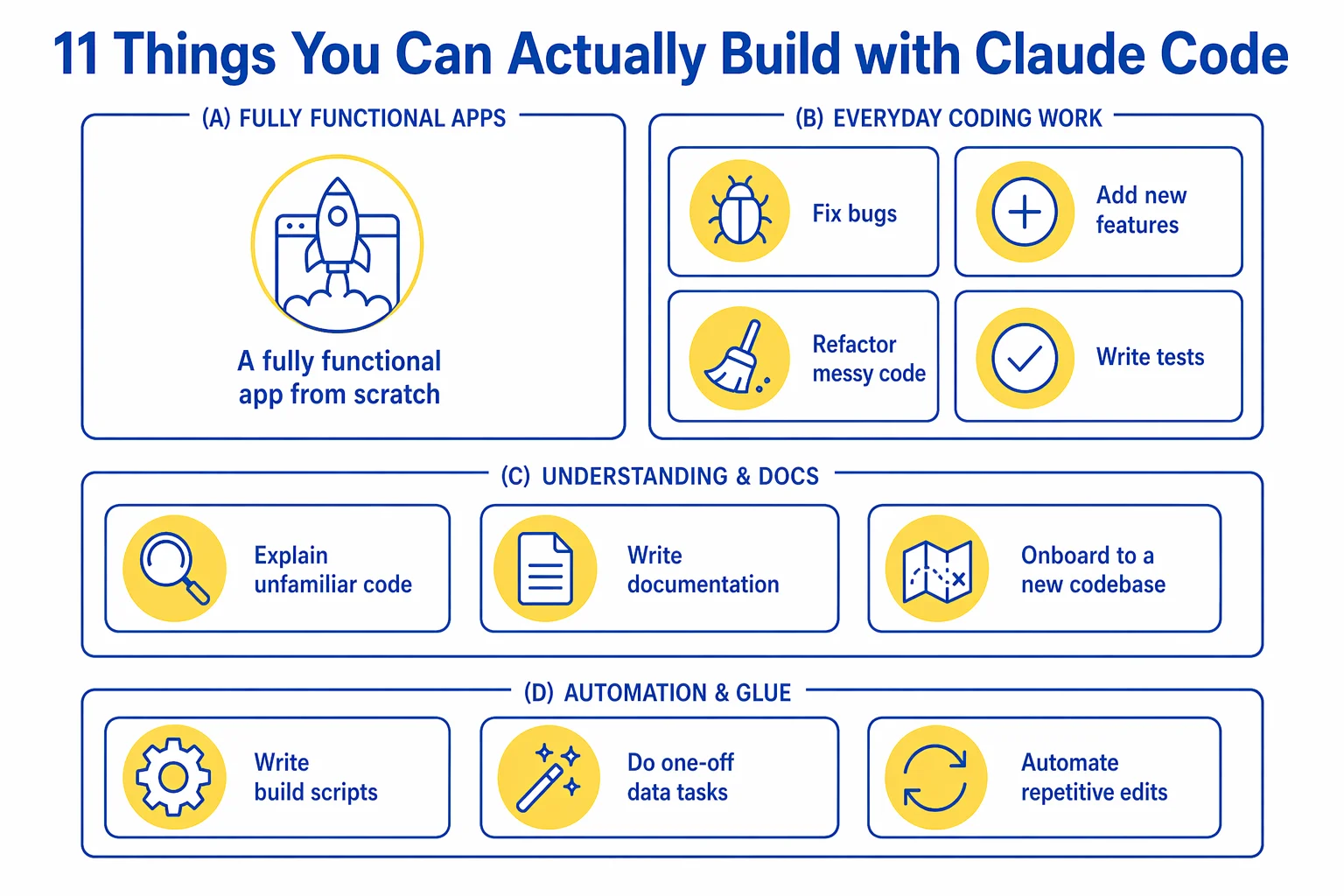
"What can I do with this" is the question everyone asks. Here are eleven practical things Claude Code handles well, all pulled from Anthropic's official documentation.
Build a fully functional app from scratch
Open Claude Code in an empty folder and describe the app you want. A personal CRM. A small web tool. A Mac menu bar utility. Claude plans it, writes the code, runs it, and fixes what breaks. This is the one that surprises people the most.
Update a website
Change copy, prices, images, or styling across many pages at once. Claude reads the files, makes the edits, and shows you the changes.
Add a feature to an app
Tell Claude what feature you want, point it at where it should go, and Claude writes the code, tests it, and opens a change request.
Fix bugs
Describe the problem, paste in the error message, and Claude digs through the code to find the cause. Usually faster than doing it yourself.
Write tests
Tests are how code proves it works. Claude writes them for you, filling in the coverage your project is missing.
Review a pull request
A pull request is a proposed change on GitHub. Claude can review these automatically and leave comments, catching problems before a human reviews.
Update old code
Got an old project using an outdated library? Claude can migrate the whole thing file by file. Anthropic documents a real pattern for 2,000-file migrations.
Fill out forms online
Through the Chrome plug-in (still in testing), Claude can open web pages, fill forms, and extract data. Useful for repetitive browser tasks.
Read and organize documents
Point Claude at a folder of PDFs, notes, or spreadsheets and ask it to summarize, categorize, or extract specific information.
Run scheduled jobs
Set up Claude to run nightly checks on your code, audit for security issues, or generate reports on your project.
Document everything
Pointing Claude at a messy inherited project and asking for a README is one of the fastest wins. You'll have a clear overview in minutes.
A helpful way to think about it: Claude Code is good at three layers. The core work (writing and editing). The work around the work (tests, reviews, documentation). And the tools that connect it all (GitHub, Slack, your browser).
Five Beginner Projects You Can Try Tonight
Reading about Claude Code is nice. Using it is better. Here are five small projects you can do in an evening, copy-paste ready. Each one teaches you something useful without being overwhelming.
Project 1: Document a folder you inherited
Maybe you joined a new job and inherited a messy codebase. Maybe a friend sent you a project and you have no idea what it does. Either way, this is the fastest first win.
Open Claude Code inside the folder and paste this:
Explore this folder and create a README.md file that explains:
- What this project is in one paragraph
- How someone would run it or use it
- Which folders contain what
- Three things I should know before making changes

Keep it short. Under 100 lines.
Five minutes later, you have a readable overview of a project you didn't understand.
Project 2: Summarize a folder of documents
Got a folder full of PDFs, meeting notes, or emails? Ask Claude to read them all and summarize.
Read all the PDF and text files in this folder.
Write a summary document called SUMMARY.md that:
- Lists each file with a one-sentence description
- Groups them by topic
- Pulls out any dates, action items, or decisions
Project 3: Update your brand colors everywhere
If you have a website folder with your brand colors hardcoded in various files, this is a one-shot task.
Search this project for the hex color #3498db and replace it
with #0050B6. Also replace #f1c40f with #FFF25A.
Show me each file you changed and wait for me to approve
before saving.
Project 4: Clean up a folder of photos or files
Claude Code can rename, organize, and sort files in bulk.
Look at every file in this folder. Rename them to follow this pattern:
YYYY-MM-DD_description.extension

Use the file's creation date where possible. If you can't figure out
the date, ask me.
Project 5: Build a simple automation
This one is slightly more advanced, but it shows the real power. Ask Claude Code to build you a small program that does a useful task on command.
Build me a Python script called weekly_report.py that:
- Reads all the CSV files in the data/ folder
- Pulls out the total revenue column
- Outputs a single summary CSV with totals by week

Write tests for it. Run the tests. Show me the result.
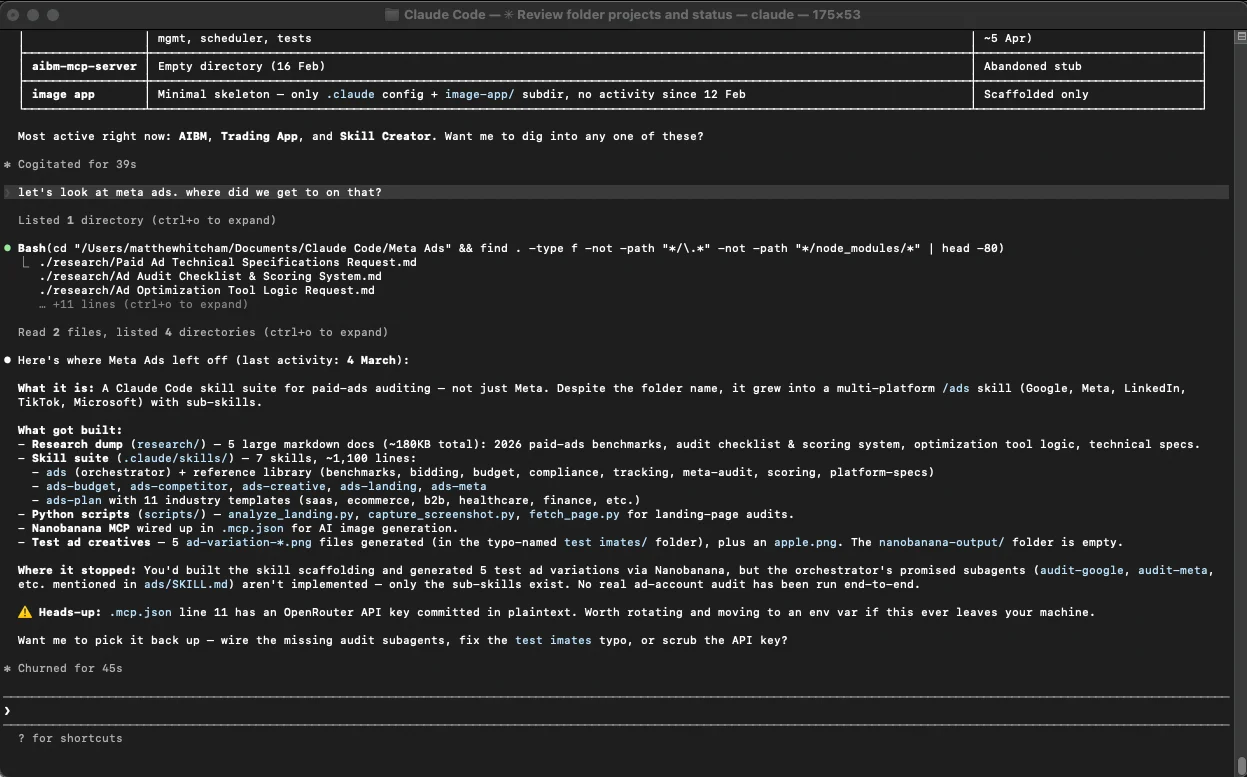
Start with Project 1. It works on almost any folder, takes five minutes, and gives you something useful at the end. It's the single best way to get a feel for what Claude Code does.
Keeping Your Bill Under Control
Claude Code uses Claude's brain, which costs money per use. If you're on a flat subscription like Pro or Max, you have a monthly limit. If you're paying by the job through a Console account, every session adds to the bill. Either way, these habits keep costs sensible.
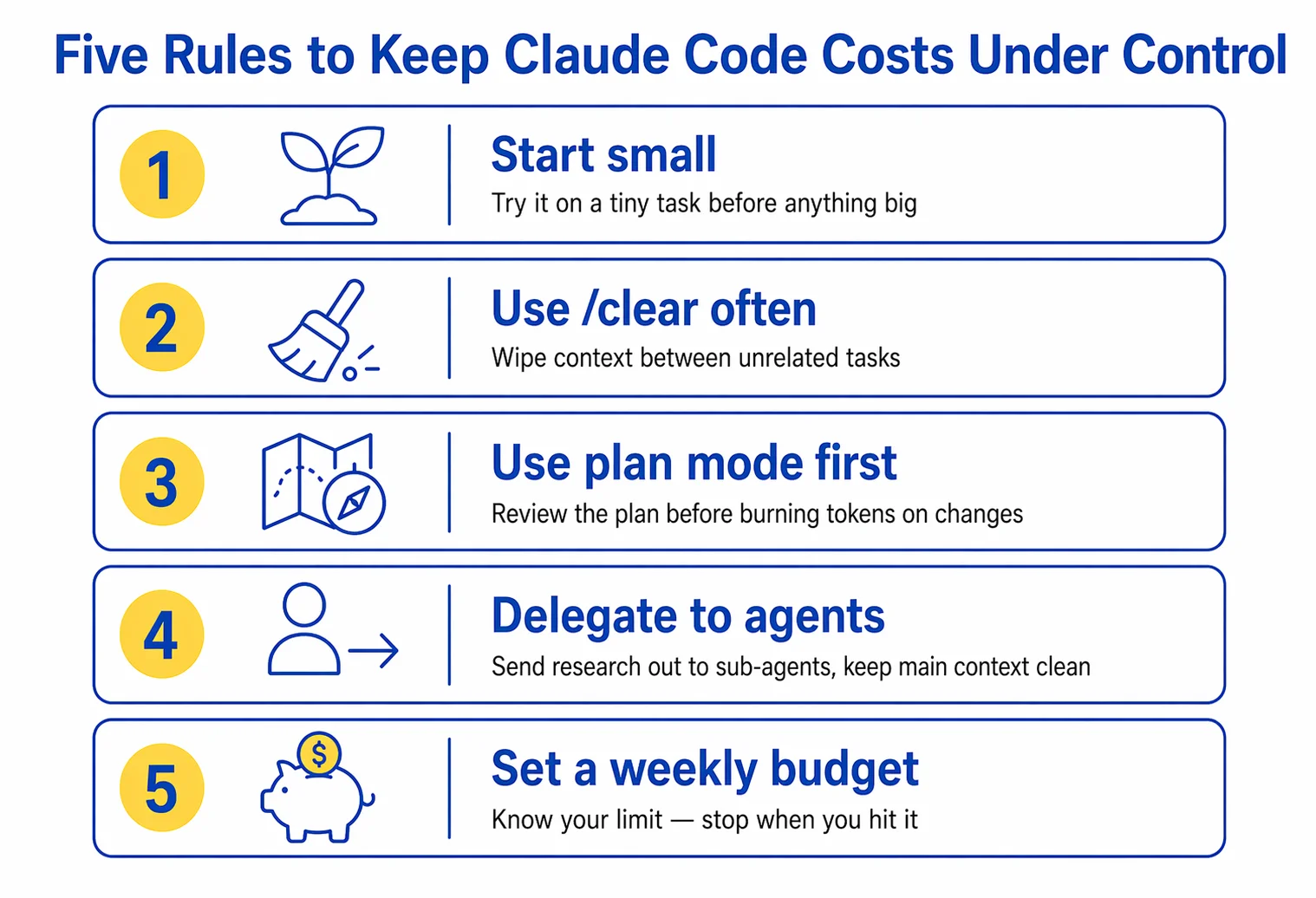
Five rules of thumb
- Use
/clearbetween unrelated tasks. Every message in a session costs more than the last because Claude has to re-read the conversation. Starting fresh is cheaper. - Use
/compactwhen a topic gets long. This summarizes what you've discussed, which is cheaper than dragging the whole history forward. - Don't read giant files. If a file is thousands of lines, ask Claude to look at specific sections instead of the whole thing.
- Pick the right Claude. Sonnet is the default and costs less. Opus is smarter but more expensive. Use Opus only for tasks that actually need it.
- Check
/usageregularly. This command shows your current burn rate. Checking once a day keeps surprises small.
Set a spending cap if you're on Console. Claude Code automatically creates a workspace for tracking. You can set a monthly limit there. This is the safest way to avoid a surprise bill.
When Things Don't Work: Common Problems and Fixes
Everyone hits bumps. Here are the most common ones and how to fix each.
| What you see | What to do |
|---|---|
claude: command not found |
Your computer can't find Claude Code. Follow the "claude not found" fix in the Mac or Windows install section above. |
PowerShell says something about && |
You pasted a command meant for Command Prompt into PowerShell. Use the PowerShell command instead. |
| Windows complains about Git | Install Git for Windows from the official Git for Windows website, then try again. |
| Installer fails to download | Your network might be blocking Anthropic's download server. Try again from a different network or check with your IT team. |
| Claude Code feels slow or confused | Your session has too much in memory. Run /compact to summarize, or /clear to start fresh. |
| Search doesn't find things it should | If you're on Windows in WSL, move your project from /mnt/c/ to /home/ inside the WSL environment. |
| Wrong organization or account | You might have an old environment variable set. Run /status to see what account is active. |
| Package manager says an update exists but doesn't arrive | The update hasn't propagated yet. Wait a day and try brew upgrade or winget upgrade. |
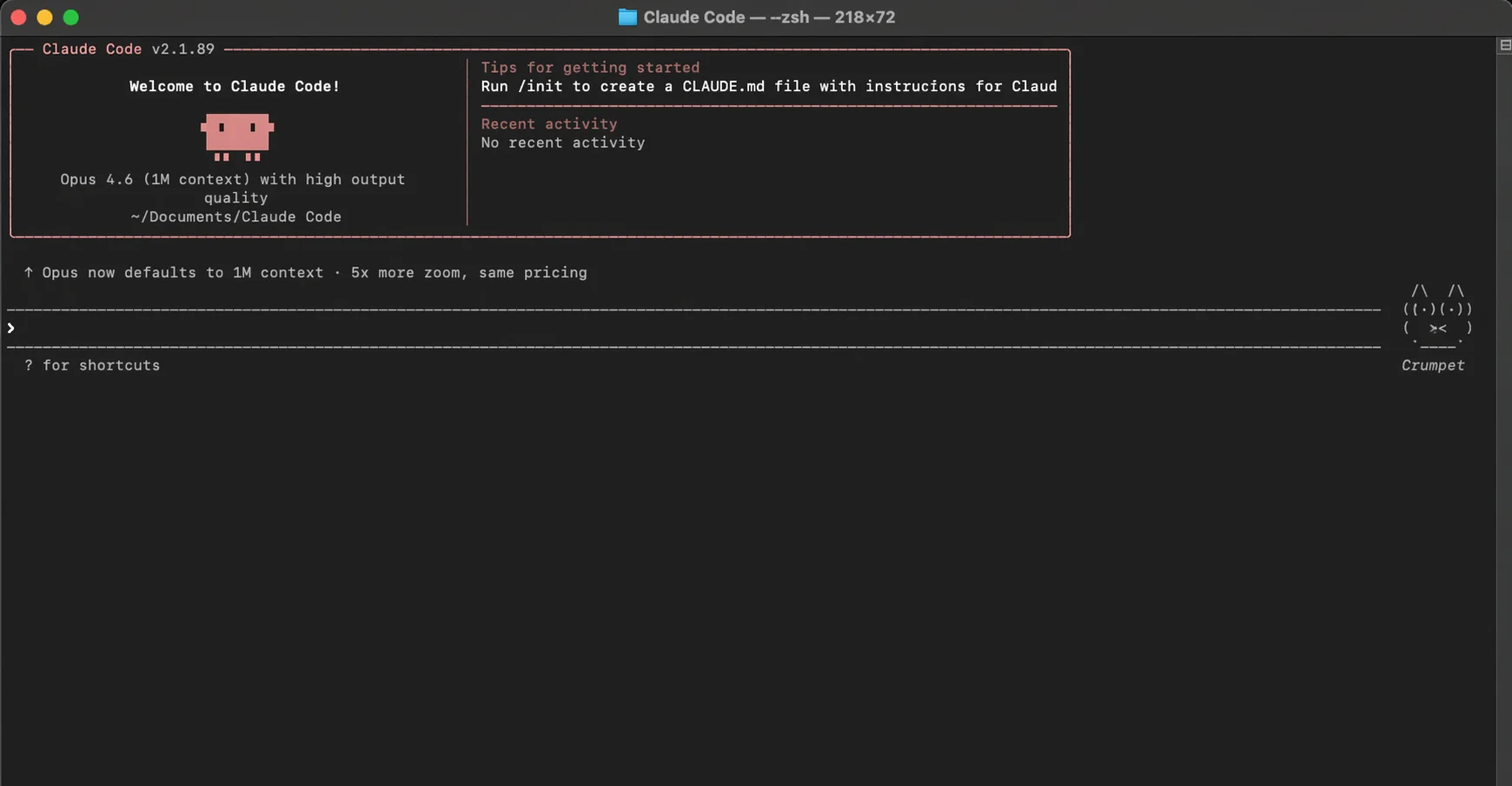
When in doubt, run claude doctor. This command checks your install for common problems and tells you what's wrong. It's the fastest way to know if the issue is with Claude Code itself or with something else.
Privacy and Security in Plain English
Three things are worth knowing about how Claude Code handles your data. None of this is scary, but it's good to know.
What Anthropic keeps, and for how long
On a standard account, Anthropic keeps your conversations on their servers for 30 days. After that, they're deleted. Business plans (called Enterprise) can enable Zero Data Retention, which means Anthropic doesn't store anything at all.
What's on your computer
Claude Code stores a local copy of every session on your own computer, in a hidden folder at ~/.claude/projects/. These stay for 30 days by default and let you continue a session you closed earlier. If this concerns you, you can delete that folder any time. Claude Code will rebuild what it needs.
What Claude Code can and can't see
Claude Code only sees what you explicitly let it see. By default, it asks before reading files, running commands, or making changes. You can tighten this further by creating rules about which files Claude should never touch. A typical setup blocks Claude from reading your .env file (where passwords often live) and your secrets folder.
Safety tip: Keep secrets (passwords, API keys, private data) out of the folder you're working in, or add a rule to your project config that denies Claude from reading them. Anthropic's docs recommend this explicitly.
For regulated industries (healthcare, finance), there are more options including Business Associate Agreements on Enterprise plans with Zero Data Retention turned on. If this applies to you, talk to Anthropic's sales team directly.
The Features Still Being Tested
Claude Code is growing fast. Some features are stable and production-ready. Others are still in testing ("research preview" or "beta" in Anthropic's language). You should know the difference so you don't rely on something that might change next week.
Rock-solid and stable
- The terminal app (CLI)
- The VS Code and JetBrains plug-ins
- The desktop app
- GitHub Actions integration
Still in testing
- Claude Code on the web (research preview)
- Remote control from your phone (research preview)
- Channels for team sessions (research preview, needs a new enough version)
- Routines for scheduled work (research preview)
- GitLab integration (beta, maintained by GitLab, not Anthropic)
- Chrome browser integration (beta)
- Ultraview for deeper code review (research preview)
This list will be out of date soon because Anthropic ships updates fast. Today's version is 2.1.118, which landed this morning. The version before it, 2.1.111, was released a week earlier. The smart move is to check the official changelog every month or so to see what's changed.
Your Next Steps
That's the tour. You now know what Claude Code is, how to install it on Mac or Windows, how it's different from regular Claude, and what you can use it for. Here's what to do with all of that.
If you haven't installed it yet, install it. Not tomorrow, now. Even if you don't have a project in mind, run through the install steps on your own computer. The install takes ten minutes and you'll be ready the next time you want to try something.
If you've installed it, pick Project 1 from Section 17 (the one about documenting a folder you inherited) and run it on any folder you have. Any folder. Your Documents folder works. A folder with old photos works. A folder of notes works. Run it. The thirty seconds after Claude Code finishes and you realize how much it just did for you is worth the whole install.
After that, use Claude Code for one real task every day for a week. Small ones at first. A summary, a renamed batch of files, a cleanup. By the end of the week, you'll have a feel for what it's good at and what to ask it for. That's when it stops being a novelty and starts being useful.
One last thing. Claude Code is changing fast. The features in this guide will grow over the next few months. If something in here doesn't match what you see on your screen, check the version with claude --version and check the Anthropic changelog. Anthropic also updates the docs often, and AI Black Magic will keep this guide current.