
Build a Marketing System in Claude Cowork
A practical walkthrough that turns Claude Cowork into a working capture-and-nurture engine for your business. Set it up once. Let it run forever.
What you're building and why this works
If you already use regular Claude chat, you've felt the ceiling. You can prompt for great copy. You can ideate. You can edit. But the moment you close the tab, every bit of context evaporates. Claude has no idea who you are tomorrow morning.
Claude Cowork is the version of Claude that fixes this. It works inside folders on your machine, plugs into your other tools through Connectors, runs tasks on a schedule, and can be extended with reusable Skills. It's still Claude. It just stops forgetting.
This tutorial walks through one specific use case end to end: a working marketing capture system. By the time you're done, you'll have:
- A branded lead magnet that captures emails from your audience
- A 3-email welcome sequence that nurtures every new subscriber on autopilot
- A scheduled task that drafts a daily newsletter for you to review and send
- A reusable Skill for each piece so you never rebuild from scratch
The mental model that holds it all together is simple. Skills and Plugins teach Claude what to do. Connectors give it live data to do it with. Scheduled Tasks run the whole thing on a timer.
Build the Skill once. Point it at the data. Schedule it. Repeat for every workflow in your business that you do more than twice.
This article assumes you already use Claude chat and have an active Claude Pro subscription. The Cowork features below aren't available on the free tier.
The four Cowork features that matter
Cowork has a lot of features. Four of them carry this entire workflow. Learn these four and you can build everything in this article.
Plugins
The umbrella. A Plugin is a bundle of related Skills, kind of like an app on your phone. Install one Plugin and you get every Skill inside it.
Skills
The single-purpose capabilities inside Plugins. Each Skill is an instruction file Claude reads when you call it. Typing /newsletter calls a Skill.
Connectors
How Cowork sees your live data. Connect Gmail and it can search your inbox. Connect Airtable and it can query your CRM. Each Connector has read and write permissions you control individually.
Scheduled Tasks
Run any Skill or prompt on a cron schedule. Daily 9am marketing brief. Weekly content roundup. Anything you do on a timer can be one of these.
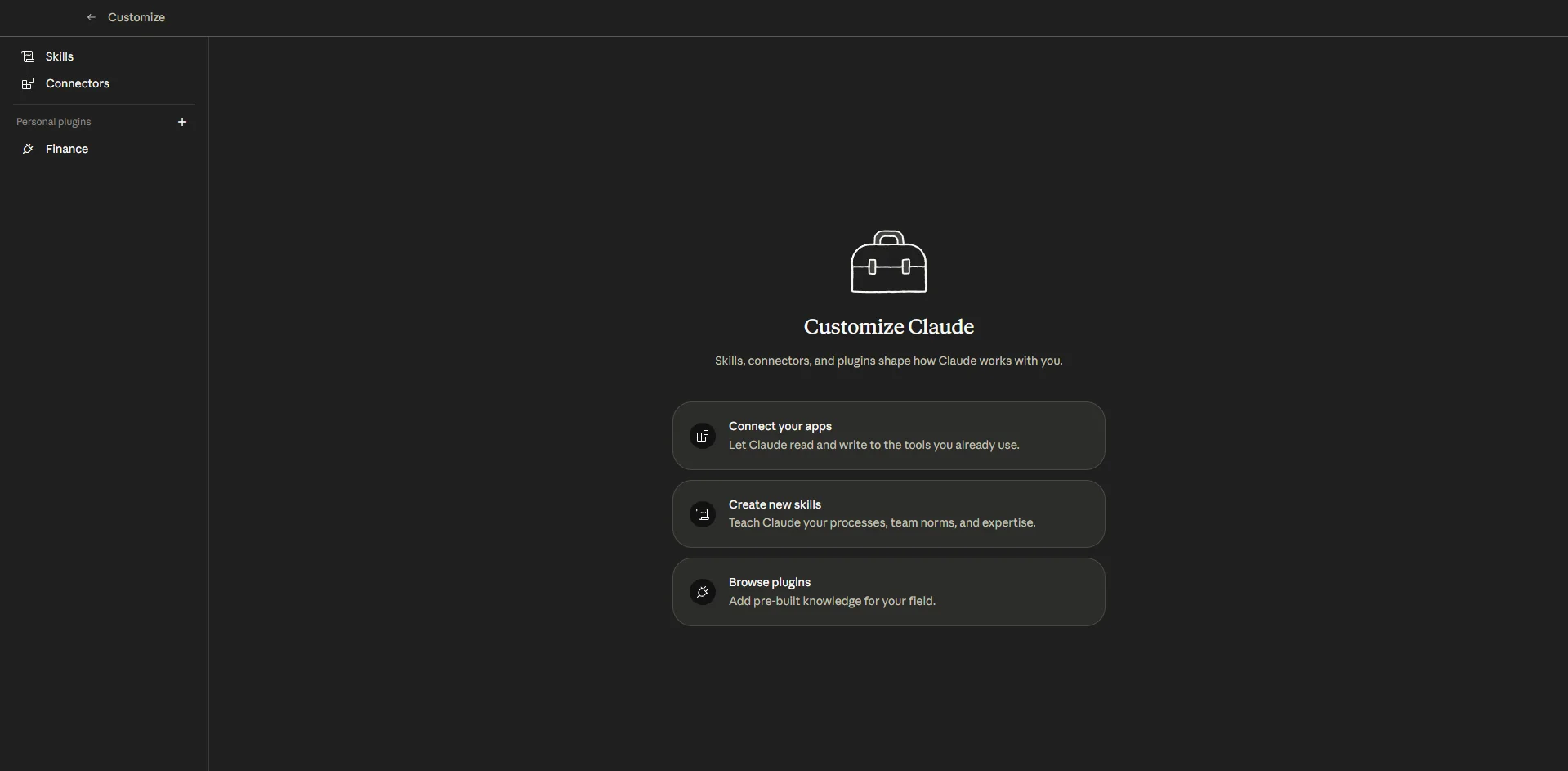
Anthropic ships a Marketing Plugin out of the box with Skills for brand voice, campaign planning, competitive briefs, and content creation. Browse to it inside Customize, click the plus icon, and the whole bundle installs in one click. That's the fastest way to see Plugins and Skills working together before you build your own.
The order of operations, every single time, is the same:
- Build or install a Skill that does the work
- Connect the data the Skill needs to do it well
- Schedule the Skill to run on its own
Skip step two and your Skill produces generic output. Skip step three and you're still doing the work manually. Skip step one and you're just prompting like before, with extra steps.
Pro Tip: Plugins are the umbrella, Skills are underneath. If you can only remember one rule about Cowork architecture, remember that one. It's where most users get confused on day one.
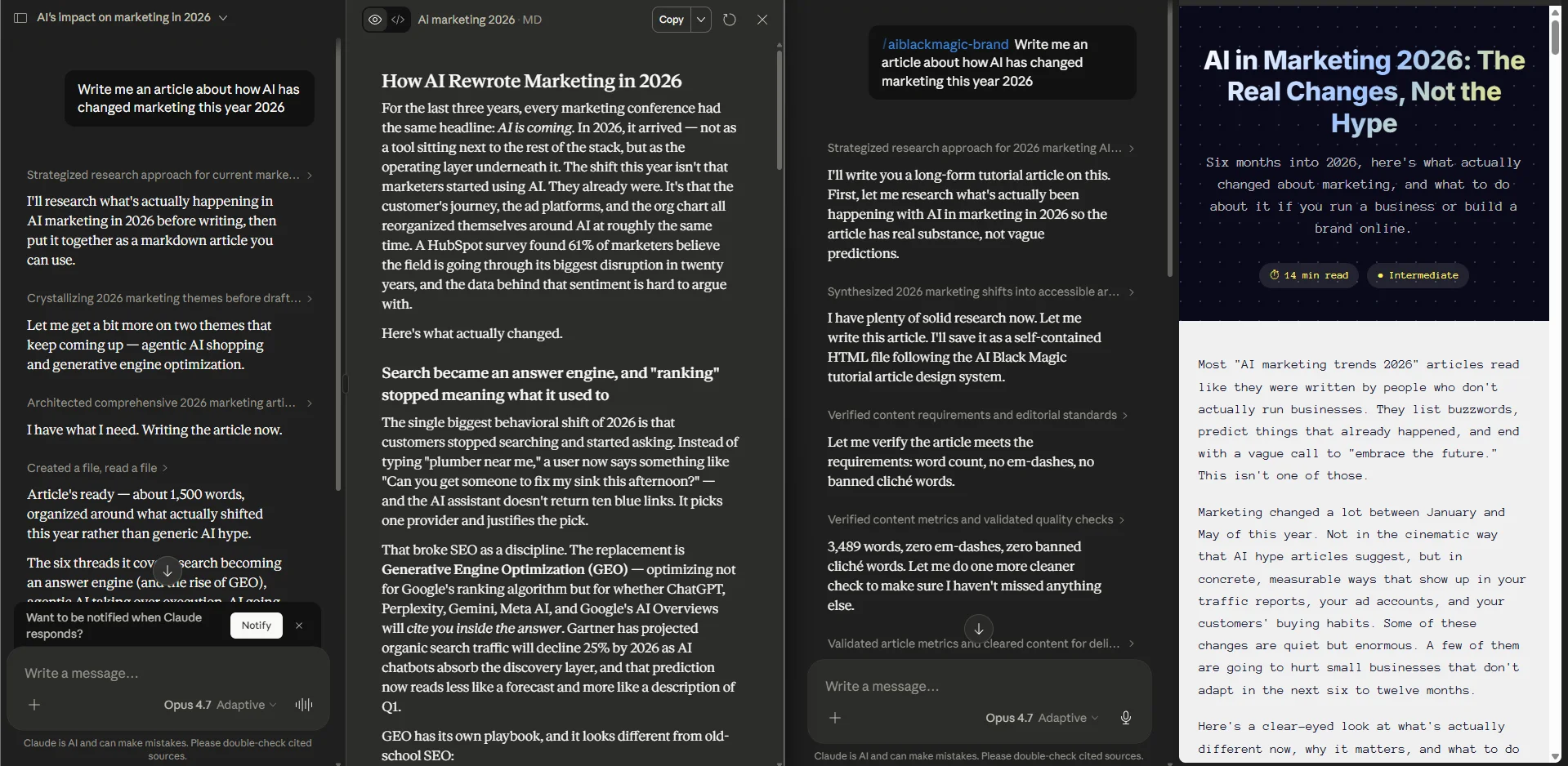
Set up your knowledge base first
This is the single highest-value move in the system, and most users skip it.
Before you build a Skill or schedule anything, set up a knowledge base folder. Cowork works inside folders. When you point it at one, every file inside becomes available context for every prompt in that conversation. No more pasting your bio into every chat. No more re-explaining who your customer is.
Create a folder somewhere on your machine called something like marketing-base. Inside it, add these subfolders and fill each with a short, plain-text document:
- about-you: who you are, what you do, why you started
- company: what your business does, what makes it different
- offers: every product or service you sell, prices, deliverables
- icp: who your ideal customer is, where they hang out, their budget, what frustrates them
- results: case studies, testimonials, hard numbers from past work
- goals: what you're trying to grow this quarter
- brand: voice notes, hex codes, any visual guidelines
The documents don't need to be long. One page each is plenty. You're writing the briefing you'd hand a new marketing hire on day one. Consistency beats depth.
Once this folder exists, point Cowork at it whenever you open a marketing conversation. From that moment on, every prompt you send already has your full context baked in. A request like "give me five lead magnet ideas for my best offer" returns specific, on-brand suggestions instead of the generic shopping list most users get.
Watch out: Keep your knowledge base inside a single root folder, not scattered across your machine. When you open the folder in Cowork, only files inside that folder are seen. If your testimonials live somewhere else, Cowork can't read them.
Build the lead magnet
A lead magnet is a free resource someone gets in exchange for their email. A checklist, a one-pager, a template, a short guide. Any format works. The job of the lead magnet is to capture the email. The job of the emails that follow is to turn that lead into a customer.
The most common mistake users make at this stage is overthinking it. A finished lead magnet that's 80% as good as your dream version, published today, beats a perfect one that never ships. Pick something useful, write it, get it live. You can always make another next week.
A reliable rule for picking the topic: take 20% of what you sell and give it away. If you sell a $5,000 SEO audit, your lead magnet is a self-audit checklist. If you sell ghostwriting, it's a short guide on writing your first post. The free version makes the paid version more obvious to the right person, not less.
Step 1: Ask for ideas, not output
Don't ask Claude to write the lead magnet on the first prompt. Ask for options first. Open a new conversation with your knowledge base folder selected, then run this:
Because your knowledge base is attached, Cowork pulls who your customer is, what their frustration is, and what your paid offers do. You get five tailored ideas instead of a generic list.
Step 2: Pick one. Move on.
Read the list. Pick the one that makes you say "yeah, my customer actually wants that." Trust your gut. You know your audience better than the model does.
If you spend more than 10 minutes choosing, you're overthinking. The lead magnet you publish next week is worth more than the perfect one you debate for two months. Pick. Move.
Step 3: Generate the full content
Now ask for the document itself.
You'll have a working first draft in under a minute. It will be roughly 80% of the way there.
Step 4: Edit, don't restart
This is where most users go wrong. They get a draft they don't love and immediately start a new conversation with a new prompt. Don't. Edit the draft you have. Ask Cowork to fix specific sections one at a time:
Iterate three or four times. Each pass tightens it. When you're happy, ask Cowork to export it as a branded PDF. If you've set your brand colors in the knowledge base (a brand.md file with your hex codes works fine), it'll apply them on export.
You now have a publishable lead magnet. Upload it to your email capture platform, write a simple landing page, and the front of the system is live.
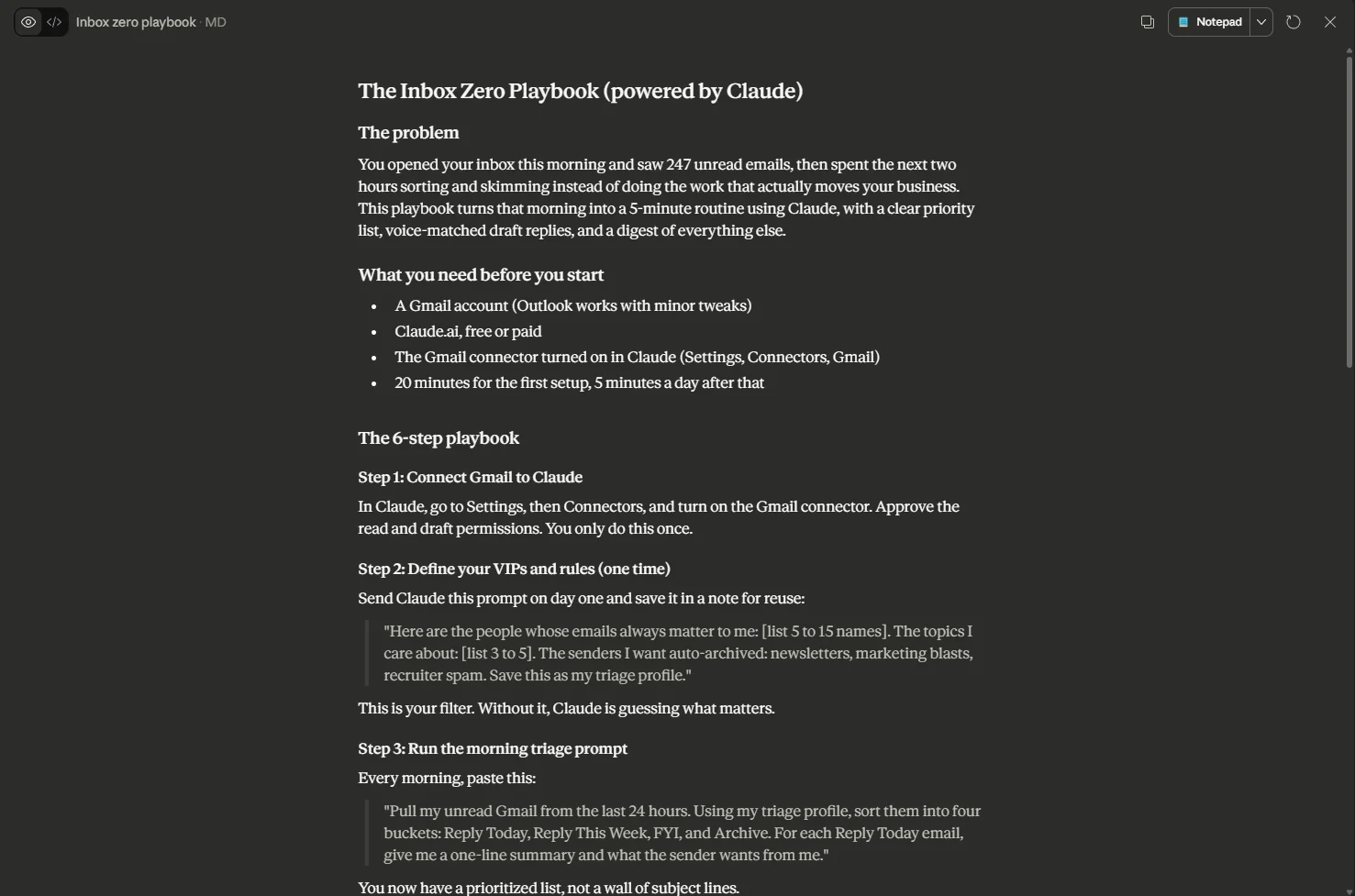
Turn the lead magnet flow into a reusable Skill
Here's the part most users miss. You just figured out a working lead-magnet workflow. Don't make yourself remember the prompts next time. Bottle the whole flow into a Skill so it's a single slash command from here on.
Open Customize, click Skills, then Create new skill. You have two ways to do this:
- Manual. Write the Skill instructions yourself in the form. Faster if you know exactly what you want.
- Conversational. Use the
skill-creatorSkill that ships with Cowork. It interviews you and writes the Skill file for you.
The conversational route is faster for most users. Open the skill-creator and tell it what you want:
The skill-creator asks follow-up questions, drafts the Skill, and saves it to your Skills directory. Next time you need a lead magnet, you type /lead-magnet and the whole flow runs. No retyping the prompts. No re-explaining your brand.
This is where Cowork compounds. Every workflow you save as a Skill becomes a one-click tool. After a month of doing this, you've built yourself a toolkit nobody else has, customized to your business, callable from inside every conversation.
Power Tip: Skills work in the surface they were built in. A Skill you build inside Cowork doesn't automatically appear in Claude Code or claude.ai. If you want it everywhere, export the Skill folder and install it on each surface separately.
The 3-email welcome sequence
Capturing the email is half the system. The other half is what happens after. Most users build a lead magnet, get a few hundred signups, and then never email those people again. The lead goes cold. The relationship dies before it starts.
A welcome sequence fixes this. It runs the moment someone downloads your lead magnet and warms them up over the following days with zero work from you.
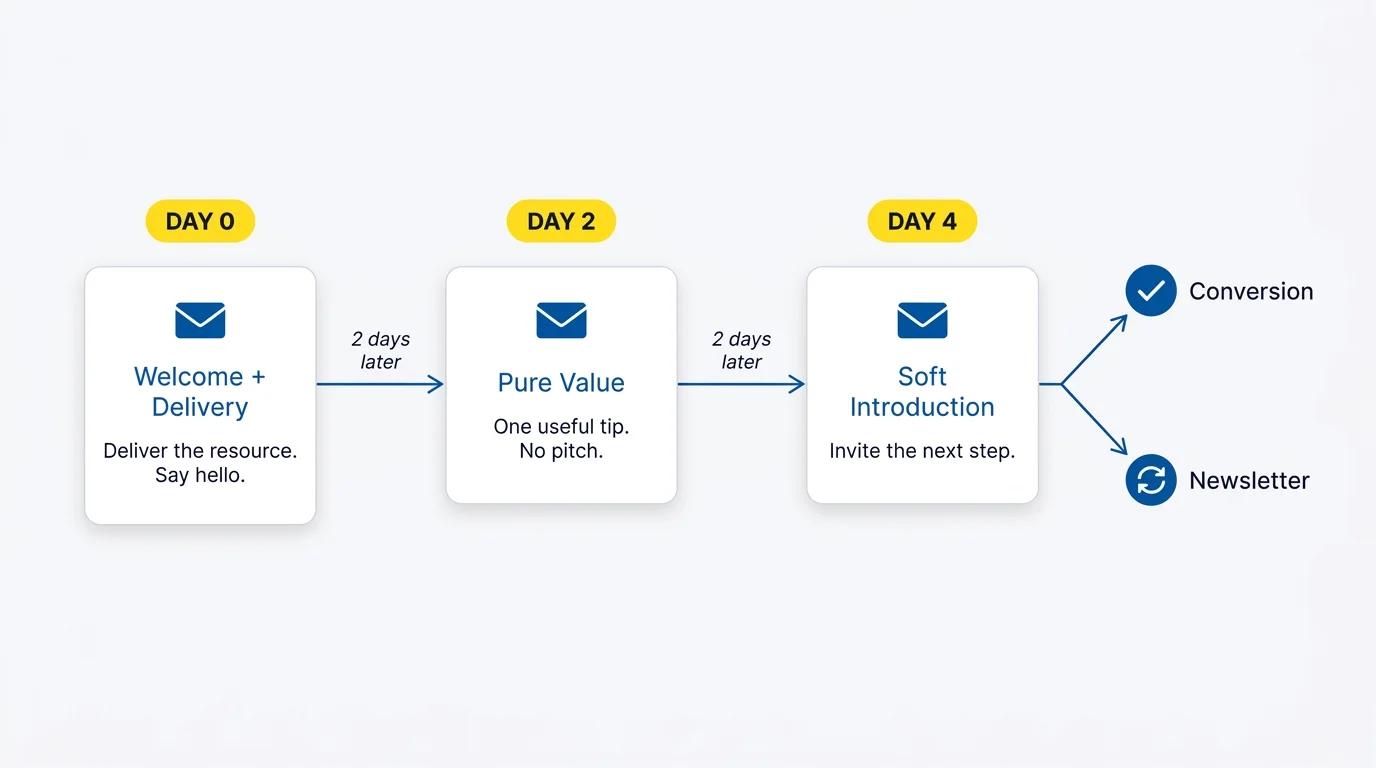
The structure that works for most service businesses is three emails over four days:
| When | Goal | |
|---|---|---|
| 1. Welcome and Delivery | Day 0 (immediately) | Deliver the resource, introduce yourself in two sentences, set expectations for what's next. |
| 2. Pure Value | Day 2 | One useful tip related to the lead magnet. No pitch. Build trust by giving. |
| 3. Soft Introduction | Day 4 | Explain what you do, share one real example, invite a low-pressure next step. |
Three emails. Four days. Nothing more. Resist the urge to bolt on a fourth. People are busy. The point isn't to bombard them. The point is to reintroduce yourself enough times that they remember you when they're actually ready to buy.
Here are the prompts to use for each one. Run these in Cowork with your knowledge base attached.
Email 1: Welcome and Delivery
Email 2: Pure Value
Email 3: Soft Introduction
Once these three are written, paste them into your email platform as an automated sequence triggered by the lead magnet download. Set the delay between emails to two days. You're done.
After the sequence ends, drop unconverted subscribers into your general newsletter list. Send them something useful once or twice a week. The ones who convert later are usually the ones who needed three months of useful emails to trust you, not three.
Automate the writing with Scheduled Tasks
You now have a working capture-and-nurture system. The last layer is the timer.
Cowork's Scheduled Tasks let you run any Skill (or any prompt) on a recurring basis. A 9am task that drafts your morning marketing brief. A weekly task that summarizes your inbox. A daily task that drafts tomorrow's social posts using this week's wins.
Here's a concrete one. Set up a daily task that drafts your newsletter for you. You review and send.
Open Scheduled Tasks, click New Task, and fill it out:
Name: Daily newsletter draft
Description: Write a draft newsletter to my audience using the newsletter Skill. Source ideas from my knowledge base: this week's wins, recent client results, useful tips from my offers folder. Format: one short subject line, 200 to 300 word body, one specific call to action.
Folder: Your marketing knowledge base folder
Frequency: Daily at 12:30 PM
Model: Default (Sonnet works fine here)
That's it. Every day at 12:30, Cowork drafts a newsletter and saves it to a conversation. You open it, edit anything that doesn't sound like you, and send it through your email platform.
The critical distinction: the task drafts. It does not send. You still have a human eye on every email that leaves the building. This is the right setup for almost every business. The day Claude sends emails directly on your behalf without you reading them is the day a hallucinated claim ends up in front of a paying customer.
Connector permissions matter. When you set up Connectors that can change data (Gmail, your CRM, anything with write or delete access), keep those tools on "Needs approval" instead of "Always allow." Read access is safe to auto-approve. Write access is not.
For Gmail specifically, this is a sensible default:
- Read tools (read inbox, search threads, list labels): Always allow
- Write tools (draft, send, delete): Needs approval
This way Cowork can pull context from your inbox without you clicking approve every time, but it can't send anything on your behalf without you saying yes.
What you actually built
Step back for a second. Look at what's now running in your business:
A lead magnet
Captures emails from anyone who visits your content. Branded. Useful. Publishable today.
A welcome sequence
Automatically nurtures every new subscriber over four days. Three emails. Zero ongoing work.
A daily newsletter draft
Drops into your conversation at 12:30 every day, ready for your edit and send.
A growing toolkit
Reusable Skills, a knowledge base that gets sharper every week, and Connectors feeding live data into all of it.
Most business owners spend months stitching together different tools to do a fraction of this. One SaaS for lead capture, a second for email automation, a third for newsletter writing, a fourth for scheduling. You did it inside one app, in one sitting, on one subscription.
The next move is to extend the system. Some directions worth your time:
- Add a competitor-monitoring Skill that pulls competitor pricing or content into your weekly brief
- Add a content-repurposing Skill that turns one long video into five short posts using your brand voice
- Connect your CRM so the welcome sequence Skill knows whether a subscriber is also a paying customer (and writes accordingly)
- Add a weekly review task that summarizes which emails got opened and suggests next week's topics
Each addition compounds. Every new Skill is callable from inside every other Skill. Every new Connector adds context to everything you build going forward.
The bigger pattern: What you just built isn't really a marketing system. It's a starting point. The four-feature pattern (knowledge base, Skills, Connectors, Scheduled Tasks) works for sales, ops, customer support, hiring, finance, anything in your business with a repeatable workflow. Marketing was just the easiest one to demo.
Further reading
The mental model in this tutorial (Plugins and Skills, then Live Data, then Schedule Out) is adapted from a training by Shaz Mathew at AttractAI. His video, "How to Use Cowork for Marketing," is the cleanest one-take walkthrough of these concepts we've seen, with worked examples on Gumroad and Kit.com.
For more on building robust Skills, look up Anthropic's own skill-creator documentation. It walks through the file structure of a SKILL.md and the supporting files that make a Skill reliable enough to call from anywhere.
One last thing to hold onto
Every workflow in your business that you do more than twice is a Skill waiting to happen. Every data source you check more than twice a week is a Connector waiting to happen. Every Skill you run more than twice a week is a Scheduled Task waiting to happen.
Build them once. Run them forever. That's the whole game.