
Faceless YouTube Operator
Everything inside the Faceless YouTube Operator plugin, in one walkthrough. Tour the 12 skills, the 3 background agents that run in the background, and the 3 API keys you connect to take it from generating prompts to actually rendering scripts, thumbnails, and voiceovers. About 15 minutes from install to your first video.
What this plugin actually is
Most "YouTube AI" tools generate one thing well. They write a script, or they make a thumbnail, or they spit out title variations. You end up bouncing between five tabs and stitching the outputs together yourself. That's not a workflow. That's a craft project.
The Faceless YouTube Operator is built differently. It's a persona, not a feature pile. Once it's installed, it behaves like a dedicated channel operator who's read your brief, knows your audience, remembers your voice, and shows up every morning with ideas that match what you actually make. Twelve on-demand skills cover every stage of pre-production. Three background agents handle the recurring work you'd otherwise forget about: trend scanning, weekly performance reviews, and comment triage.
The plugin is niche-agnostic. A history channel, a tech tutorial channel, a personal finance channel, and a top-10 list channel all use the same skills. What's different per user is the configuration file the plugin creates during first-run setup, which captures the channel's niche, voice, audience, monetization model, and visual brand. Every skill reads that file before doing its work, which is why the same plugin doesn't produce the same generic output for everyone.
What this article covers. A tour of every skill and agent in the plugin, what each one produces, how they hand off to each other, and how to connect the three API keys that turn the plugin from a "generate prompts" tool into a "render the actual output" tool.
The architecture, in plain language
Before the tour, it helps to know how the pieces fit together. There are four moving parts.
The config file
Created on first run by the operator-setup skill. Stores your channel context. Every other skill reads it before doing anything, so outputs match your channel.
The credentials file
Stores your API keys for ElevenLabs, Fal AI, and YouTube. Lives locally on your computer. Skills that need a key read it from here, never from environment variables.
The twelve skills
On-demand work. You trigger them by saying things like "write the script for X" or "5 thumbnail ideas for Y." Each one produces a file you can hand to the next stage.
The three agents
Background work that runs on its own. They watch trends, summarize weekly analytics, and process new comments without you having to ask.
If you remember nothing else, remember this: the plugin doesn't upload anything to your channel. It's prepare-only by design. Every output is a file (script, prompt list, voiceover text, metadata CSV) that you review before it ever goes near YouTube Studio. That keeps it safe to install, and keeps you in control of what your audience sees.
The skills, stage by stage
The twelve skills group naturally into four pipeline stages: strategy, production, publishing, and orchestration. Each stage hands off to the next. You don't have to run them in order, but the order is there if you want it.
Strategy: deciding what the channel makes
Two skills cover this stage. niche-strategy runs a structured analysis of one or more candidate niches. If you're committed to a niche, it switches to positioning mode and produces a competitor map, a positioning statement, and a set of content pillars. If you're choosing between two or three options, it scores each on search demand, competition fitness, monetization, longevity, and voice fit, then picks the winner with a paragraph on the trap to avoid. Output is a styled HTML strategy document.
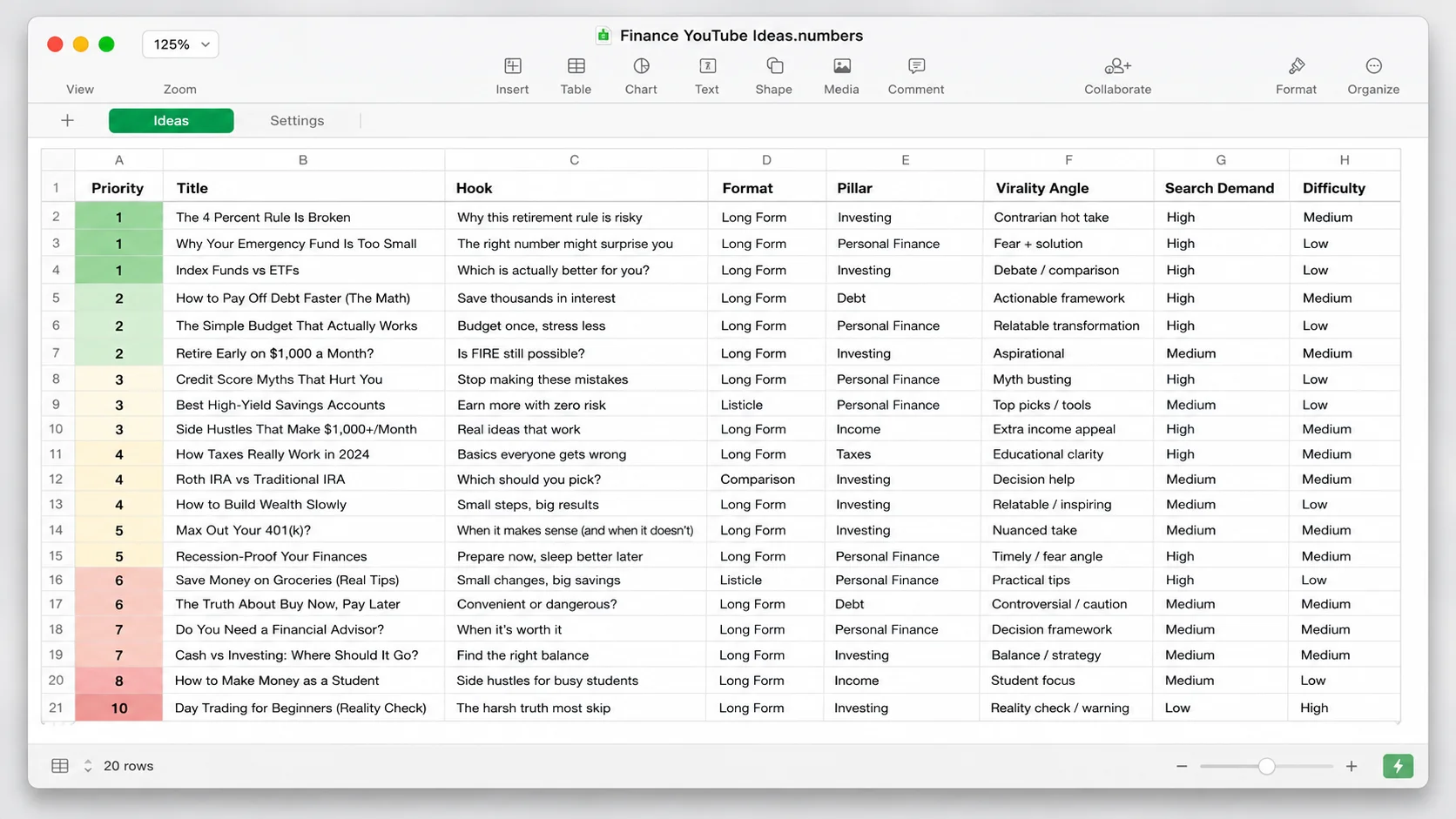
idea-engine then generates a batch of video ideas, scored and ranked. The default is twenty. Each idea includes a working title, the opening hook, format (long-form or Shorts), the content pillar it belongs to, a virality angle, an honest search-demand estimate, a difficulty rating, and a priority score. If the trend-watcher agent has been running, the idea engine pulls roughly thirty percent of the batch directly from yesterday's trend report, so your ideas track what's actually moving in your niche.
Production: turning ideas into assets
Five skills cover production. They're meant to be used in sequence on a single idea, though you can call any of them independently.
script-longform takes an idea and writes a full long-form script with a cold-open hook, value promise, chaptered beats, and retention hooks every sixty seconds. It honors your channel voice (the do-say and don't-say lists from your config), and it adapts the call-to-action to your monetization model. If your primary revenue is affiliate, the CTA gets a soft affiliate frame. If it's an owned product, the CTA earns the soft pitch. Output is a Word document with timestamps in the left margin.
script-shorts is the same idea for vertical content. The structure is tighter: a two-second hook, a six-second setup, the payoff in the middle, and a loop-back button at the end. Output is a Word document with a seconds-since-start column and visual cut markers on every beat.
thumbnail-prompts produces five distinct thumbnail concepts for a single video. Each one is a fully-formed image-generation prompt you can paste into Fal AI, plus the text overlay copy and an A/B test recommendation that names which two of the five to test against each other. The five concepts pull from different proven archetypes (face or expression, object plus question, before and after, numbers comparison, mystery or reveal) so they aren't five versions of the same idea.
broll-prompts reads a finished script and turns it into a timestamp-mapped shot list. Every beat gets either a static image prompt, a short video clip prompt, a stock-footage recommendation, or a chyron-only marker. A style anchor sentence sits at the top of the document and gets appended to every prompt so the final video doesn't look like a collage of different generators arguing with each other.
voiceover-script takes a finished script and prepares it for text-to-speech. It strips production cues, converts emphasis markers into pacing punctuation, breaks long sentences, handles tricky pronunciations like acronyms and years, and recommends an ElevenLabs voice ID with stability and similarity settings tuned to your channel voice. Output is a clean plain-text file (the one you paste into ElevenLabs) and a settings document for reference.
Render budget matters. The production skills produce prompts by default. They only actually generate images, video clips, or audio if you say so. Rendering costs real money (Fal AI starts around three-tenths of a cent per image, ElevenLabs charges credits per character, and video gen on Veo or Kling models can hit several dollars per ten-second clip). The plugin makes you ask, which keeps the bill predictable.
Publishing: getting the upload right
seo-metadata reads a finished script and produces the full upload package: three title variants in different angles (curiosity, utility, emotional), a description with timestamps, twenty-five tags layered across broad-niche, specific-topic, and long-tail buckets, a target keyword, end-screen recommendations, and a pinned-comment draft. Output is a CSV ready to paste into YouTube Studio.
shorts-repurpose finds the four most clippable thirty-to-sixty-second moments in a long-form video and structures each as a self-contained Short. The classic mistake is picking the funniest moment in a long-form. That moment usually needs context to land. This skill picks moments that work cold, with their own setup and payoff inside the clip itself.
Orchestration: the launch kit
channel-launch-kit is the most ambitious skill in the plugin. It runs niche-strategy, idea-engine, script-longform, thumbnail-prompts, broll-prompts, voiceover-script, and seo-metadata in sequence on a single Day-1 video. The output is a folder containing everything you need to publish your first upload: positioning document, ten ideas, full script, five thumbnail concepts, shot list, voiceover script, metadata package, and a launch checklist with banner art prompt and channel description. New channels run this once. Existing channels rebranding to a new positioning run it again.
The twelfth skill is operator-setup, which we already covered. It's the only skill that runs automatically if it detects the config file is missing or has placeholders. Every other skill in the plugin is on-demand.
The three agents (where the plugin earns its name)
Skills do work when you ask. Agents do work whether you ask or not. The three agents are what make this plugin feel like an operator instead of a tool, and they're worth understanding because they shape the rest of the workflow.
| Agent | Cadence | What it produces |
|---|---|---|
| trend-watcher | Daily, 6:00 AM local | Top 5 trending topics in your niche, scored against your channel voice. Saved as a dated file in the inbox folder. The idea-engine reads from this automatically. |
| performance-digest | Weekly, Monday 7:00 AM | Styled HTML report covering last week's analytics, over and under performers vs. your channel median, the retention-drop map for top videos, and one concrete experiment to run next week. |
| comment-monitor | Hourly, 8:00 AM to 10:00 PM | Classifies new comments (question, praise, criticism, spam, toxic, opportunity), drafts replies in your channel voice for the ones that need a response, flags the rest. Drops a daily summary file you scan in sixty seconds. |
None of these agents post anything. They never publish a comment reply or upload anything. They produce drafts and reports. You approve, you click, you ship. The plugin's job is to make sure you never sit down to a blank screen.
Two of the three agents need the YouTube Data API connected to do anything useful (performance-digest reads your analytics, comment-monitor reads your comments). The trend-watcher works without any keys at all, since it scans public trend data.
The compounding effect. The trend watcher feeds the idea engine. The idea engine feeds the script writer. The script writer feeds the voiceover, B-roll, thumbnail, and metadata skills. The analytics agent tells you what to do more of next week. After two or three weeks running, you stop sitting down to "what should I make?" You sit down to "which of these five ideas should I make first?"
"Making it agentic": what API keys actually do here
The plugin works without any API keys at all. You can install it, run setup, generate ideas, write scripts, and produce prompts, all without connecting anything external. That's because most of the value is in the thinking work, not the rendering work.
But there's a ceiling on what the plugin can do in that mode. Without keys, every skill is "prompt-only." It writes the perfect ElevenLabs script for you, but it can't generate the audio. It writes five thumbnail prompts, but it can't render the images. It tells you to look at your last-month CTR average, but it can't actually pull that number off your channel.
Connecting an API key turns the plugin from prompt-only into actually-render. That's what "agentic" means in this context: the plugin stops describing what to do, and starts doing it. The three services that enable the three corresponding capabilities are:
| Service | What it enables | Difficulty |
|---|---|---|
| ElevenLabs | Actually rendering the voiceover audio, not just preparing the script. | Easy (60 seconds) |
| Fal AI | Actually generating thumbnail images and B-roll clips, not just preparing the prompts. | Easy (60 seconds) |
| YouTube Data API | Reading your real analytics, retention curves, and incoming comments. Without this, the analytics-review skill and the performance-digest and comment-monitor agents all run in degraded mode. | Medium (about 8 minutes, OAuth setup) |
You can run with zero, one, two, or all three connected. The plugin asks you per service during setup and records which ones are available so each skill knows what mode it's in. Skip what you don't want, add what you do. There's no all-or-nothing.
Connecting an API key gives the plugin the ability to actually do the corresponding work instead of just preparing the prompt for you. That's the shift from "writing tool" to "operator."
One thing worth knowing up front: you'll never edit a config file or open a terminal to wire these up. Everything happens in chat. You say "set up the operator" or "add my ElevenLabs key," and the plugin walks you through pasting the key in conversation. It stores the keys in a local file on your machine, never on a server. The keys don't leave your computer.
Connecting ElevenLabs (the easiest one)
ElevenLabs is the simplest of the three. One API key, sixty seconds.
- Go to elevenlabs.io and sign up if you don't have an account. The free tier gives you 10,000 characters per month, which is enough to render a couple of short videos and try the plugin without spending anything.
- In the top-right, click your profile picture, then Profile.
- Find the API Key section. Click "Create new API key." Name it something obvious like "Faceless Operator" so you'll know what it is in six months.
- Copy the key. It starts with
sk_followed by a long string. - In Cowork, say "add my ElevenLabs key." The plugin will ask you to paste it. Paste, hit enter, done.
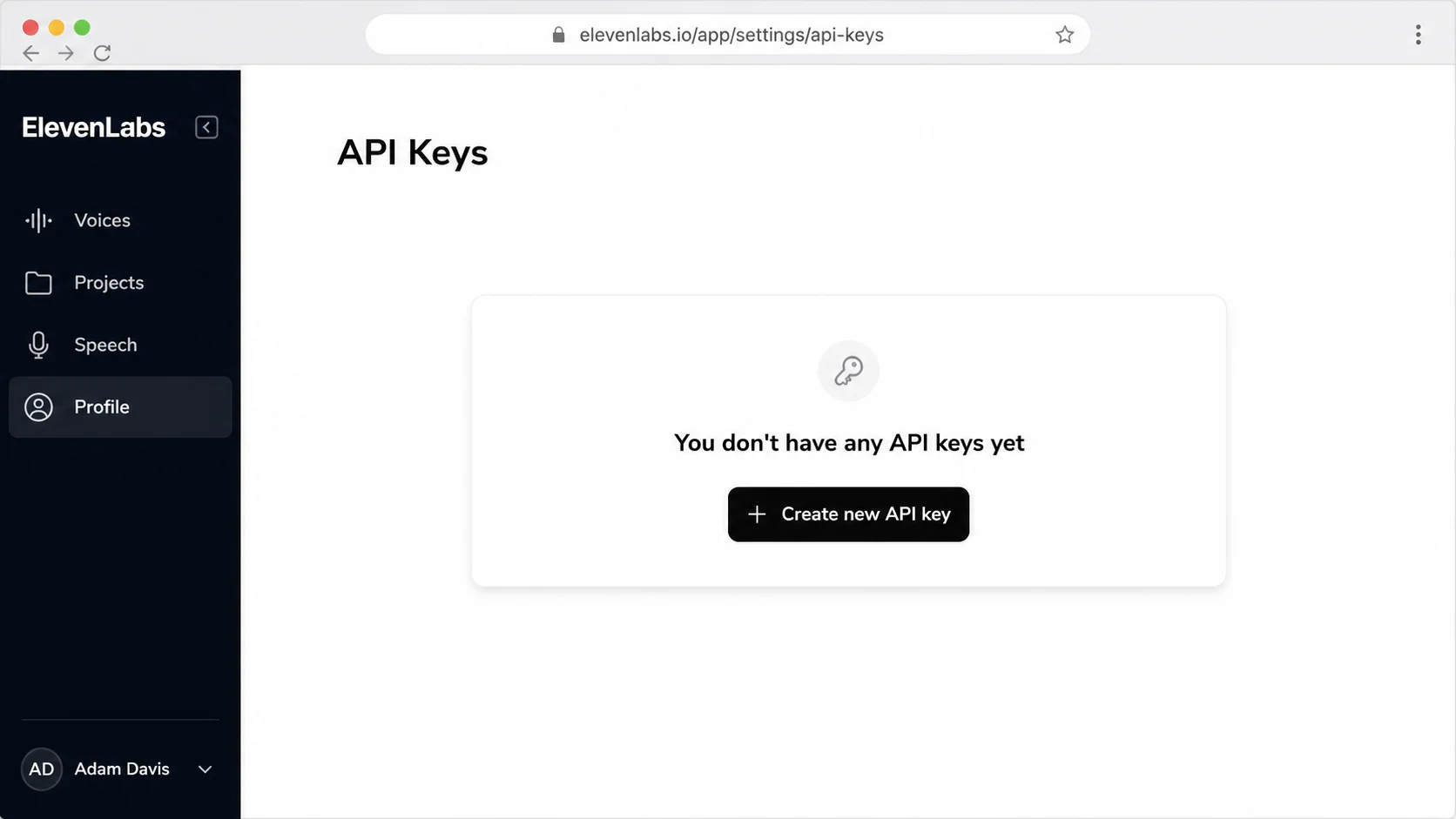
That's it. The plugin records that ElevenLabs is connected. The next time you run voiceover-script and ask the plugin to actually render the audio (you have to ask, it won't render by default), it uses that key.
Pricing in plain language
ElevenLabs charges in credits. One character roughly equals one credit on the standard multilingual models, or half a credit on the faster Flash and Turbo models. A typical eight-minute long-form script is around twelve hundred words, which is roughly seven thousand characters. The free tier covers about four of those a month. The five-dollar Starter tier covers about thirty minutes of rendered audio per month. If you publish weekly, you'll grow into the Creator tier ($22 per month for about a hundred minutes) pretty quickly.
Optional: if you've already picked a favorite voice in the ElevenLabs voice library and you want it as your default, copy its voice ID (visible at the top of the voice's page in the library) and paste it when the plugin asks for "default voice ID." If you don't have one, skip this. The voiceover-script skill will recommend voices based on your channel voice adjectives.
Connecting Fal AI (also easy)
Fal AI is the image and video generation provider the plugin defaults to. Different model, same idea as ElevenLabs: one key, paste it, done.
- Go to fal.ai and sign up. New accounts often start with a small credit balance, which is enough to test a few thumbnail renders without spending anything.
- Open the dashboard. Find the Keys or API Keys section in the left sidebar.
- Click "+ New key" (or similar, the UI updates occasionally). Give it a name.
- Copy the key. It's a long random string with no obvious prefix.
- In Cowork, say "add my Fal AI key." Paste when prompted. Done.
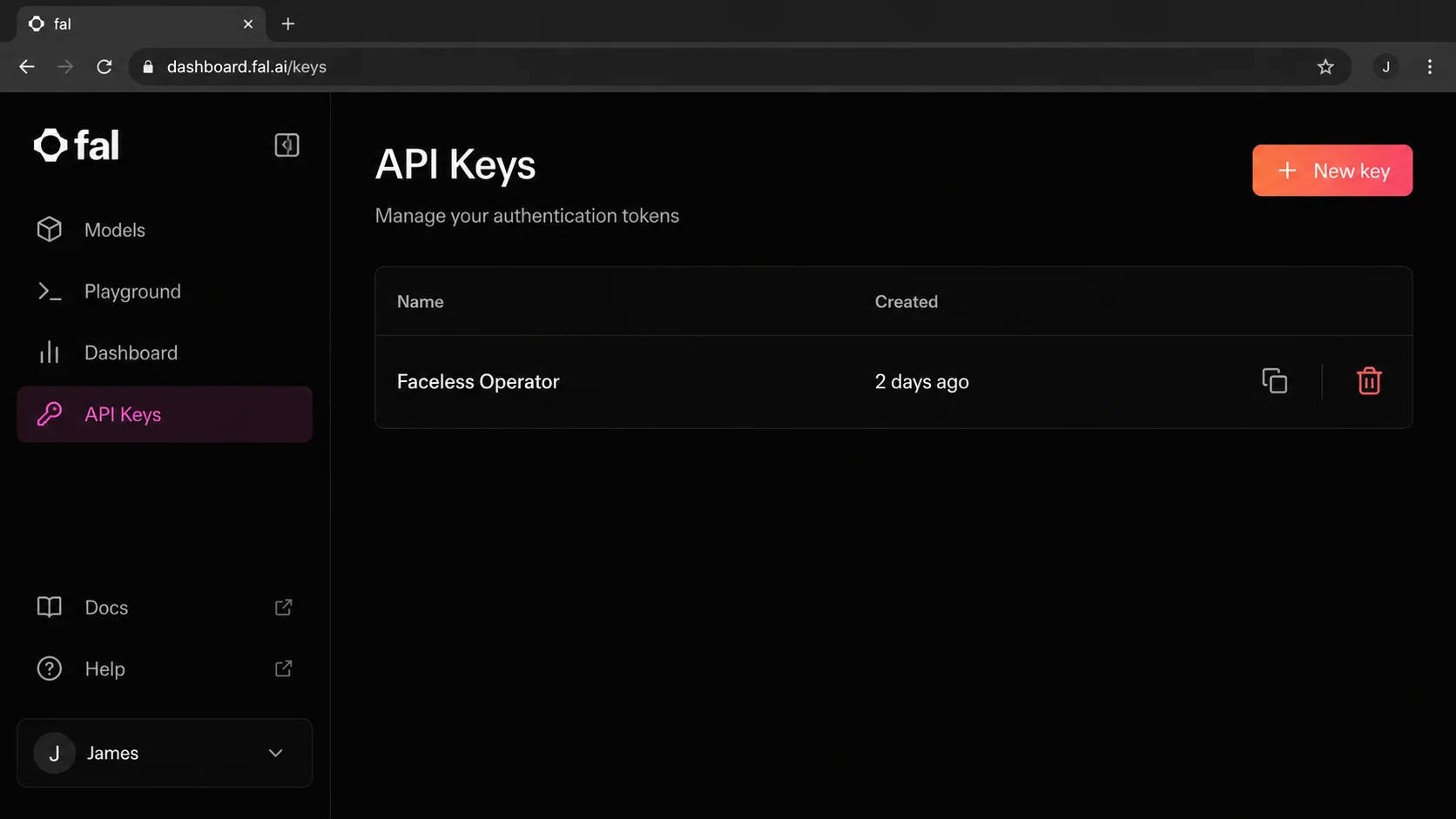
Once connected, thumbnail-prompts and broll-prompts can render the images and clips on demand. Same rule as before: you have to ask. By default they produce prompts only.
Why Fal AI and not Midjourney or Runway directly?
Fal is a router. One key gives you access to a hundred-plus image and video models including FLUX, Stable Diffusion, Veo, Kling, Wan, Seedream, and several others. The plugin picks sensible defaults (FLUX for thumbnails, Veo or Kling for short video clips) but you can change the model in your config if you want a different look. The advantage over going direct to one model is that you don't have to maintain a separate account and billing relationship with every provider.
Cost expectations
Fal AI has no subscription. You pay per generation. The cheap image models (FLUX Schnell, for example) cost around three-tenths of a cent per image. The premium ones (FLUX Pro, Seedream V4) cost three to four cents per image. Video is more expensive: Wan 2.5 is around a nickel per second, and Veo 3 is around forty cents per second. For a typical faceless video with twenty-five image inserts and three short video clips, expect to spend somewhere between two and ten dollars in rendering, depending on which models you pick.
Render budget tip. For early experiments, set the plugin's default video gen to a cheaper model like Wan 2.5 instead of Veo 3. You can always re-render the standout clips with the premium model once you know which beats actually need motion.
Connecting YouTube (the involved one)
YouTube is harder because Google doesn't issue simple API keys for accessing private channel data. You have to go through OAuth, which means creating a Google Cloud project, enabling two APIs, configuring a consent screen, and generating a refresh token that the plugin can use to read your analytics. It sounds worse than it is. End to end, about eight minutes.
The plugin walks you through every step when you say "add my YouTube key." This section is so you know what's coming.
What you'll do
- Create a Google Cloud project. Go to console.cloud.google.com, click the project dropdown at the top, hit "New Project," and name it ("Faceless Operator" is fine). Wait for it to provision, then select it.
- Enable two APIs. Use the search bar at the top to find "YouTube Data API v3" and click Enable. Then search for "YouTube Analytics API" and click Enable on that too.
- Configure the OAuth consent screen. Left sidebar, APIs & Services, OAuth consent screen. Pick External user type. Fill in app name, your email twice, and add yourself as a test user. Add two scopes:
youtube.readonlyandyt-analytics.readonly. Save. - Create OAuth credentials. Left sidebar, APIs & Services, Credentials. Click "+ Create Credentials," then "OAuth client ID." Application type: Desktop app. Name it anything. Click Create. A dialog appears showing a Client ID and Client Secret. Copy both, you'll paste them into the plugin in a moment.
- Get a refresh token. The plugin gives you a sign-in URL. Open it, sign in with the Google account that owns your YouTube channel, approve the permissions. Google shows you a code. Copy the code, paste it back to the plugin. The plugin exchanges that code for a refresh token and stores it. You won't see the refresh token directly. That's fine.
- Find your channel ID. Go to studio.youtube.com. Settings (gear icon, bottom-left). Channel, Advanced settings, Channel ID. Copy the value (starts with
UC). Paste it into the plugin.
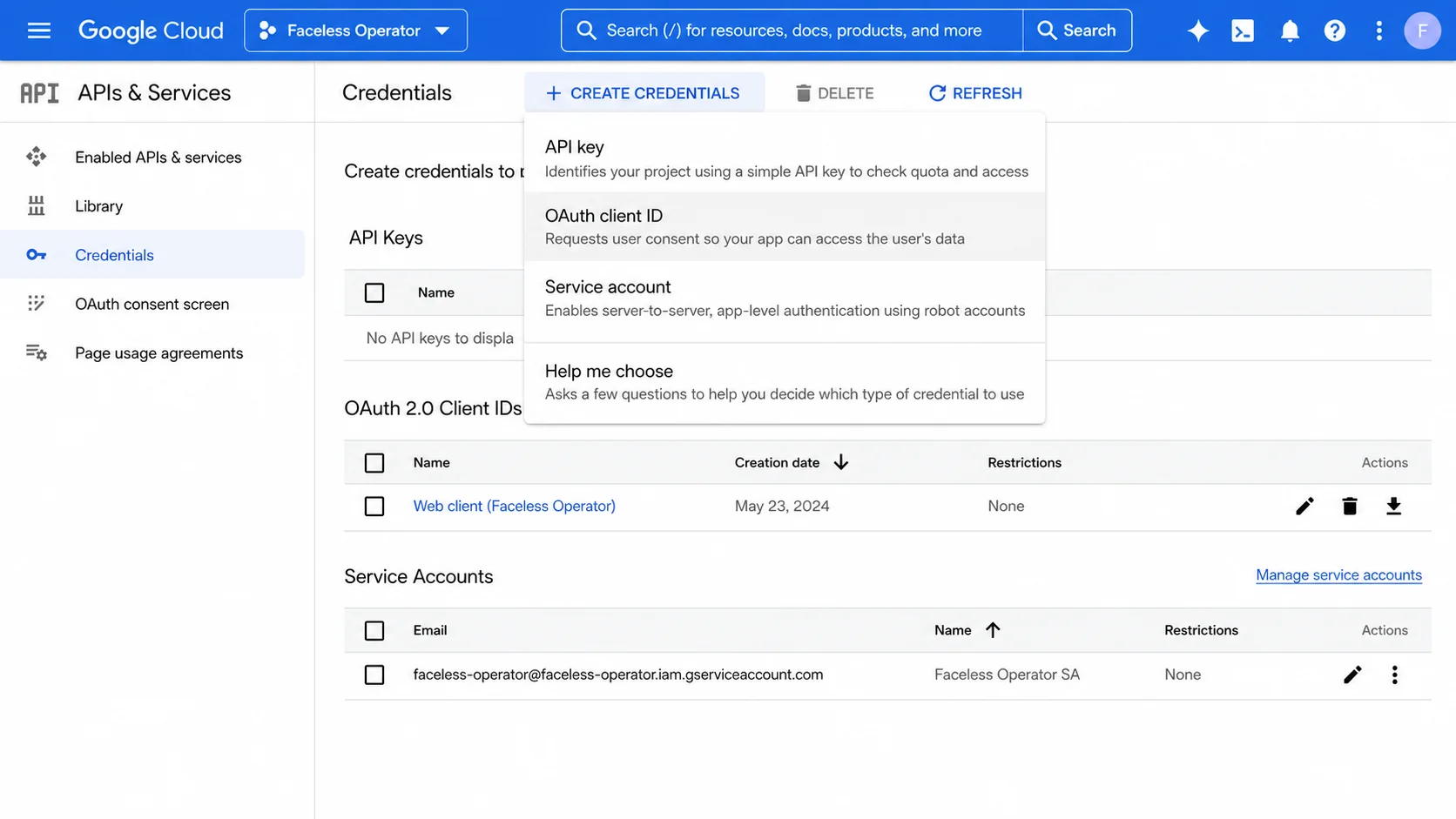
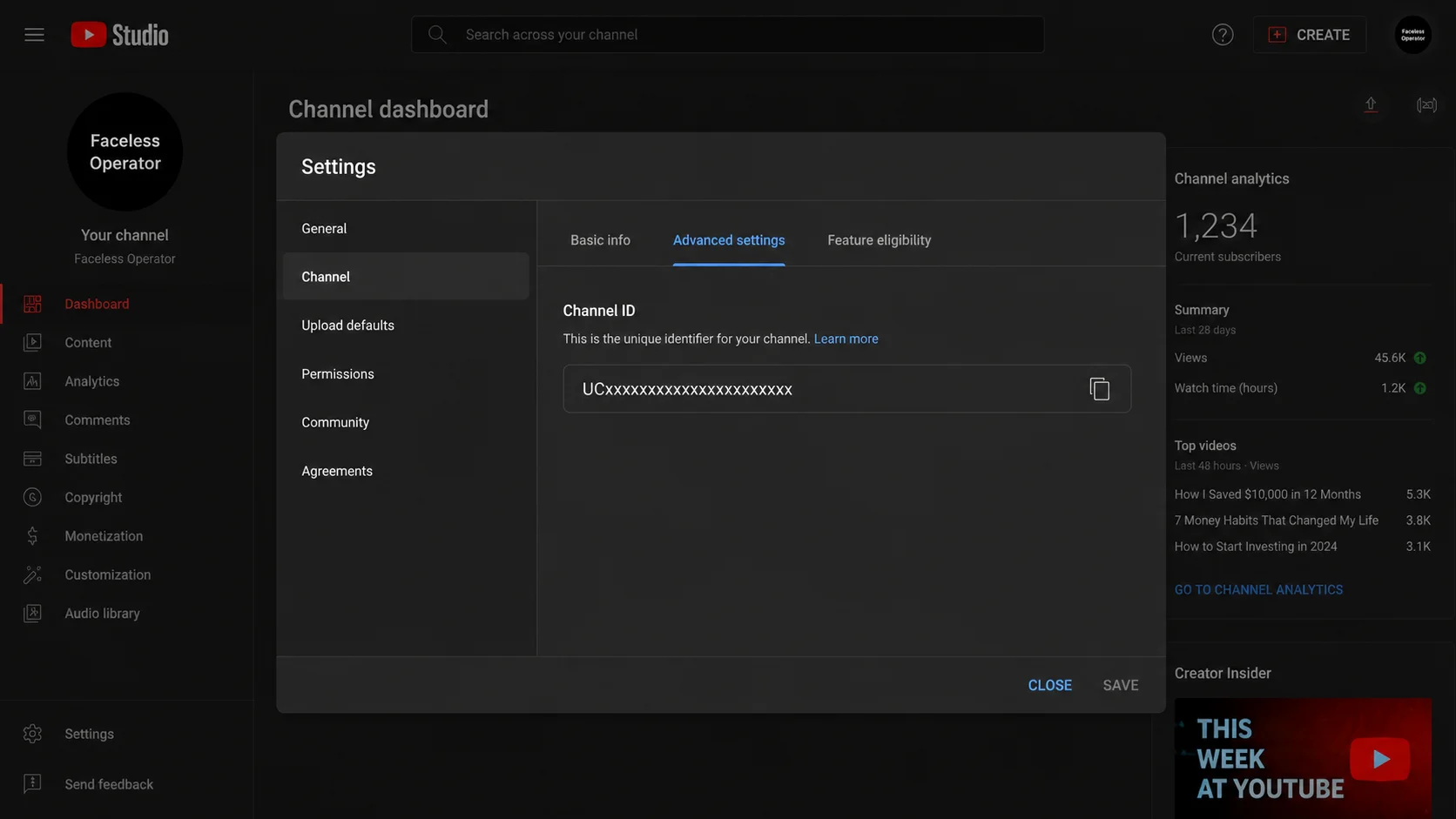
Once all six values are in (client ID, client secret, refresh token, channel ID, and the two that get derived during the OAuth handshake), the plugin saves them, sets the YouTube connector flag to true, and you're done. The refresh token works indefinitely unless you revoke access in your Google account.
Why OAuth instead of a simple API key
YouTube doesn't allow API keys to read private channel data. API keys can only access public information (search results, public video stats, that kind of thing). For your channel's analytics, retention curves, and comment threads, Google requires OAuth so you've explicitly approved which app gets access to your account. It's friction, but it's also why your channel data is safe even if someone steals your API key. The refresh token is scoped to read-only on YouTube, with no upload or modify permissions.
The quota you should know about
Every Google Cloud project gets ten thousand API units per day. Reads cost one unit each. Searches cost a hundred. The plugin is read-only and never searches, so you'll burn maybe one to two hundred units a day even with the performance-digest agent pulling weekly reports and the comment-monitor running hourly. You're nowhere near the ceiling unless you have a very large channel. If you do hit it, the plugin will tell you and back off until the quota resets at midnight Pacific Time.
What a connected workflow looks like
Here's the rhythm once everything is wired up. This isn't prescriptive. It's just what happens when the plugin is doing its job.
Six in the morning, every day. The trend-watcher agent runs in the background. By the time you wake up, there's a fresh file in your inbox folder listing the top five trending topics in your niche with viral-potential scores. You don't have to look at it. The idea-engine will read from it when you ask for ideas.
Monday morning, seven AM. The performance-digest agent fires. It pulls last week's analytics, compares them to your channel median, identifies which videos over-performed and which under-performed, maps the biggest retention drop in your top three videos, and recommends one experiment to run this week. The whole thing lands as a styled HTML report you read with coffee.
Throughout the day. The comment-monitor runs hourly. New comments get classified, draft replies get written for the ones that need a response, and a daily digest file accumulates so by 6 PM you have one place to scan everything new. You never wonder if you're missing something important.
When you sit down to make a video. Say "give me 20 video ideas." The idea-engine seeds from the morning's trend report, runs your positioning through the priority scoring, and hands you a CSV. Pick the top one. Say "write the script for [title]." Long-form script appears. Say "voiceover script for that." TTS-ready file appears, voice settings included. Say "render the voiceover." If ElevenLabs is connected, the audio renders. If it isn't, you get the file to paste into ElevenLabs yourself.
Same loop for thumbnails ("five thumbnail prompts"), B-roll ("shot list for this script"), and metadata ("SEO package for this"). Forty-five minutes from idea to publishable assets, instead of half a Saturday.
"write a long-form script on the top idea"
"thumbnail prompts for the top idea"
"voiceover script and render it"
"metadata package for this"
"review my channel performance for last 30 days"
"make three Shorts from this long-form"
"redo my YouTube connection"
Where to start if you're new
If you've just installed the plugin and you're staring at it wondering where to begin, here's the shortest path to seeing what it can do:
- Say "set up the operator." The setup skill runs the first-run interview. Spend the eight minutes answering. Your future outputs are only as good as the channel context you put in here.
- Connect one easy key. ElevenLabs or Fal AI. Pick whichever feels less intimidating. Sixty seconds. You'll feel the difference immediately because the next skill you run can actually render output instead of preparing it.
- Run idea-engine. "Give me 20 ideas." Look at the CSV. Notice how the priority scores spread. Notice how the hooks read in your voice. Pick the one you most want to make.
- Run script-longform on the top idea. Read the script. This is the moment most users start trusting the plugin, because the script honors the do-say and don't-say lists you put into setup. It sounds like you.
- Decide whether to wire up YouTube. If you have an active channel and you care about analytics, do it now while you have eight minutes. If you're brand new and you don't have a channel yet, skip it for now. You can always run "add my YouTube key" later.
One question that gets asked a lot: does this work for a channel that doesn't exist yet? Yes. Run channel-launch-kit instead of stepping through each skill manually. It produces positioning, ten ideas, full script, thumbnails, voiceover, shot list, metadata, and a launch checklist in a single coordinated folder. New channels run this once, before they ever upload.
One thing to remember. The plugin is prepare-only. It will never upload to your channel, post a comment, delete a video, or change a setting in YouTube Studio. Every output is a file you review before it goes anywhere public. That's a feature, not a limitation. You stay in control of what your audience sees.
One last thing
The honest truth about most "AI for YouTube" tools is that they generate average output very fast. That isn't useful. The internet already has too much average content, and YouTube's recommendation system has gotten very good at identifying it and burying it. Average is the worst possible position for a faceless channel.
The plugin is built around a different bet: that the operator persona, the channel-specific config, and the agent loop that keeps your context fresh, are what make the outputs feel like yours instead of feeling like everyone else's. The skills aren't doing anything magical. They're doing the obvious work of a competent channel operator, except they read your brief every time and they don't forget what you said three weeks ago.
So if you're going to use it, use it the way you'd use a new hire. Train it on the first day (the setup interview is the training). Watch what it produces in the first week. Adjust the things that aren't quite right by saying "change my channel voice" or "update my brand colors." After a month, it'll start to feel like part of the channel.
That's the goal: not faster generic content. Better consistent content, with less of your time and attention going to the parts of the workflow that don't actually require you.