
Course Creator Plug-In
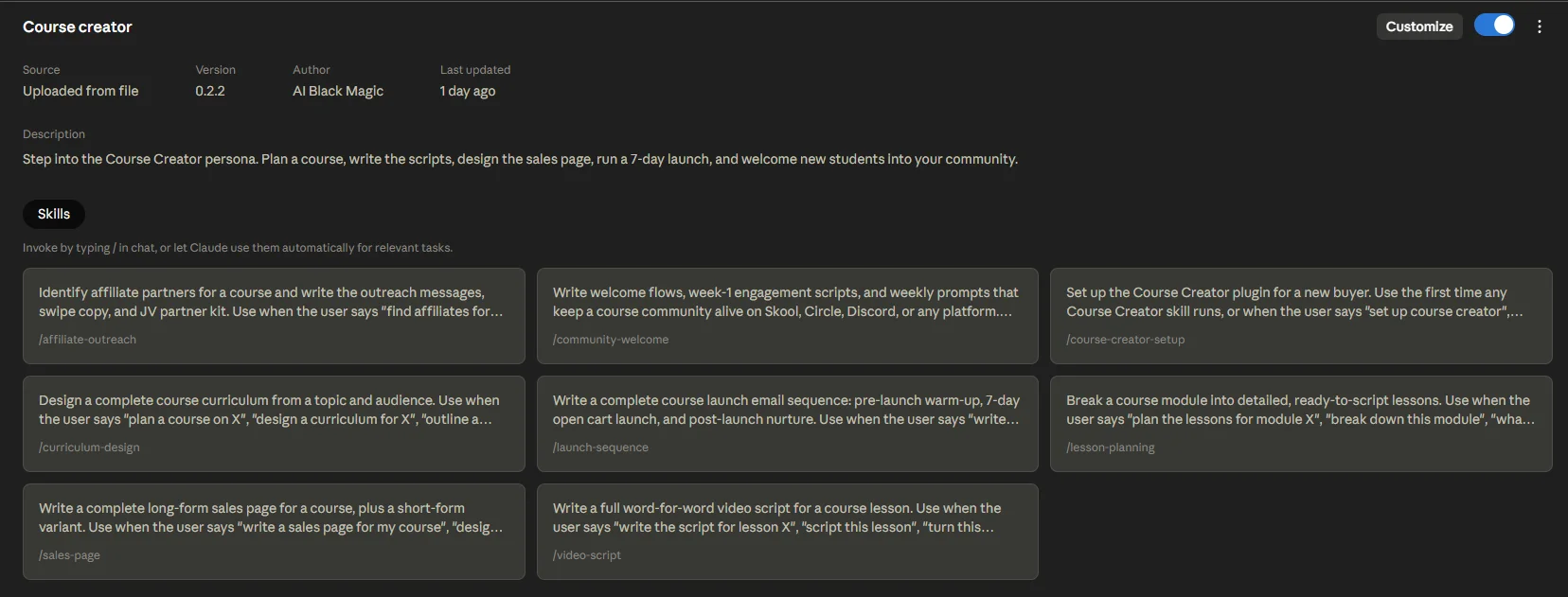
Plan a course, write the lesson scripts, design the sales page, and build the entire 7-day launch sequence. The Course Creator plugin packages 8 skills that turn what you know into a course people pay for. Built for solopreneurs and creators who want to ship a digital product without spending six months on the parts that have always been a project team's job.
What Course Creator Is
Course Creator is a plugin for Claude that turns Claude into your personal course-builder. You tell it what you want to teach, and it plans the curriculum, writes the lesson scripts, designs the sales page, builds the launch email sequence, and helps you welcome new students into your community. It does the work a small team of specialists usually handles: a curriculum designer, a copywriter, a video script writer, an email marketer, an affiliate manager, and a community manager.
For most solopreneurs, that team does not exist. You are the team. Course Creator is what you reach for when you have expertise to package, but you do not have a staff to package it for you.
The plugin runs through Cowork (or any Claude Code setup). After you install it, you ask Claude in plain English for what you want, and the plugin does the work. No coding required. No technical setup beyond a single 5-minute onboarding the first time you use it.
Why This Plugin Exists
For most creators, building an online course is the longest, most-abandoned project in the business. The pattern goes like this: you get excited. You write a vague outline in Notion. You film one lesson. You realize you need a sales page. You stare at a blank sales page for a week. You give up and put the course down for three months. Then you try again with the same outline.
This is not your fault. A course business is at least eight distinct skills bolted together, and each one is its own discipline. Most people who are excellent at their topic are not excellent at curriculum design AND sales copy AND email marketing AND community management AND video scripting. There is no reason they should be. Those are different jobs.
Course Creator takes those eight disciplines and packages each as a skill Claude can run for you. Think of it less as a productivity tool and more as a small team of expert collaborators living inside Claude. You bring the topic and the expertise. The plugin brings the curriculum design, the copywriting, the launch strategy, and the community design.
The plugin will not replace your judgment about what to teach or who to teach it to. Those decisions are yours. But it will save you from spending six months on the parts of a launch that have always been a project manager's job, not yours.
Before You Install: A Few Things Worth Knowing
Four things to know before you install, so nothing surprises you.
1. The plugin is built around a settings file.
The very first time you use any skill, Course Creator walks you through 5 short rounds of questions: your brand name, the way you sound when you write, who your audience is, what niche you teach, and a few course defaults. Your answers save into a settings file. After that, every skill writes in YOUR voice for YOUR audience, not a generic default.
2. The plugin understands plain English.
You do not have to remember skill names. You can just say "plan a course on email marketing" or "write the launch emails" and the plugin figures out which skill to run.
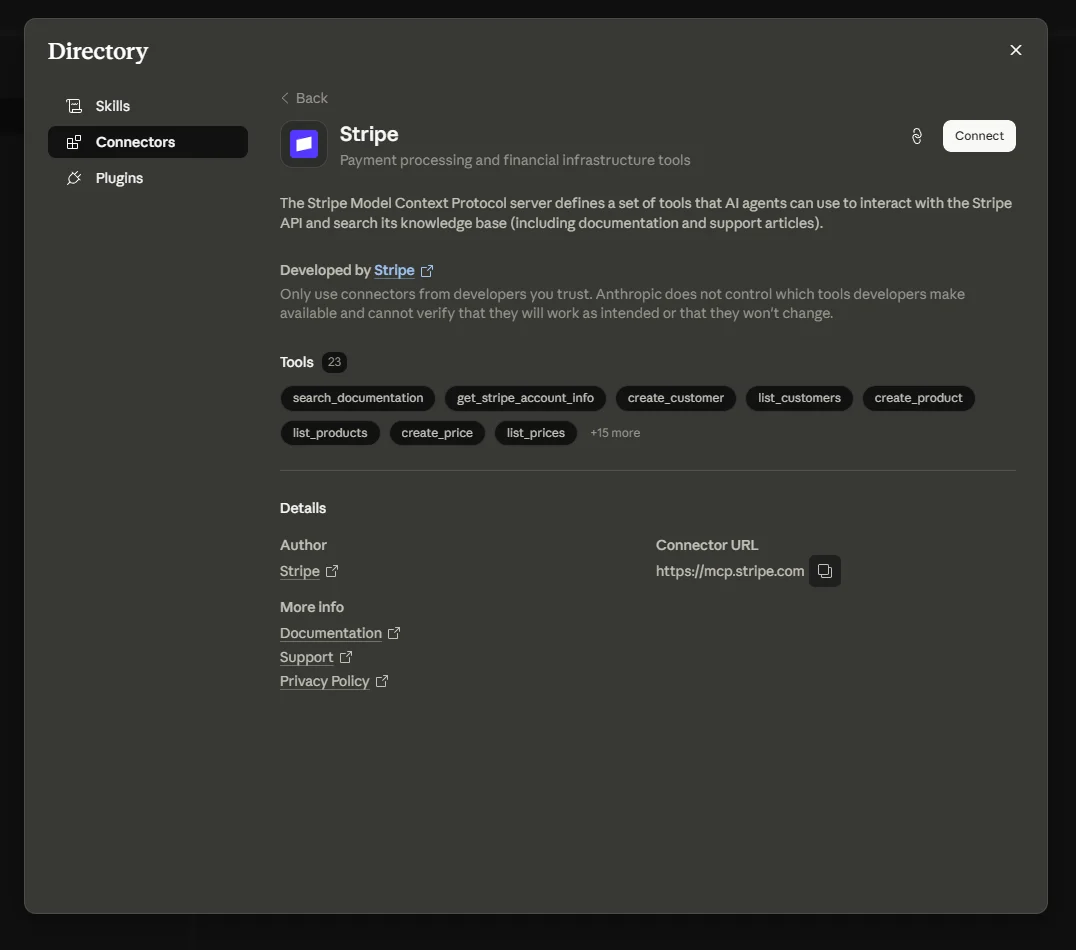
3. Stripe connects directly. Everything else is copy-paste.
Stripe is the only tool with a one-click connection today. For Kit, Skool, and YouTube, the plugin saves writing as documents and you copy-paste into those tools. This will improve when those services build their own connection tools. For now, expect a small copy-paste step for email and community work. It takes about 15 minutes per launch.
4. Every output is plain text.
No proprietary file types, no fancy formats. Every file the plugin saves is plain markdown you can open in any editor, paste into Google Docs, or send to a teammate.
How To Install It
Three steps. About 3 minutes total.
- Make sure you have Cowork installed. If you do not, visit cowork.claude.com and follow the install instructions for Mac or Windows. This article assumes Cowork is already set up. If it is not, install it first, then come back here.
- Download the plugin. Use the download button below to get the course-creator.plugin file.
- Drag the plugin into Cowork. Open Cowork, drag the .plugin file you downloaded into the plugin section of the app. Cowork installs it automatically. You will see "Course Creator" appear in your plugin list.
Optional Step 4: Connect Stripe
If you sell your courses with Stripe, you can connect it now. Click on the Course Creator plugin in Cowork. You will see a Connectors tab. Stripe is listed there with an Authorize button. Click it. Log into your Stripe account. The plugin can now create payment links and read your sales numbers for you.
If you do not use Stripe, skip this. The plugin still works. You can connect Stripe anytime later.
Pro tip: If you do not have a Stripe account yet, you can sign up free at stripe.com. Setting it up takes about 5 minutes. Stripe is what most online course platforms use to accept payments, so it is worth having even if you do not use Course Creator's direct connection.
First Run: The Setup Skill
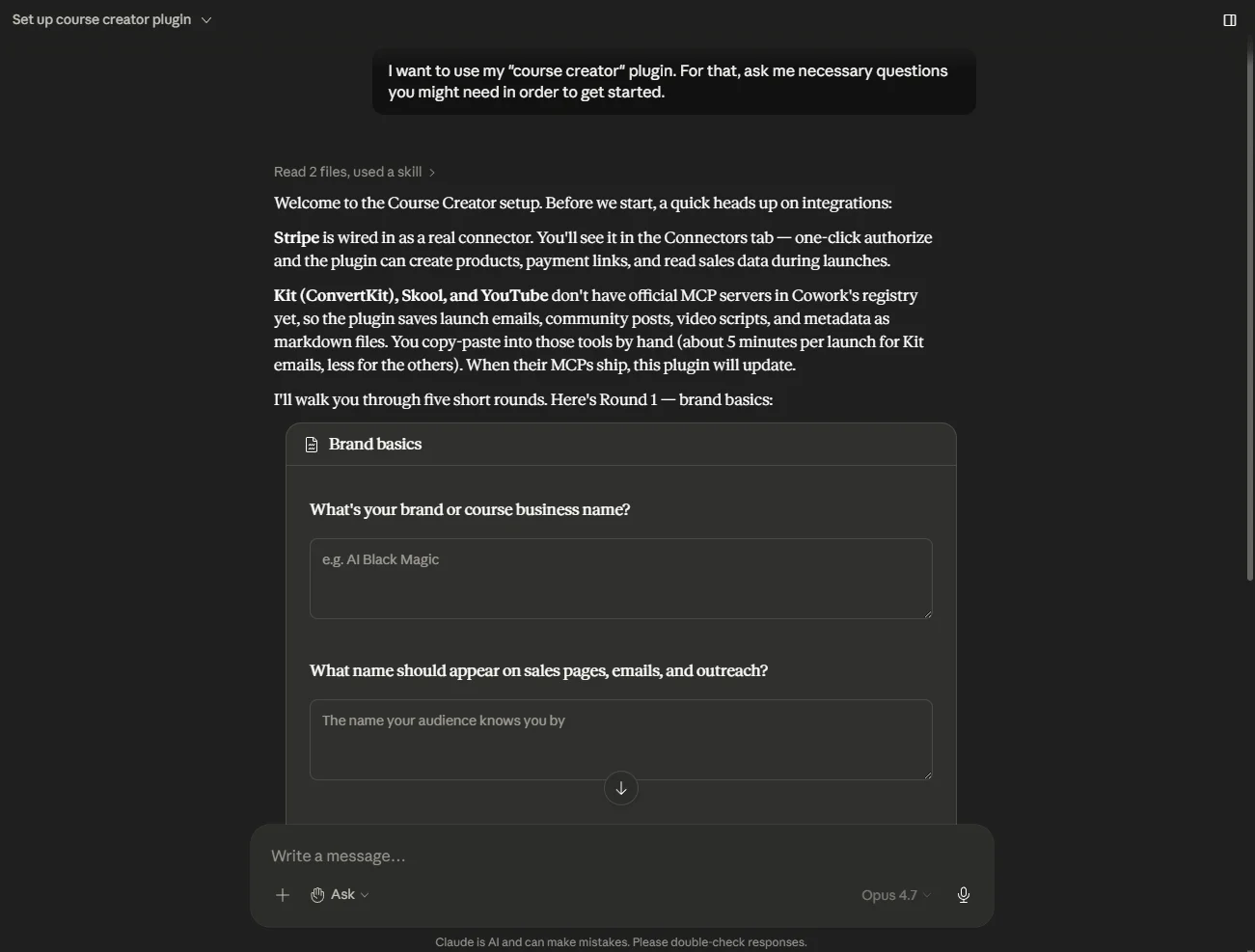
The first time you use Course Creator, the setup skill runs automatically. You will see Claude introduce itself and explain the connector situation in plain English (Stripe is wired in, the rest are copy-paste). Then it asks you 5 rounds of questions.
Round 1: Brand basics
Your brand name, your name as the founder, your website, and your one-line tagline.
Round 2: Voice and tone
How you sound when you write. 6 style options plus a free-text answer. Words you avoid, words you favor, emoji preference.
Round 3: Audience
Who your course is for. Their experience level, what they are doing today, what they want, and the most common reasons they say no to buying.
Round 4: Niche and outputs
What industry or topic you teach in. Where files should be saved. Your brand colors and fonts for the HTML preview.
Round 5: Course defaults
Preferred course length, delivery format, rough price anchors, default guarantee, and a 2-4 sentence founder bio.
Re-run anytime
Say "set up course creator again" anytime to update your settings. You only have to answer the rounds you want to change.
The whole thing takes about 5 minutes. Your answers save to a settings file you can edit anytime. You can also keep multiple settings files if you launch courses in different niches with different brand voices.
The 8 Skills Inside Course Creator
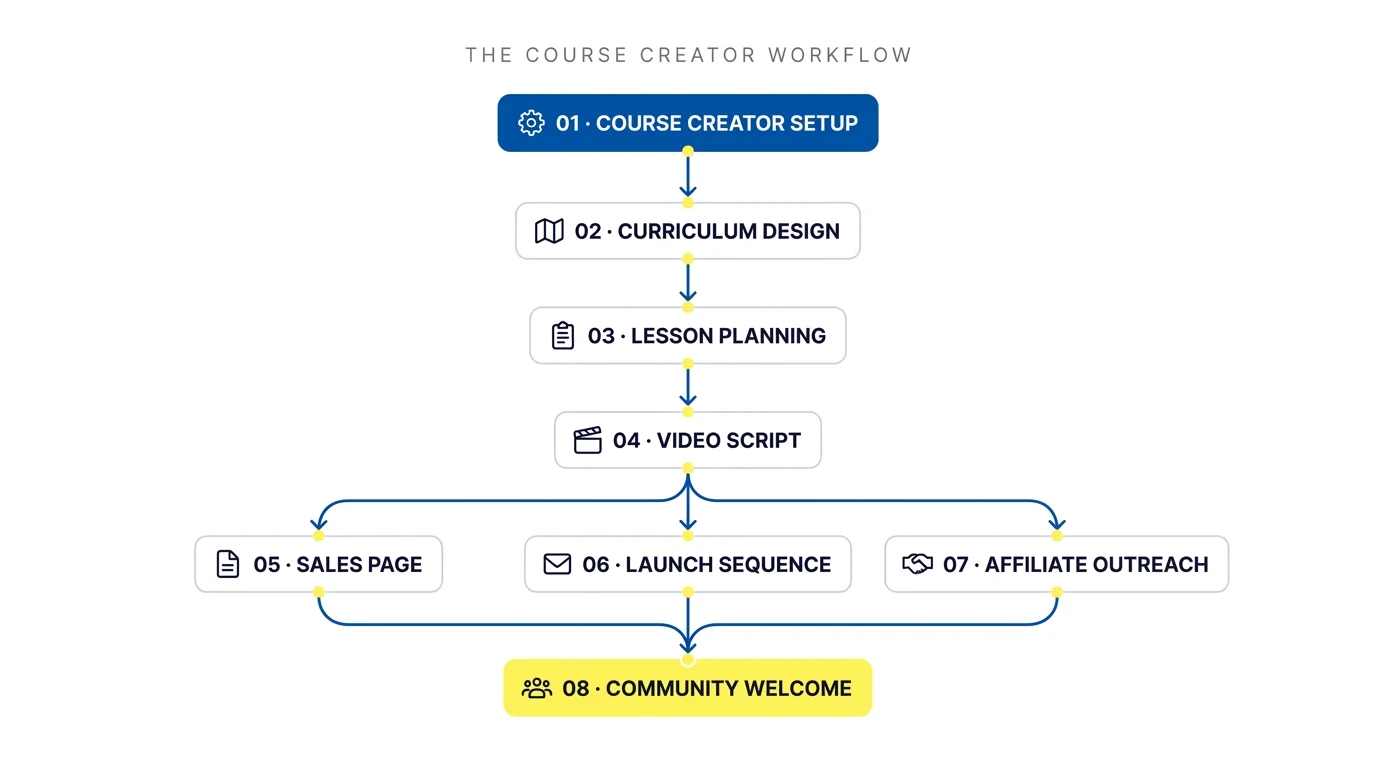
The plugin includes 8 skills total. One sets things up, the other seven do the actual work of building your course business. Here is what each one does, from first invocation to final output.
01 Course Creator Setup
The onboarding skill covered above. Run this first. Re-run anytime you want to update your settings. This is the only skill that needs to run before any other.
02 Curriculum Design
You give it a topic. It writes the complete course outline: three potential course titles (each from a different angle), a course promise, ideal student profile, prerequisites, learning outcomes, and a module-by-module breakdown with lesson titles and the deliverable each module produces.
The skill comes with a reference library of 5 proven course-design frameworks: Backwards Design, ADDIE, Bloom's Taxonomy, McDonald's Method, and Story Spine. The plugin picks the right one for your topic without you having to know any of them by name.
The output is everything you need before writing a single lesson. Hand it to the next skill in the chain and keep building.
03 Lesson Planning
You hand it a module from your curriculum. It writes detailed plans for each lesson inside that module: a strong opening hook (chosen from 12 proven patterns), 3-5 core teaching points with examples, a demonstration or walk-through, a 20-minute homework exercise that produces a real artifact, a one-sentence key takeaway, and 4-8 visual cues for filming or screen recording.
You can run this once per module to expand your whole curriculum, or just for a single module if you want to start filming right away.
04 Video Script
You give it a lesson plan. It writes the full word-for-word script you will read on camera. Includes timed sections, camera angle cues, B-roll suggestions, on-screen text, a recap, an exercise prompt, and a CTA outro.
The Runtime Calculator helper that ships with this skill counts spoken words, calculates runtime at your preferred words-per-minute, and pulls out a complete shot list automatically. Hand the shot list to your video editor and they can batch-record every B-roll piece in one session.
05 Sales Page
You give it your course curriculum. It writes a full long-form sales page with 13 sections: headline block (with three headline options to A/B test), problem agitation, the bridge, introducing the course, what is inside (module-by-module), the before-and-after section, founder bio, social proof, bonuses, the offer, guarantee, FAQ, and final CTA. Plus a short-form variant for warm audiences who already know you.
The HTML Preview Maker helper converts the markdown sales page into a polished branded preview using your brand colors and fonts. Open it in your browser, scroll through, see what your audience will see. Useful for getting feedback before you publish.
06 Launch Sequence
You tell it your cart-open and cart-close dates. It writes all 22 emails in a full launch: 7 pre-launch warm-up emails, 8 open-cart emails (including double sends on open day and close day, which historically drive 30-50% of launch revenue), and 5 post-launch emails (3 for buyers, 2 for non-buyers).
Each email comes with subject line, preview text, body, send time, and a P.S. where it strengthens the message. The Launch Schedule Calculator helper takes your cart dates and timezone and outputs a spreadsheet with the exact day and time to send every email. No more "what time should I send the close-day email" math.
07 Affiliate Outreach
You give it your course details and target affiliate types. It produces four artifacts: a candidate brief with target-profile criteria and prioritization, three outreach email templates calibrated to relationship tier (warm, lukewarm, cold), a complete JV partner kit (with email swipes, social posts, DM scripts, and podcast ad reads), and a 2-email follow-up sequence for non-responders.
The candidate brief includes a tracking sheet template so you can keep your outreach organized as you go.
08 Community Welcome
You tell it what platform you use (Skool, Circle, Discord, Slack, Facebook Group, or Mighty Networks). It writes a 14-day onboarding flow with day-by-day touchpoints (welcome DM, intro post, founder check-in, week-1 wrap, feedback ask), 7 week-one daily prompts that mix question types, 3-5 weekly recurring rituals (Monday goals, Tuesday tools, Wednesday wins, Thursday Q&A, Friday founder AMA), and admin response scripts for common community situations.
The reference library inside this skill handles formatting differences across platforms, so Discord posts look right for Discord and Skool posts look right for Skool.
How they chain together: The skills are designed to feed into each other. Plan the curriculum first. Then break each module into lessons. Then write scripts for each lesson. Then write the sales page. Then build the launch sequence. Then run the community welcome flow once students start showing up. Each step uses output from the previous step automatically.
The Killer Use Case
Once your setup is complete, you can run this single prompt and the plugin chains every skill in order:
That one prompt produces:
- A complete 6-module course curriculum with three headline options
- 18 to 36 individual lesson plans (3-6 lessons per module)
- All lesson scripts, fully word-for-word, ready to film
- A polished long-form sales page plus an HTML preview you can share
- 22 launch emails with subject lines, preview text, send times, and CTAs
- A spreadsheet of exact send timestamps for the entire launch
About 30 to 45 minutes of your time, end to end. The same work done manually is typically 2 to 3 weeks of work spread across a project team. The plugin compresses it into a single session you can run on a Saturday morning.
One thing to know: the plugin produces a great first draft. Most experienced course creators still spend an hour or two doing a final polish pass on the sales page and the most important launch emails. The plugin saves you from writing from a blank screen, but your taste still matters for the last 10%.
Tool Connections At A Glance
Course Creator works with four tools your course business uses. Only one needs setup. The other three are copy-paste workflows that take about 15 minutes per launch.
| Tool | What it is | Setup | How you'll use it |
|---|---|---|---|
| Stripe | Payment processor | One click | Direct: plugin creates payment links and reads sales for you |
| Kit (ConvertKit) | Email tool | None | Copy-paste: plugin writes emails, you paste them into Kit |
| Skool | Community platform | None | Copy-paste: plugin writes posts, you paste them into Skool |
| YouTube | Video host | None | Copy-paste: plugin writes scripts and descriptions, you paste them in |
The plugin works fine without any of these. Everything gets saved as clean documents you can use anywhere. Connecting Stripe just saves you a few clicks when launching.
For full step-by-step setup instructions for each tool and a more detailed view of the copy-paste workflows, download the Connectors guide:
The Files The Plugin Saves
Every time you run a skill, the plugin saves the output as a file in your chosen output folder. The names follow a predictable pattern so you can find things easily, especially when you are running multiple courses at once.
Common file names you will see
curriculum-[your topic].md
module-[number]-[module name].md
script-module-[N]-lesson-[N]-[lesson slug].md
sales-page-[your course]-long.md (+ .html preview)
sales-page-[your course]-short.md
launch-pre-launch-[your course].md
launch-open-cart-[your course].md
launch-post-launch-[your course].md
launch-schedule-[your course].csv
affiliate-candidates-[your course].md
affiliate-outreach-templates-[your course].md
affiliate-partner-kit-[your course].md
affiliate-followup-[your course].md
community-onboarding-flow-[your course].md
community-week1-prompts-[your course].md
community-weekly-rituals-[your course].md
community-response-scripts-[your course].md
All plain text (.md files). Open them in any editor, paste into Google Docs, paste into Notion, or send straight to a teammate.
The Full README
Everything in this article is covered in more depth in the Course Creator README document. The README walks through each skill in detail, lists every helper script and reference library, explains how to change your settings later, and documents the version history. Useful as a desk reference once you start using the plugin regularly.
What Comes Next
Course Creator is currently at version 0.2.2. The roadmap includes:
Direct connections
When Kit, Skool, and YouTube build their own connection tools, the plugin will wire them in. Same one-click flow as Stripe.
More skills
Cohort management, affiliate tracking, recurring revenue workflows, and platform-specific launch flows for Teachable, Thinkific, and Kajabi.
Better personalization
Smarter voice matching, per-course brand profiles, and audience-specific variant generation for sales pages and launch emails.
Community-built extensions
Plugin extensions written by other AI Black Magic users. If you build something useful, you will be able to publish it back.
To get notified when updates ship, sign up for the AI Black Magic newsletter. Updates to the plugin install automatically once you have the latest version.
Try It This Weekend
The biggest reason most courses never ship is not that the creator does not know enough. It is that the work between "I have expertise" and "people are paying me for it" is massive, technical, and unevenly distributed across skills the average solopreneur does not have. Course Creator is an attempt to fix that.
The plugin will not replace your taste, your judgment, or your decision about what to teach. But it will save you from spending six months on the parts of a launch that have always been a project manager's job, not yours.
Here is the action: download the plugin from the link at the top of this article. Drag it into Cowork. Run the setup. Then try the killer use case prompt with a real topic you have been thinking about. You will know in 30 minutes whether this is the right fit.
The shortcut: If you only do one thing after reading this article, do this. Open Cowork. Run "set up course creator". Then say "plan a 6-module course on [your topic], write all the lesson scripts, design the sales page, and build the entire 7-day launch email sequence." See what comes out. You can decide what to keep, what to change, and what to ship.
That is the plugin. Built by AI Black Magic, for solopreneurs and creators who want to turn what they know into a course people pay for. Now go ship something.